To install the software:
1. Locate and open the folder where you downloaded the Precor Channel Editor software.
2. Right-click the .zip archive file containing the software and select
.
3. Follow the instructions on the screen to extract the contents of the .zip file.
4. Double-click the
version
file, where version is the number of the new software version you want to
install. The installation process completes automatically.
To start the software:
1. On the Start menu, point to
.
2. On the All Programs menu, click
.
Use the ribbon
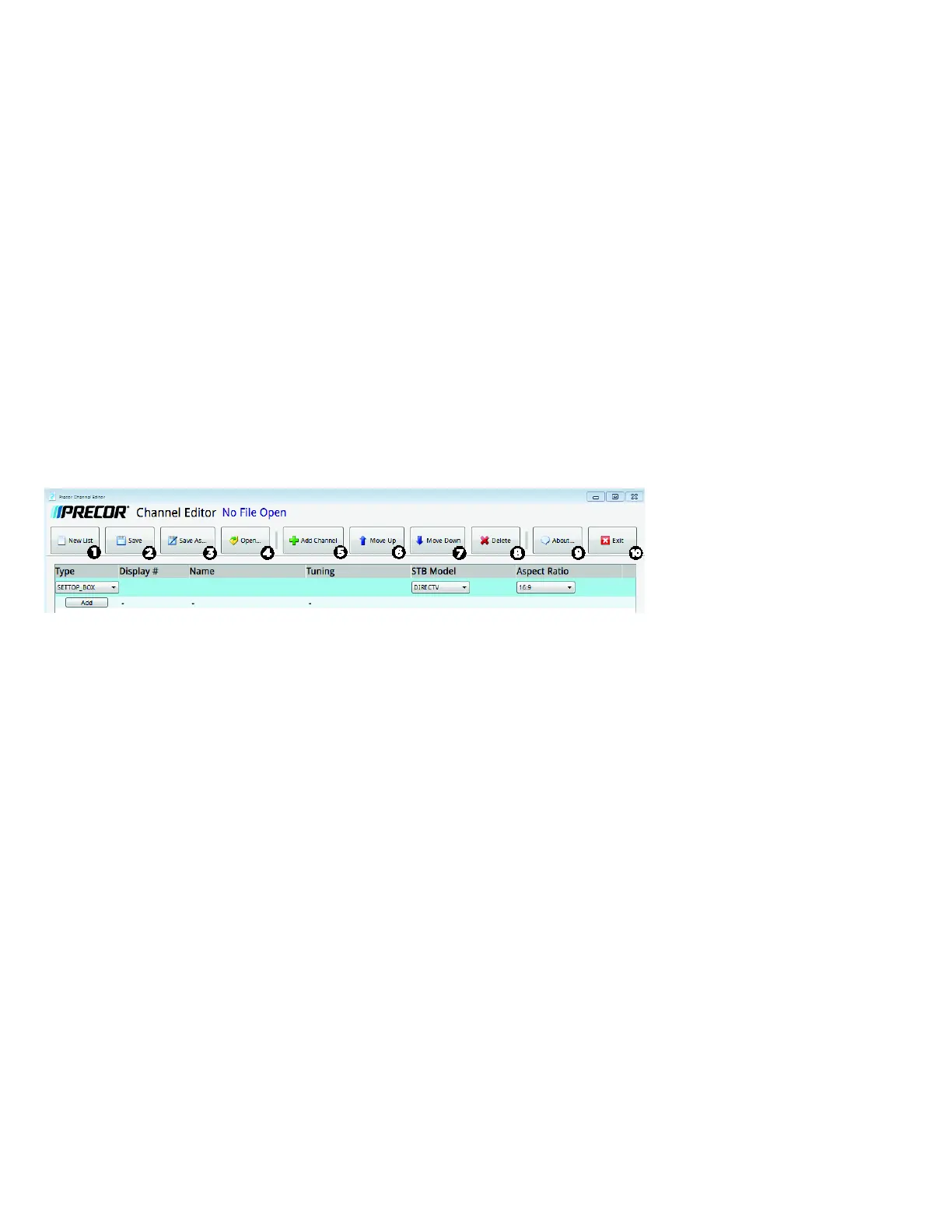
The Precor Channel Editor consists of a channel table and a command ribbon, as shown in the following figure. The editor also provides
shortcut keys for the more commonly used buttons on the ribbon.
Aspect Ratio can be set to either 4:30 or 16:9.
Note For P82/P62 consoles, you can set your set-top box model in the TV Settings menu. For HDMI channels on a P80 console only,
select the brand of receiver you are using:
,
, or
.



 To Next Page