- to edit the selected picture. When the picture is zoomed in, drag the picture to view parts that are
not in view. When the picture is zoomed to fit the window, drag left or right to view the next or previous
picture in the album.
or to rotate the picture/photo 90° anticlockwise or clockwise;
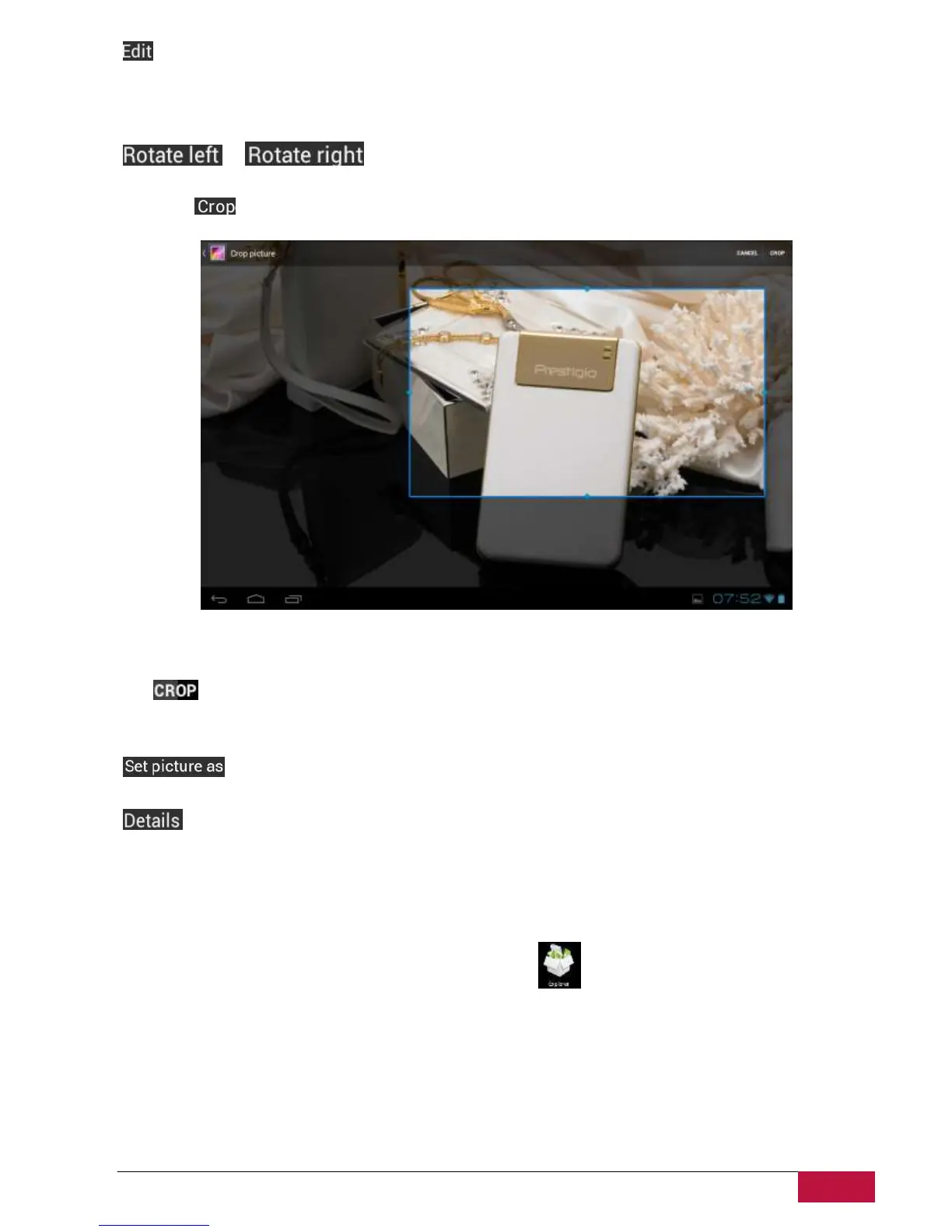
If you tap icon the following cropping rectangle will appear on top of the picture/photo:
Drag from the inside of the cropping tool to move it; drag an edge of the cropping tool to resize it to any
proportion; drag a corner of the cropping tool to resize it with a fixed proportions.
Tap to save a copy of the picture as you cropped it. The original (not cropped) version remains on
your SD card.
to set the current picture/photo as wallpaper;
to see more details about the current picture/photo;
7.4 File Manager
Introduction to File Manager
On the Home screen, tap the File Manager (Explorer) icon to open it as follows:



 To Next Page