11
DATE AND TIME IMPRINT FEATURE
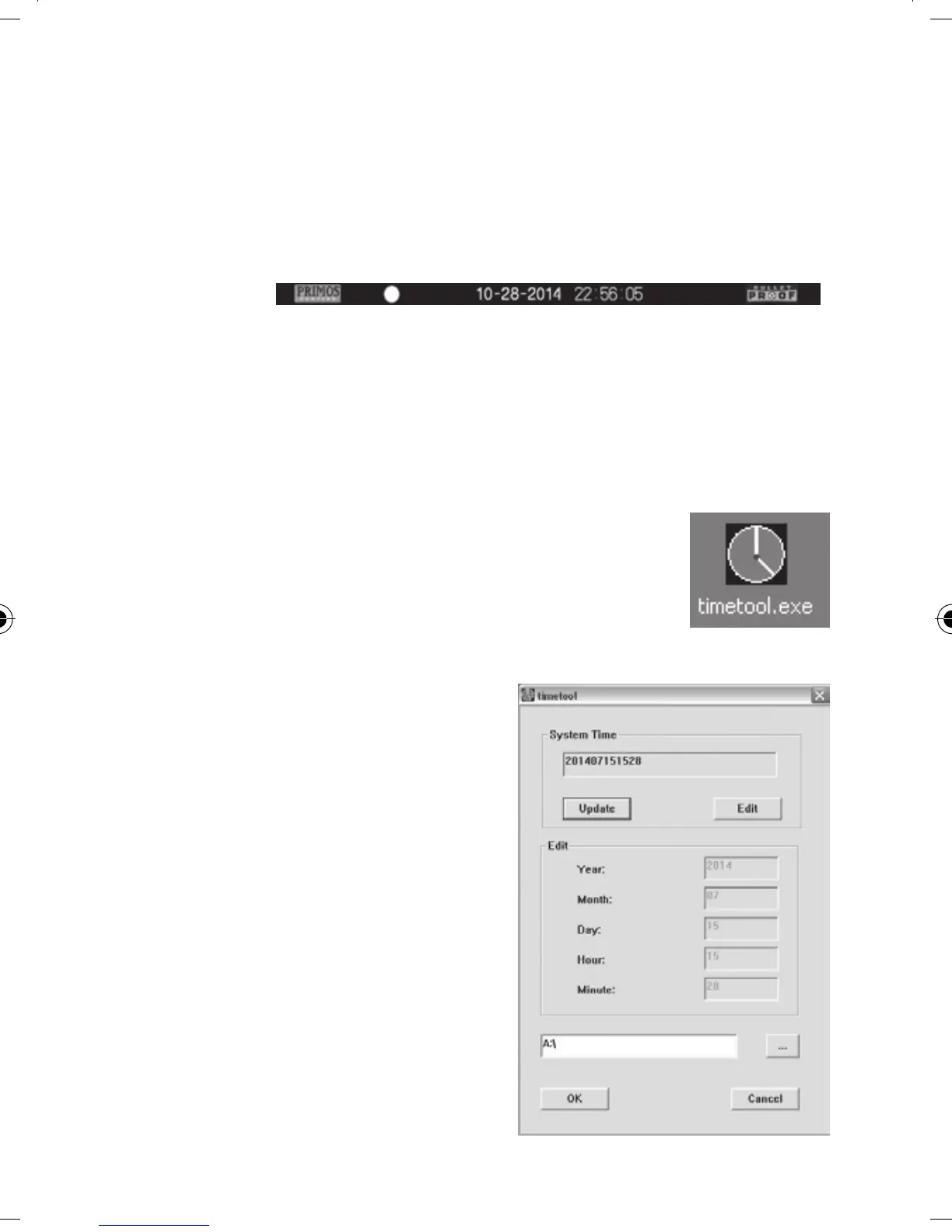
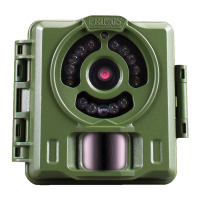
Your Digital BULLET PROOF 2 Game Camera will automatically imprint
the date, time and moon phase on each photo it captures, based on the
initial date and time data in a text le you can generate and save on the
SD card, as described below. If no text le with date/time is found on the
card when the camera is turned on, only “Primos” will be imprinted on
the photos.
Requirements:
• A PC computer with an internal SD card slot, or an external USB
card reader.
• The “Timetool” application (Windows only-Mac users see next page),
which is provided by the camera-see details below.
Steps:
1. Insert a new SD card in the camera’s card slot.
Switch the BULLET PROOF 2 Game Camera
to “PIC”. The “Timetool.exe” software will be
automatically saved to the card. The Operating
Status indicator LED (pg. 9) will go out when this
is done. Do not remove the card while the LED is on.
2. Turn o the camera and
remove the SD card. Insert
the card in your computer’s
SD card slot or a compatible
USB connected card reader.
View the SD card contents-
double click to open the le
“timetool.exe”. Note: if the
Timetool window doesn’t pop
up after inserting the card, go
to Start>Computer, and double
click “Removable Storage” to
view the SD card contents.
3. Click “Update” in the Timetool
window to automatically ll in
the date and time from your
2
4
3
1
Primos 63063 BulletProof2 Cam_1LIM_rev5.indd 11 1/20/16 2:14 PM


 To Next Page