EasyManua.ls Logo

Printronix ThermaLine T5000r - User Manual

Printronix ThermaLine T5000r
102 pages
Print Icon
To Next Page IconTo Next Page
Loading...
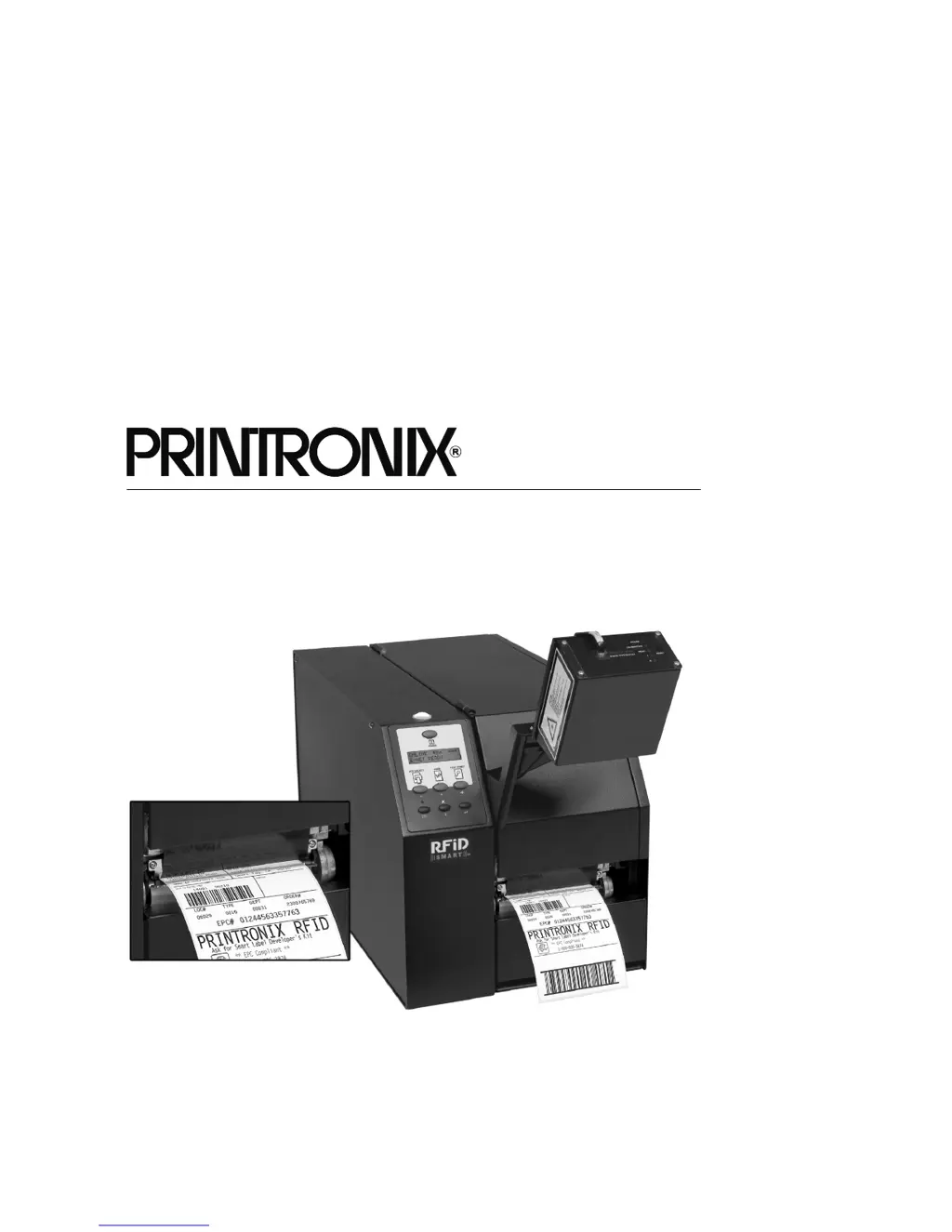
Online Data Validator Users Manual
SL5000
r
and T5000
r
RFID Smart Label and Thermal Printers

Questions and Answers

  • C
    Carol ThorntonJul 29, 2025
    Why are printed bar codes causing error conditions on my Printronix ThermaLine T5000r Label Maker?
    • D
      Douglas KingJul 29, 2025
      Several factors can cause validation errors with your Printronix Label Maker. Ensure the scanning beam aligns with the tear bar notches. The entire barcode must pass under the scanning beam. Verify proper communication between the validator and printer by testing without a host. Check that the barcode width is between 6.6 mil and 40 mil for x-dimensions. The barcode should be at least 1/8 inch tall. Note that the validator supports only Codabar, Code 39, Code 93, Code 128, Interleaved 2 of 5, and UPC/EAN linear barcodes; stacked, 2D, and vertical barcodes are not supported.
  • C
    Crystal FordAug 3, 2025
    What to do if Printronix Label Maker validator reports error message on clean labels?
    • C
      Cory HolmesAug 3, 2025
      If your Printronix Label Maker is reporting errors even when the printed labels appear clean, the validator glass may be dirty. This can distort the scan results. To resolve this, power down the printer and clean the glass with a household glass cleaner and a dry, lint-free cloth.
  • J
    johnmooreAug 9, 2025
    How to fix Printronix ThermaLine T5000r when the scanning beam does not come on?
    • T
      Thomas LeAug 9, 2025
      If the scanning beam on your Printronix Label Maker does not turn on: * Ensure the power/data cable is securely plugged into both the validator and the printer's controller board. * Check the VALIDATOR menu to confirm the validator hasn't been disabled. * Try printing a bar code validation demo page. * If the issue continues, contact your service representative.
  • F
    fwilsonAug 13, 2025
    How to adjust the scanning beam width on a Printronix ThermaLine T5000r?
    • W
      whitetaylorAug 14, 2025
      If the scanning beam on your Printronix Label Maker doesn't cover the full label width: 1. Adjust the validator along the lower bracket to ensure the scanning beam spans the entire width of the labels. 2. Use the Beam Shift feature to horizontally reposition the beam to cover the complete label width.
  • N
    nicholas60Aug 19, 2025
    What to do if Printronix ThermaLine T5000r shows error messages printing small bar codes?
    • J
      John McmillanSep 12, 2025
      The validator on your Printronix Label Maker may not recognize x-dimensions as small as 3 mil or 5 mil. If you must print barcodes of this size, disable the validator to prevent error reports.
  • W
    williamsanthonyAug 25, 2025
    Why does my Printronix ThermaLine T5000r pause after scanning each label?
    • S
      Samantha ScottAug 25, 2025
      If your Printronix Label Maker pauses after scanning each label, and you have an RFID encoder but are not encoding RFID tags, ensure that RFID Reader is set to Disable in the RFID CONTROL menu.

Summary

Installation Instructions

Validator Overview and Installation Parameters

Introduces the validator, its parameters, and initial setup steps.

Validator Physical Installation

Details the step-by-step process for physically installing the validator onto the printer.

Scanning Beam Adjustment

Explains how to align the scanning beam for optimal performance based on media handling modes.

Validator Calibration Procedure

Guides through the process of calibrating the validator for accurate scanning.

Safety Notices

Laser Safety Warnings and Precautions

Critical warnings regarding Class 2 laser light exposure and proper handling procedures.

Operation

Basic Validator Setup and Controls

Covers initial setup, unit positioning, and front panel controls.

Configuring Validator Settings via Menu

Details how to enable, disable, and configure various validator options via the printer menu.

Advanced Validator Configuration Parameters

Covers advanced parameters like decodeability, defects, and overall grade.

Barcode Analysis Process and Print Speed

Discusses the analysis process and how print speed affects validation accuracy.

Bar Code Failures

Bar Code Error Detection and Reporting

Explains how bad or missing bar codes are detected and reported by the validator.

Error Handling Actions and Messages

Details printer responses to errors and lists common error messages with solutions.

Troubleshooting

Troubleshooting Common Validator Symptoms

Provides a table of common symptoms and their corresponding troubleshooting steps.

Diagnosing Label Quality Issues

Addresses issues related to label quality and how they impact validation.

Maintenance

Validator Cleaning and Service Support

Instructions for routine cleaning and seeking support for persistent issues.

Contact Information

Printronix Support and Contact Details

Provides contact details for customer support, supplies, and corporate offices.

Printronix ThermaLine T5000r Specifications

General IconGeneral
Print TechnologyThermal Transfer
Power Requirements100-240 VAC, 50/60 Hz
Print Resolution300 dpi
Print Speed10 ips
Max. Print Width4.1 inches
Media Width4.5 inches
Media TypeLabels, tags, tickets
Media HandlingCutter
ConnectivityUSB, Serial, Parallel, Ethernet
Memory16 MB SDRAM
Supported Barcode TypesCode 39, Code 128, UPC, Data Matrix, QR Code, PDF417
Supported Operating SystemsWindows
Media Thickness0.0025 inch to 0.010 inch (0.0635 mm to 0.254 mm)

Related product manuals