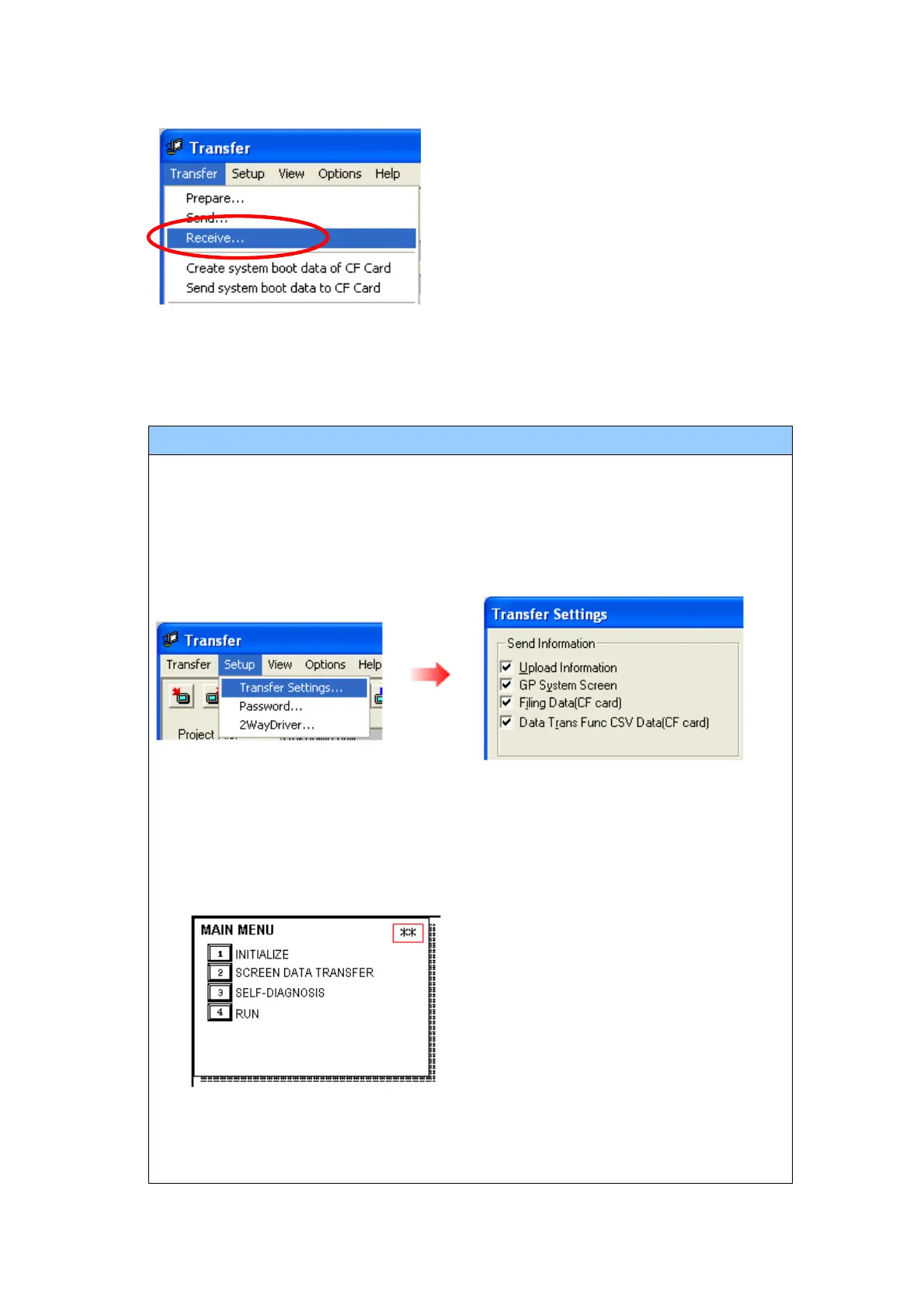
5. Select the [Transfer] menu and click [Receive...].
6. Specify the location to save the received screen data at and the project file name
“Upload Information” is necessary to receive screen data from GP-577RT/S. It
needs to be included in screen data when transferring screen data to the display
unit beforehand. The Upload Information is sent to the display unit by default,
however, you may check off the box of Upload Information to prevent screen
reception by a third party.
You can check in the following way if the Upload Information has been sent or not.
1. Enter into the GP’s Offline mode
2. If there are 2 asterisk (*) marks in the Main menu as shown below, the
Upload Information has been sent.
If not, there is no “Upload Information” sent. In this case, a message, which
indicates there is no “Upload Information”, appears and you cannot receive the
data.



 To Next Page