EasyManua.ls Logo

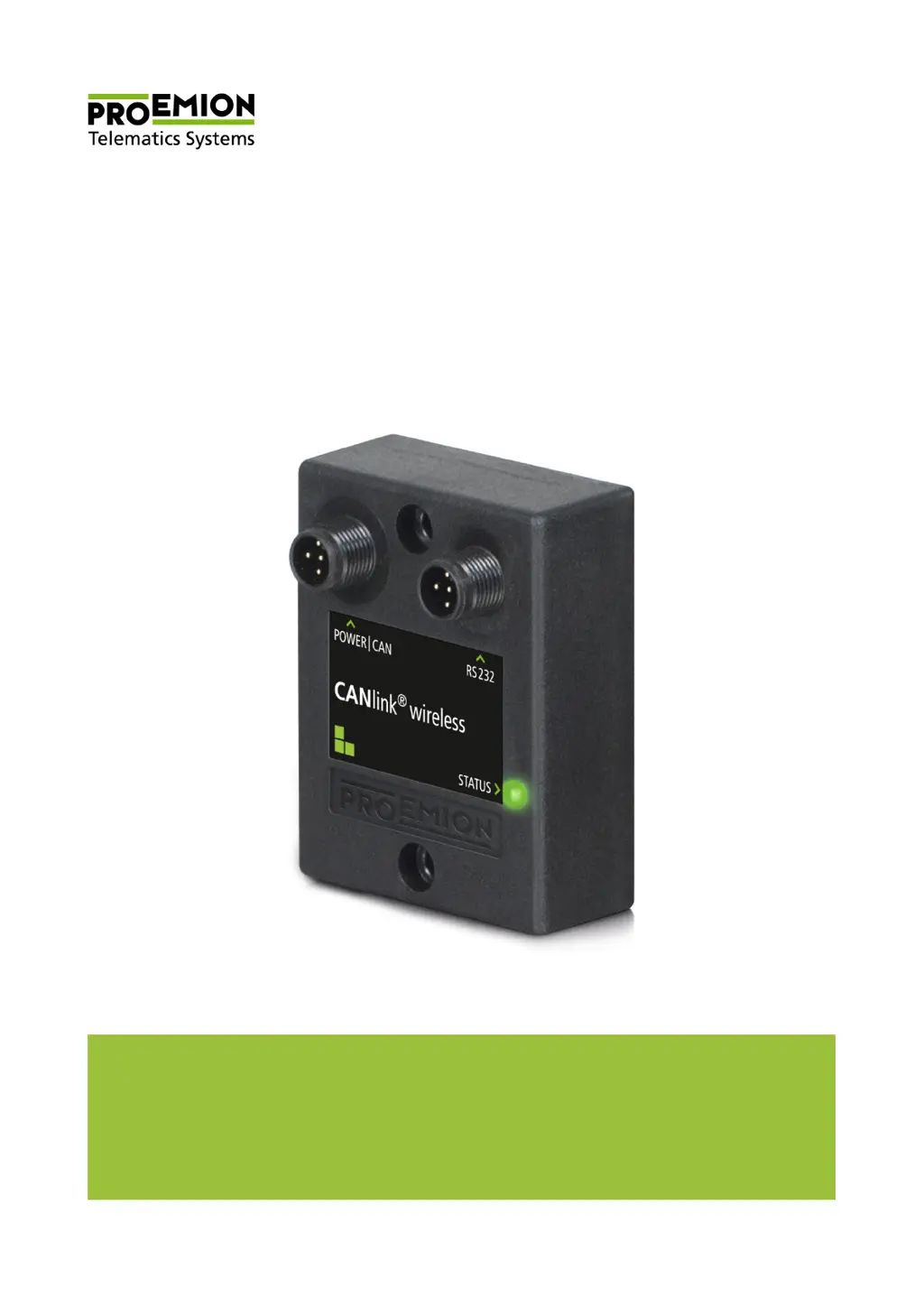
PROEMION CANlink wireless 3000 Series - User Manual

Default Icon
135 pages
Print Icon
To Next Page IconTo Next Page
Loading...
Device Manual
CANlink wireless 3000 series
Device Manual
CANlink wireless 3000 series

Table of Contents

Questions and Answers

Summary

About the Device

Important Device Information

Key details about the device, including its components and specifications.

Device Elements

Overview of the device's physical components and their labels.

Type Label

Details of the label on the device's rear, listing key information.

Intended Use

Defines the appropriate applications and operational environments for the device.

Conformity

Details device compliance with relevant standards and legal requirements.

Device Functions

Explains the various operational modes and capabilities of the device.

Available Models

Lists and describes the different model variants of the CANlink wireless.

Scope of Supply

Details the items included in the general product package.

Starter Kits

Lists the components included in starter kits for initial setup.

Software and Accessories

Information on required software and optional accessories for the device.

Service and Support

Information on how to obtain technical support and assistance.

Safety Information

Safety Instructions

Essential guidelines to prevent injury, death, or damage from device use.

FCC Notes

Information regarding FCC compliance and operating rules for the device.

Warranty and Liability

Outlines the terms of warranty and PROEMION GmbH's liability.

Functionality and Features

Functions

Lists and describes the core functions of the CANlink wireless device.

CAN-Bluetooth Interface

Explains data transmission to Bluetooth devices via CAN.

CAN-CAN-Bluetooth Bridge

Enables wireless CAN data transmission between two devices.

CAN-WLAN Interface

Facilitates wireless CAN data transmission to WLAN-capable devices.

CAN-CAN-WLAN Bridge

Enables wireless CAN data transmission between two CAN bus systems via WLAN.

Connectors

Describes the physical connectors on the device and their purpose.

CAN; Power Connector

Details the pin assignment for connecting CAN bus and power.

RS232 Connector

Describes the RS232 connector for PC communication and updates.

RF Antenna

Information on connecting an external RF antenna for WLAN/Bluetooth.

Indicator Element (LED)

Explains the function and status indicated by the device's LED.

Cable

Details the various cables used with the device and their specifications.

CAN;Power Connector Cable

Details the pinout and connectors of the CAN/power cable.

RS232 Connection Cable

Details the connectors and purpose of the USB-RS232 cable.

Getting Started

Installing Software

Instructions for installing necessary software and drivers on a PC.

Connecting the Device

Guides on physically connecting the device for operation.

Connecting an External Antenna

Procedure for connecting an external antenna to the device.

CAN

How to connect the device to a CAN bus for data logging.

CAN Bus Termination

Explains the importance and method of CAN bus termination.

Power Supply

Details on how to supply power to the device.

Connecting the Device with a PC via RS232

Steps to establish a PC connection using RS232 for configuration.

Saving the Device Configuration

Procedure for backing up the current device configuration.

Operation as a CAN-Bluetooth Interface

How to use the device for CAN data transmission via Bluetooth.

Configuring a CAN-Bluetooth Interface

Steps to configure the device for CAN-Bluetooth communication.

Performing a Function Test of the CAN-Bluetooth Interface

Guide to testing the CAN-Bluetooth interface functionality.

Operation as a CAN-CAN-Bluetooth Bridge

How to use the device as a bridge between two CAN systems via Bluetooth.

Configuring a CAN-CAN-Bluetooth Bridge

Steps to configure the device as a CAN-CAN-Bluetooth Bridge master/slave.

Performing a Function Test of the CAN-CAN-Bluetooth Bridge

Guide to testing the CAN-CAN-Bluetooth Bridge functionality.

Operation as a CAN-WLAN Interface

How to use the device for CAN data transmission via WLAN.

Configuring a CAN-WLAN Interface

Steps to configure the device for CAN-WLAN communication.

Performing a Function Test of the CAN-WLAN Interface

Guide to testing the CAN-WLAN interface functionality.

Operation as a CAN-CAN-WLAN Bridge

How to use the device as a bridge between two CAN systems via WLAN.

Configuring a CAN-CAN-WLAN Bridge

Steps to configure the device as a CAN-CAN-WLAN Bridge master/slave.

Performing a Function Test of the CAN-CAN-WLAN Bridge

Guide to testing the CAN-CAN-WLAN Bridge functionality.

Mounting the Device

Instructions for physically mounting the device.

Operation

CANlink Wireless Configurator

Introduction to the software tool for configuring the device.

User Interface

Description of the CANlink wireless Configurator's main screen elements.

Configuration Interface

Overview of the interface for creating or loading device configurations.

CAN Functions

Details on using and configuring the device's CAN communication capabilities.

CAN; CANopen

Information on using the device with CANopen for communication.

Enabling the CANopen Stack

How to enable and configure the CANopen stack for specific messages.

Boot-Up Message

Procedure for enabling the device to send a CANopen boot-up message.

Filter Received CAN Messages

Details on setting up message filters to control CAN data transmission.

Firmware Update

Instructions for updating the device's firmware to the latest version.

Performing a Firmware Update via the RS232 Interface

Step-by-step guide for updating the device firmware using RS232.

Reset Device (Repair Mode)

Procedure to reset the device to factory default settings.

Troubleshooting and Maintenance

Remedies

Common problems and their potential causes and solutions.

Maintenance

Guidelines for regular checks and upkeep of the device.

Packaging and Transport

Disposal

Regulations in the European Union

Information on proper disposal according to EU WEEE directive.

Annex

Technical Drawings

Diagrams showing the physical dimensions of the device variants.

Technical Data

Detailed specifications of the device's electrical and mechanical properties.

Mechanical Data

Specifications related to the device's physical characteristics and materials.

Electrical Data

Specifications related to the device's power, memory, and electronics.

Interfaces

Details on supported communication interfaces and protocols.

Protocols

List of communication protocols supported by the device.

Status Indicators

Explanation of the device's status indicators and LEDs.

Certifications

Documentation of the device's compliance with various certifications.

PROEMION CANlink wireless 3000 Series Specifications

General IconGeneral
BrandPROEMION
ModelCANlink wireless 3000 Series
CategoryNetwork Hardware
LanguageEnglish

Related product manuals