17
CONTROLLING THE DRONE VIA THE APP
First press the unlock button to unlock the drone for flight. The propellers
will start to spin. If this does not happen, swipe from the top of your screen, turn
off your phone’s WiFi and reconnect using steps 4 – 8 on the previous page.
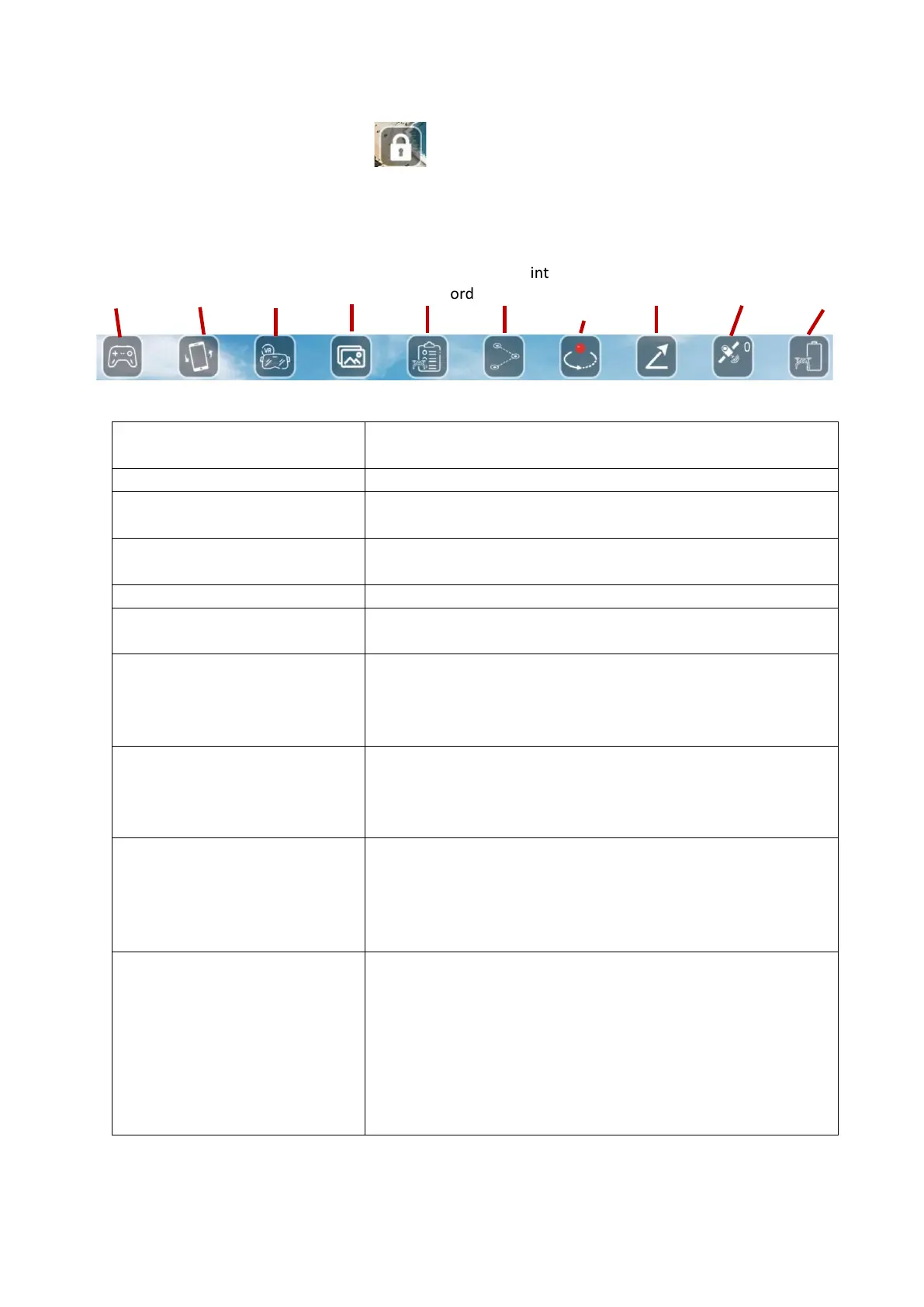
Tap to display to on screen joysticks to allow control of the
drone.
If the image is upside down, press this to correct.
Press to enter VR mode. (Only applicable to phones
connected to a V.R headset.
Press to enter the media library to see your saved pictures
and videos and for one-click sharing.
Press to view the flight record.
Multi-point flight
(Requires GPS)
The aircraft will fly according to the location selected on the
map.
Point-surrounded flight
(Requires GPS)
The aircraft nose will fly around clockwise or counter
clockwise with the current position of the aircraft as the
centre. You can control the rise, fall, forward, and reverse
to adjust.
When taking a video, the camera will focus on the video
object (can be people or an object) and the drone will
continually move back and rise at same time till 50 meters
high then stop this function.
Indicates the current flight mode and the number of
satellites visible; the flashing indicates that the current flow
mode is fixed, and there is no return, follow, surround and
pointing flight functions. Steady light indicates that the
current mode is GPS.
Shows the current battery level of the drone.
2-4 bars: Indicates normal power, and the return, follow,
surround and pointing flight functions can be used
normally.
1 bar: Indicates that the vehicle is currently low on battery,
and the aircraft will perform the automatic return function;
there is no following, surround and pointing flight function
while the battery is low.



 To Next Page