INSTRUCTION DISPLAY
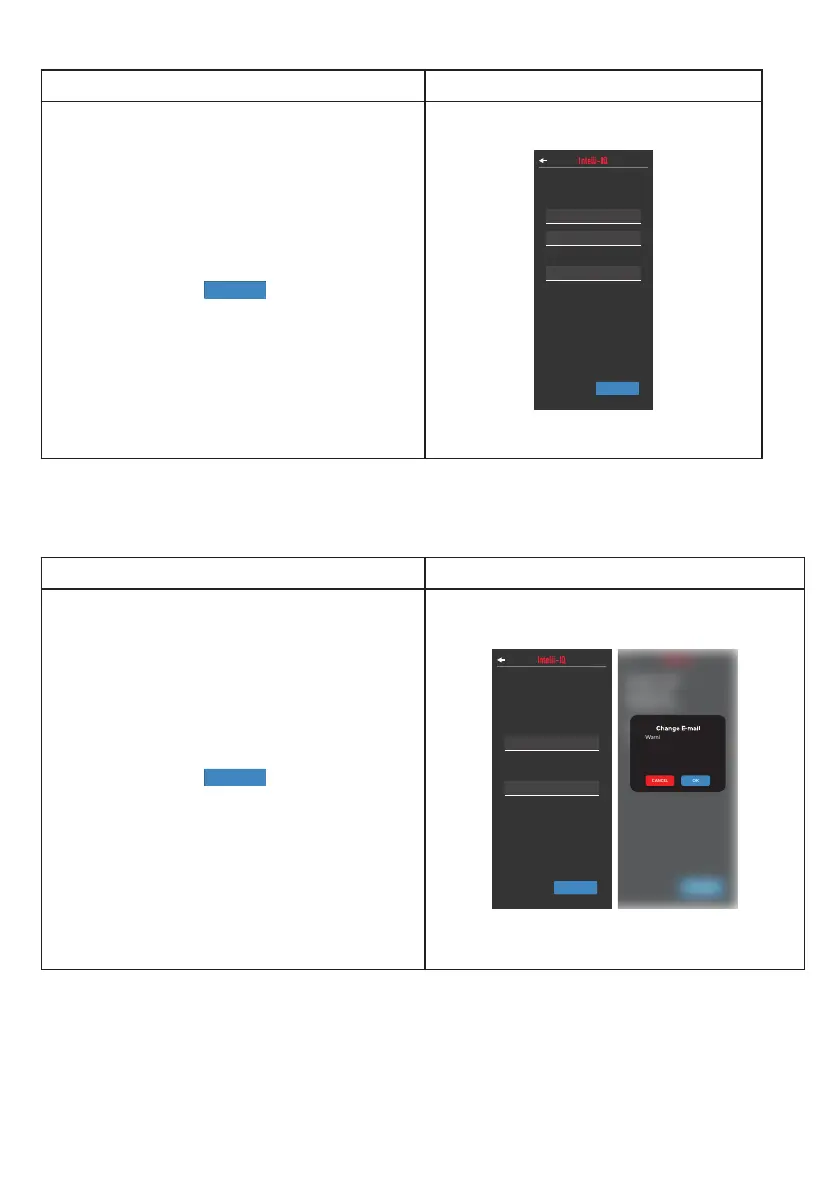
Inside the User settings screen to change the
name, tap “CHANGE PASSWORD” to open the
Change Password screen screen.
To change your password you will need to enter
your old password, a new password and also
conrm the new password again.
When ready, tap the
CONFIRM
CONFIRM NEW PASSWORD
NEW PASSWORD
Change Password
Password needs at least 8 characters with 1 or more
numbers and 1 or more uppercase characters.
OLD PASSWORD
button. When
the password update is complete, you will be
automatically returned to the User Settings
screen.
NOTE: Your password needs to be at least 8
characters long with 1 or more numbers and 1 or
more uppercase characters.
CONFIRM
CONFIRM NEW PASSWORD
NEW PASSWORD
Change Password
Password needs at least 8 characters with 1 or more
numbers and 1 or more uppercase characters.
OLD PASSWORD
INSTRUCTION DISPLAY
Inside the User settings screen to change the
name, tap your current e-mail to open the
Change E-mail screen screen.
To change your e-mail you will need to enter
a new e-mail and also enter your password to
conrm the change.
When ready, tap the
Peter@peter.com
Change E-mail
Current E-mail
CONFIRM
NEW EMAIL
CONFIRM PASSWORD
To change your e-mail you need
to confirm your password.
button. When
the e-mail update is complete, you will be
automatically returned to the User Settings
screen.
NOTE: Upon changing your e-mail, you can no
longer login using your old e-mail address and
you must use your new e-mail address to login.
Peter@peter.com
Change E-mail
Current E-mail
CONFIRM
NEW EMAIL
CONFIRM PASSWORD
To change your e-mail you need
to confirm your password.
Peter@peter.com
Change E-mail
Current E-mail
New E-mail
CONFIRM
NEW EMAIL
Change E
-
mail
CANCEL OK
Warning, by changing your
e-mail, your e-mail you use
to login will change. Are
you sure you want to
change your login e-mail?
Change Password:
Change E-mail:
17


 To Next Page