MAIN DISPLAY DISPLAY
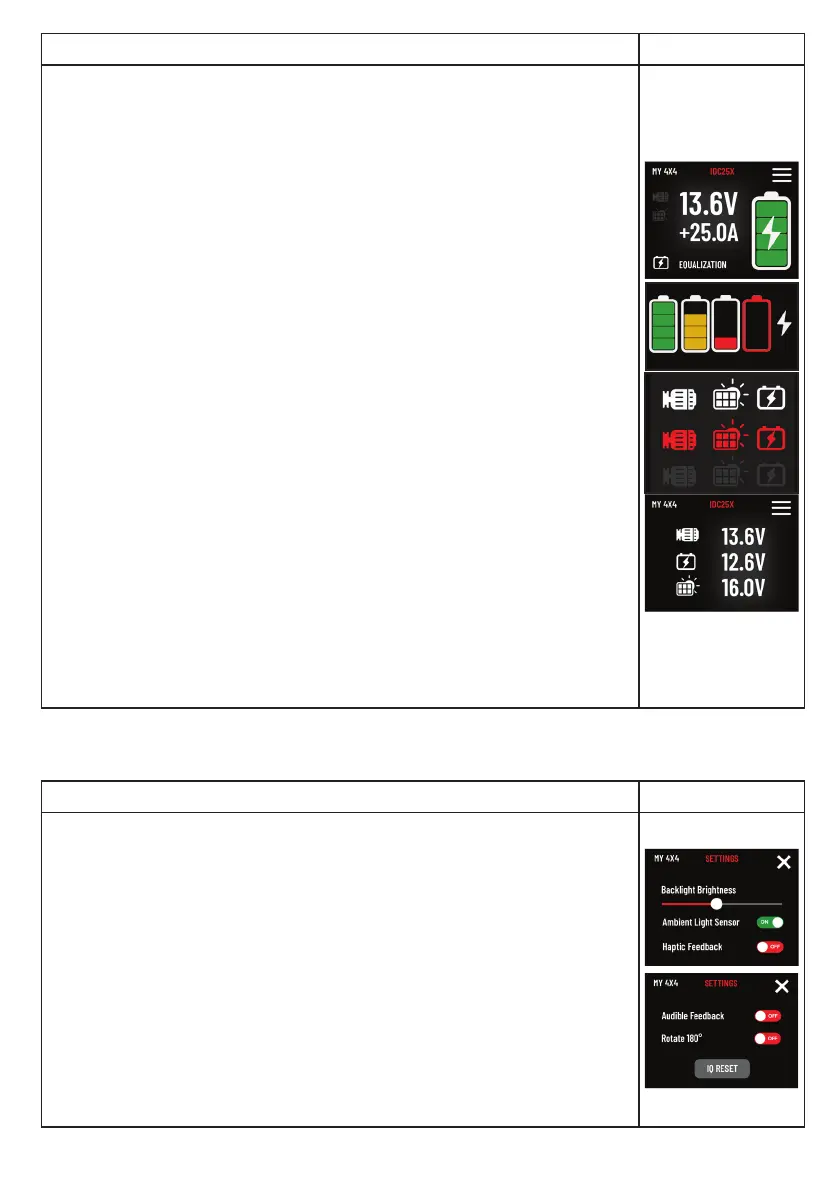
Upon system start, the device shows the charging system’s status on two
main pages:
The IQD2 system’s Main Screen displays the DC/DC chargers’ status. Users
can swipe for additional details about the charging system.
Features of the screen include:
IQD2 System Name: Editable in the app settings.
Current Device Name: Editable in the app settings.
AUX Battery Voltage: Displays the auxiliary battery’s voltage.
IDCX Charging Current: Shows the current for charging.
AUX Battery State: Indicates the auxiliary battery’s charge level:
• Green: High
• Yellow: Medium
• Red: Low
• Red Outlined: Warning-Disconnected
• Lightning: Charging in process
IDCX Charging Stages
12
: Details the stages of IDCX charging.
Input Source Status:
• White: Active/Charging
• Grey: Inactive/Disconnected
• Red: Error
Click red icons for details and check the warning section for more
information.
More options and information about charging system warnings are available
in the app settings.
The Charging Details page lists the alternator input voltage, the auxiliary
battery voltage, and the solar panel input voltage. The settings menu is
accessible for system adjustments and monitoring.
SETTING MENU DISPLAY
Swipe left or right to move through the settings pages. Press the top
right close button to exit settings.
Settings Include:
Backlight Brightness: Set LCD screen brightness.
Auto Brightness: Turns on automatic brightness adjustment in dark
or bright conditions.
Haptic Feedback: Activates vibration on user input.
Audible Feedback: Activates sound on user input.
Rotate Switch: Allows screen rotation for different setups.
Reset: Resets system to default, erasing all devices.
After changing settings or resetting, wait ve seconds for the system
to restart and update
1.For deep cycle batteries: Bulk, Absorption, (Equalization for Calcium batteries), Float (3-stage charging).
2.For Lithium batteries: Soft Start 1, Soft Start 2, Bulk, Absorption, Float (5-stage charging).
9


 To Next Page