INSTRUCTION DISPLAY
When connected to an Intelli-IQ device. On the
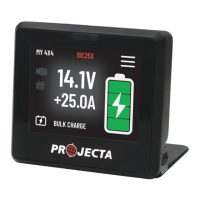
IQ dashboard screen. In the left top the battery
charging icon is presented.
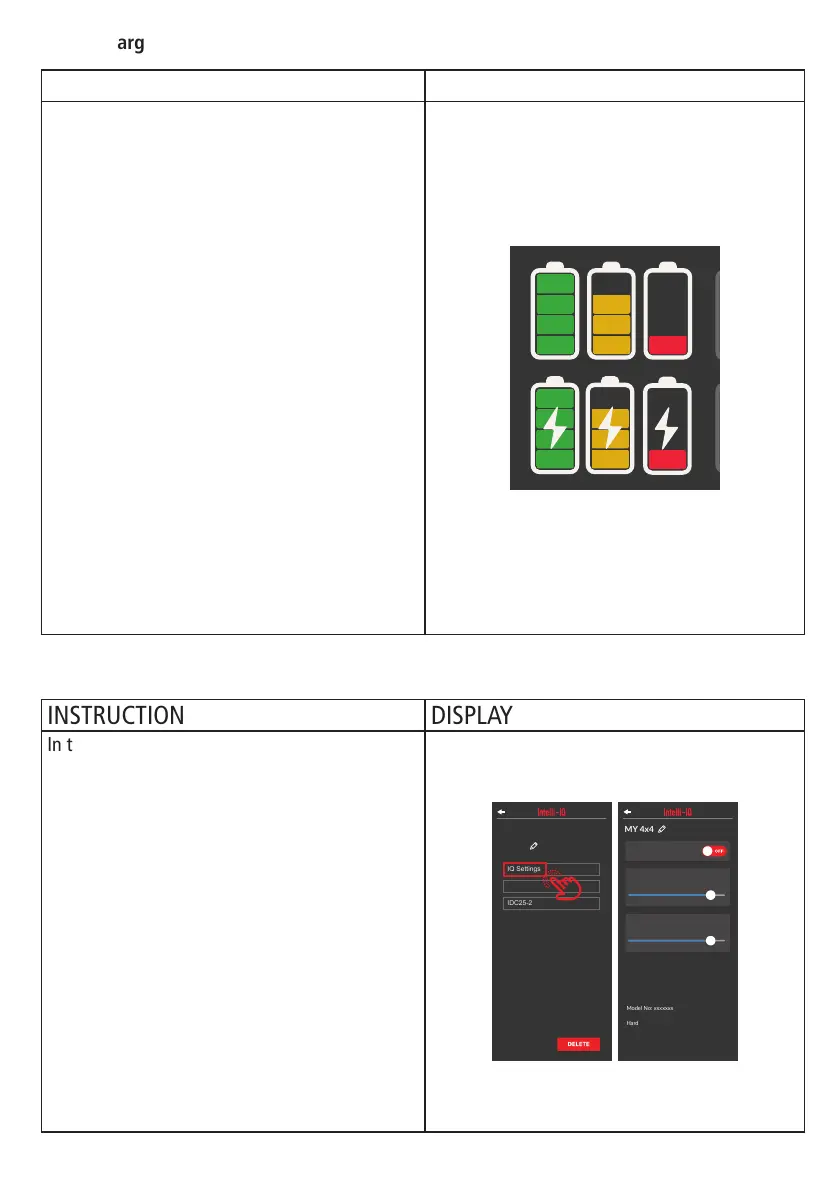
When a battery is correctly connected and
detected, the battery indicator will indicate
the current battery level with three different
indicators.
• Green (Fully, Almost Charged)
• Orange (Medium Charge)
• Red (Low Charge/Empty)
If the IDC is correctly charging the battery,
a power icon indicator will be visible on the
battery icon.
If there is an error with charging, the battery
icon will be highlighted red and possibly
ashing.
NOTE: For more information on errors with
charging, please refer to the trouble shooting
guide
LOGIN
FIELD
LOGOUT
ON
DELETE
CONFIRM
30 A
CONNECT
LATER
SEARCH
18.3 V
SIGN UP
OFF
OK
CONTINUE
CANCEL
CHANGE
INSTRUCTION DISPLAY
In the Main Device Settings screen select the IQ
Display settings.
In this screen you can control the following
options:
Auto Brightness: When “ON” the IQ unit will
adjust brightness automatically based on the
ambient light, in general it will be darker at
night and brighter during day. Depending on
total ambient light.
Brightness: The display brightness amount for
the Intelli IQ.
Display on Time: The unit will stay on for the
selected period of time without any user input.
MY 4x4
Sengs
DELETE
MY 4x4
Model No: xxxxxxx
Hardware Version: xx.xx
Soware Version: xx.xx.xx
Serial Number: xxxxxxxx
Update Firmware
Brightness
60 %
Auto Brightness
OFF
Display on Time
6 min
Check Charging Status:
Check IQ Display Settings:
19


 To Next Page