11
CYBER24
- 6 - MIDI OPERATION
6.1 Setting MIDI IN
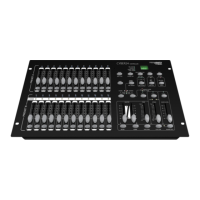
1. Tap the Flash button 1 three times while holding down the Record button, the Segment Display reads
“CHI” indicating MIDI IN channel setup is available.
2. Tap the Flash button numbered from 1-16 to assign MIDI IN channel 1-16, the relevant channel led lights
indicating MIDI IN channel is set.
6.2 Setting MIDI OUT
1. Tap the Flash button 2 three times while holding down the Record button, the Segment Display reads
“CHO” indicating MIDI OUT channel setup is available.
2. Tap the Flash button numbered from 1-16 to assign MIDI OUT channel 1-16, the relevant channel led
lights indicating MIDI OUT channel is set.
6.3 Exit MIDI setting
Press and hold down the Record button. While holding down the Record button tap the Rec Exit button to
exit MIDI setting.
6.4 Receiving MIDI le Dump
Tap the Flash button 3 three times while holding down the Record button, the Segment Display reads “IN”
indicating the controller is ready to receive MIDI le dump.
6.5 Sending MIDI le Dump
Tap the Flash button 4 three times while holding down the Record button, the Segment Display reads “OUT”
indicating the controller is ready to send a le.
NOTE:
• During le dump, all other operations will not function. Functions will automatically return when the le
dump is completed.
• File dump will be interrupted and stop if errors occur or power failure.
6.6 Implementation
1. During receiving and sending MIDI data, all MIDI scenes and channels being run will automatically
paused if there is no response within 10 minutes.
2. File dump allows this controller to send its MIDI data to next unit or other MIDI devices.
3. There are two types of le dump mode described as below:


 To Next Page