EasyManua.ls Logo

promethean PRM-35 - User Manual

promethean PRM-35
53 pages
Print Icon
To Next Page IconTo Next Page
Loading...
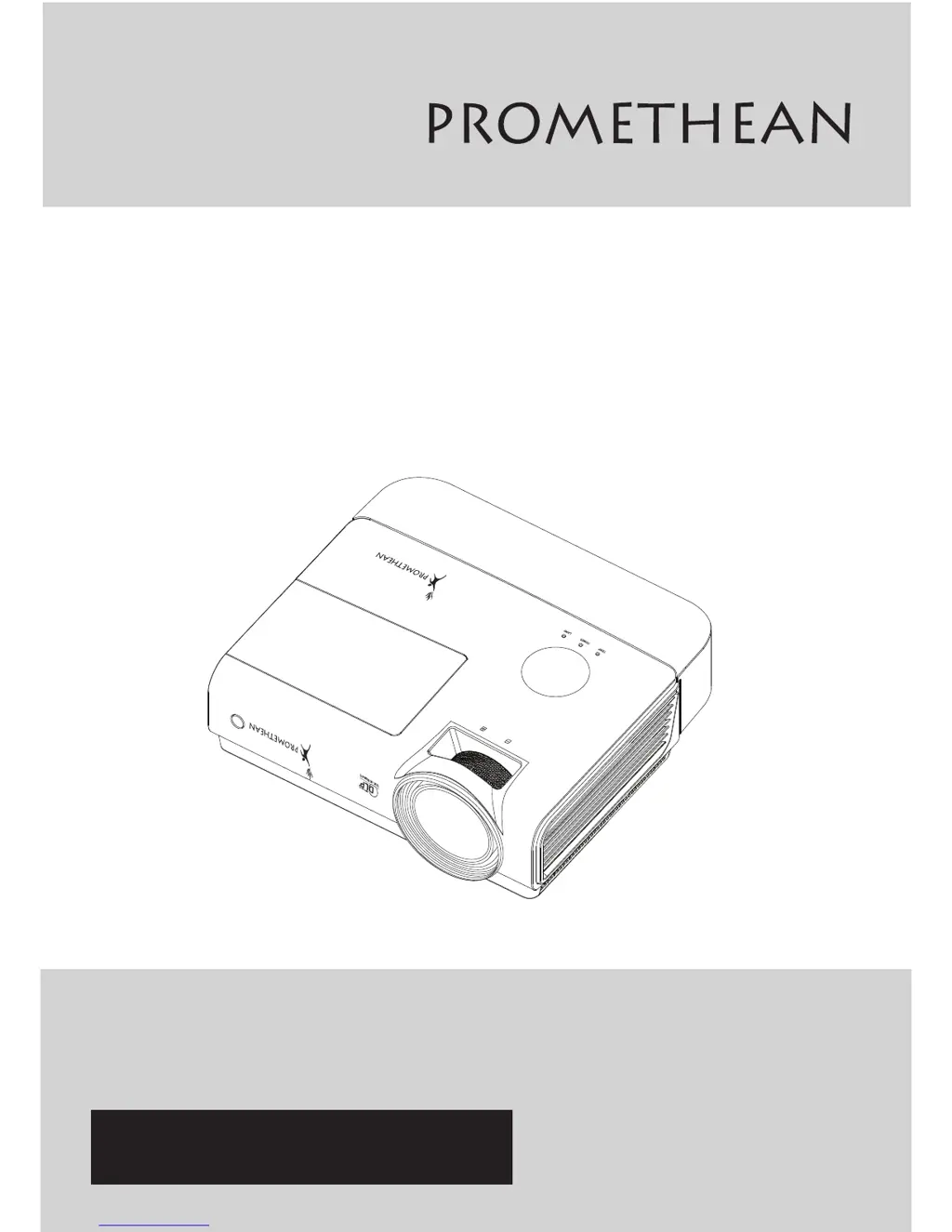
Multimedia Projector
MODEL
Owner’s Manual
PROJECTOR
PRM-35
PRM-35A, PRM-35C, PRM-35AV1, PRM-35CV1, PRM-33
Focus
PROMETHEAN LTD
PROMETHEAN HOUSE
LOWER PHILIPS ROAD
BLACKBURN
BB1 5TH
UNITED KINGDOM
(44) 1254 298 598

Questions and Answers

  • W
    Whitney BrownAug 15, 2025
    What to do if my Promethean Projector image is blurred?
    • Z
      Zachary SmithAug 15, 2025
      If the image from your Promethean projector is blurred, try the following: * Adjust the Focus on the projector. * Press the Auto button on the remote control or projector. * Ensure the projector-to-screen distance is within the 0.72 to 1.07m specified range. * Check that the projector lens is clean.
  • B
    Brian GonzalezAug 18, 2025
    Why does my promethean PRM-35 show no image on the screen?
    • M
      Matthew HoldenAug 18, 2025
      To solve the issue of no image appearing on the screen, verify the settings on your notebook or desktop PC. Also, turn off all equipment and power up again in the correct order.
  • K
    Karen MarshAug 21, 2025
    How to fix streaked image on Promethean Projector?
    • J
      Jessica SchmidtAug 21, 2025
      To fix a streaked image on your Promethean projector, set the Frequency and Tracking settings on the Computer menu of the OSD to the default settings. To ensure the problem is not caused by a connected PC’s video card, connect to another computer.
  • E
    Eric LopezAug 25, 2025
    Why is there no light from my promethean PRM-35?
    • D
      Douglas BarnesAug 25, 2025
      If your Promethean projector isn't emitting light, verify the power cable is securely connected and test the power source with another electrical device. Restart the projector and check that the Power LED is orange. If you've recently replaced the lamp, try resetting the lamp connections. You may need to replace the lamp module or have the projector serviced with the old lamp installed.
  • D
    Derek MartinAug 27, 2025
    What to do if my promethean PRM-35 lamp goes off?
    • S
      Sarah BakerAug 27, 2025
      Power surges can cause the lamp to turn off. Re-plug power cord. When the POWER LED is on, press the power button. You may also need to replace the lamp module or have the projector serviced with the old lamp installed.
  • A
    Angela JosephAug 30, 2025
    How to fix trapezoid effect (image wider at the top or bottom) on promethean PRM-35?
    • J
      Jennifer SuttonAug 30, 2025
      To correct a trapezoid effect on your Promethean projector, position the projector so it is as perpendicular to the screen as possible. You can also use the Keystone button on the remote control or projector to correct the problem.
  • C
    Cristina NashSep 2, 2025
    What to do if Promethean Projector does not respond to the remote control?
    • W
      William BrockSep 2, 2025
      If your Promethean projector isn't responding to the remote control, make sure you are directing the remote control towards remote sensor on the projector and that there are no obstructions between the remote and the sensor. Also, try turning off any fluorescent lights or other Infrared-enabled devices in the room. Check the battery polarity and replace the batteries if necessary. If the issue persists, the remote control may need to be serviced.
  • K
    ksmithSep 5, 2025
    How to correct the color of the projected image on promethean PRM-35?
    • K
      kirstenfoxSep 5, 2025
      To adjust the color of the projected image on your Promethean projector so that it matches the source image, adjust the Color Temperature and Gamma settings on the Image menu of the OSD.
  • D
    David TuckerSep 8, 2025
    How to adjust contrast on promethean PRM-35 Projector?
    • S
      scott59Sep 8, 2025
      If the image appears flat with no contrast, adjust the Contrast setting on the Image menu of the OSD.
  • E
    Elizabeth FaulknerSep 12, 2025
    How to fix reversed image on promethean PRM-35 Projector?
    • J
      jgriffithSep 12, 2025
      To correct a reversed image on your Promethean projector, check the Projection setting on the Installation I menu of the OSD.

Summary

Safety and Installation

General Safety Guidelines

Provides essential safety guidelines for operating the projector.

Informational Symbols

Explains the meaning of warning and informational symbols in the manual.

Projector Installation Notice

Important considerations for correctly installing the projector to ensure proper function.

Power Safety Precautions

Guidelines for safe use of the power cord and battery handling.

GETTING STARTED

Packing Checklist

Lists items included in the projector package for user verification.

Views of Projector Parts

Front-right View

Identifies components on the front and right side of the projector.

Rear View of Ports

Details the various input/output ports located on the rear of the projector.

Bottom View and Mounting Points

Shows mounting points and features on the projector's bottom surface.

Remote Control

Remote Control Operating Range

Explains the effective range and conditions for remote control operation.

Projector and Remote Control Interaction

Notes that all projector operations are performed via the remote control.

SETUP AND OPERATION

Inserting Remote Control Batteries

Provides step-by-step instructions for installing batteries into the remote control.

Connecting Input Devices

Guides on how to connect various external video and computer devices to the projector.

Starting and Shutting down the Projector

Details the correct procedure for powering the projector on and off.

Setting an Access Password (Security Lock)

Explains how to set a password to prevent unauthorized projector use.

Adjusting Focus and Keystone

Describes how to adjust image focus and correct trapezoidal distortion.

ON-SCREEN DISPLAY (OSD) MENU SETTINGS

OSD Navigation and General Settings

How to navigate OSD, set language, and understand menu structure.

Image and Color Adjustments

Detailed settings for image quality, color space, temperature, and color manager.

Computer and Video Input Settings

Configuration options for computer and video input signals.

Installation and Advanced Features

Settings for projector installation, security, presentation timer, network, and 3D.

MAINTENANCE AND SECURITY

Replacing the Projection Lamp

Provides instructions for safely replacing the projector's lamp module.

Resetting the Lamp Hour Counter

Explains the procedure to reset the lamp hour counter after lamp replacement.

Cleaning the Projector

Offers guidelines for cleaning the projector's lens and case.

Using the Physical Lock

Describes how to secure the projector using a Kensington lock or security bar.

Specifications

Projection Distance vs. Projection Size

Provides a table detailing projection distance and corresponding image sizes.

Timing Mode Table

Outlines supported resolutions and signal timings for various video inputs.

Projector Dimensions

Displays the physical dimensions of the projector with measurements.

TROUBLESHOOTING

Common Problems and Solutions

Offers general advice for troubleshooting common projector issues.

LED Error Messages

Lists projector error codes indicated by LED status lights.

Image Problems and Solutions

Provides solutions for common image display issues like blurriness or no image.

Lamp and Remote Control Issues

Addresses lamp problems and projector response issues with the remote control.

REGULATORY COMPLIANCE

FCC Warning

Details FCC compliance information and potential interference guidelines.

Canadian Compliance

States compliance with Canadian digital apparatus regulations.

Safety Certifications

Lists the various safety certifications obtained by the projector.

promethean PRM-35 Specifications

General IconGeneral
Throw Ratio0.35:1
Brightness3500 lumens
Contrast Ratio10, 000:1
Lamp Life6000 hours
Weight12.1 lbs
InputsComposite, S-Video

Related product manuals