EasyManua.ls Logo

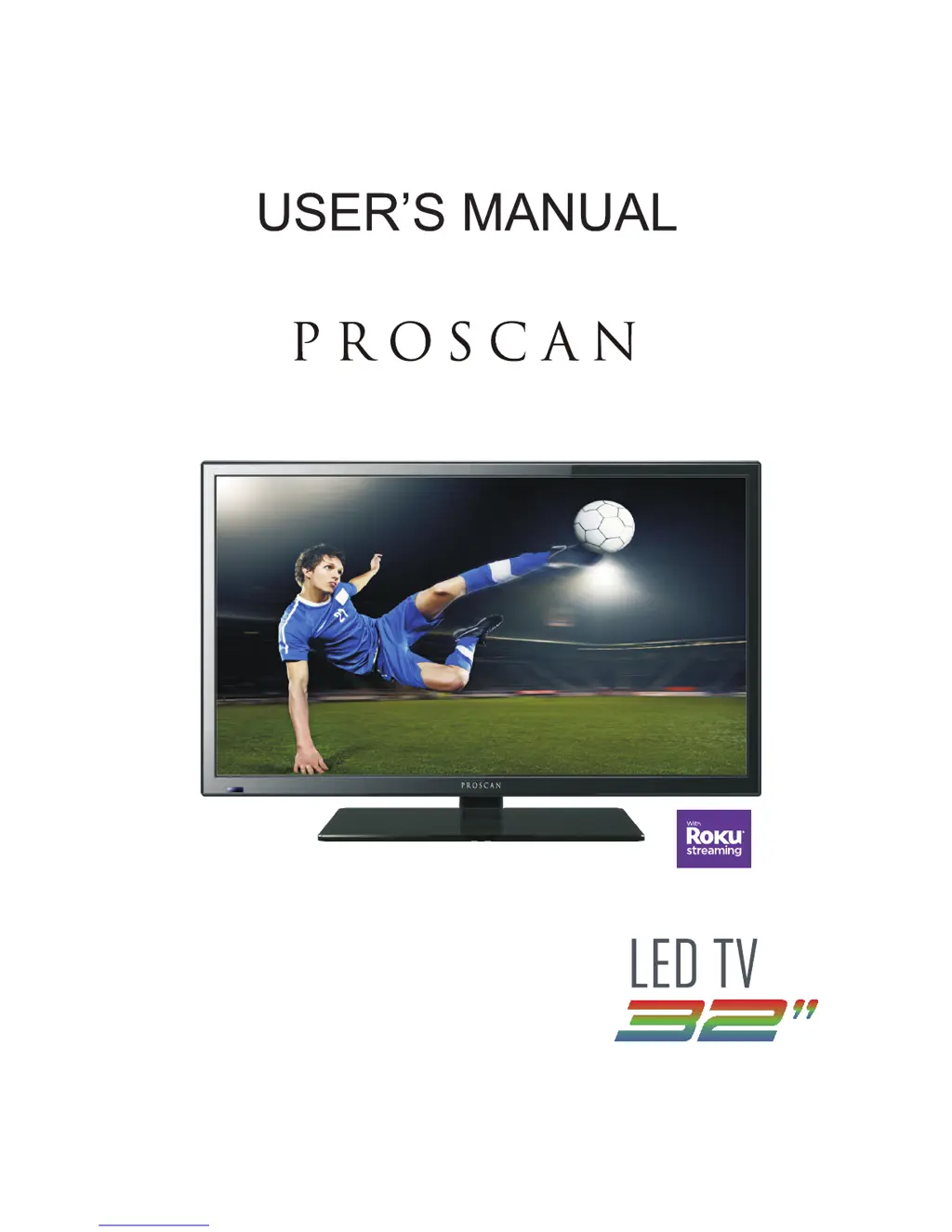
ProScan PLDED3231A-RK - User Manual

ProScan PLDED3231A-RK
52 pages
Print Icon
To Next Page IconTo Next Page
Loading...
PLDED3231A-RK
Proscan Support: For service assistance or inquires with the Proscan TV,
please visit: www.curtcoint.com
Roku Support: For service assistance or inquires with the Roku Streaming
Stick,
please visit: www.roku.com/support
Note: The warranty for the Proscan TV and the Roku Streaminig Stick are
managed
exclusively by their respective companies. Please complete each warranty
independantly and submit to their respective parties.

Questions and Answers

  • S
    Sherri FitzpatrickSep 23, 2025
    Why there is noise or trash pixels on the screen of ProScan PLDED3231A-RK LCD TV?
    • A
      Amanda JacksonSep 23, 2025
      Noise or trash pixels on your ProScan LCD TV screen appear when your TV’s resolution is higher than the digital channel’s broadcast resolution, causing the signal to be up-converted to match your TV’s resolution. This up-converting process can cause this effect.
  • I
    imartinezAug 23, 2025
    Why is there no picture on my ProScan LCD TV?
    • S
      smithnicholasAug 25, 2025
      If there is no picture on your ProScan LCD TV, ensure the power cord is correctly connected and the power is turned on. Also, verify that the video cable is properly connected. Finally, select the correct input signal source using the source button, ensuring it matches the cable connection.
  • E
    Emily HannaAug 25, 2025
    What to do if picture only no audio on ProScan LCD TV?
    • J
      Jeremiah GreenAug 26, 2025
      If you see a picture but hear no audio on your ProScan LCD TV, first ensure the audio cable is securely connected. Then, readjust the volume using the remote control. Also, confirm that the TV's tuner signal is not lower than 65.
  • C
    Carolyn PetersonAug 26, 2025
    What to do if audio only no picture on ProScan PLDED3231A-RK?
    • A
      Anthony RobinsonAug 27, 2025
      If you're getting audio but no picture on your ProScan LCD TV, first check that both your video and audio cables are connected properly. Also, confirm that the TV's tuner signal is not lower than 65.
  • C
    Christine AndrewsAug 27, 2025
    Why I cannot receive sufficient channels through the ATSC/NTSC tuner on ProScan PLDED3231A-RK?
    • M
      Mary MontoyaAug 27, 2025
      If you're unable to receive enough channels through the ATSC/NTSC tuner on your ProScan LCD TV, it may be due to a weak tuner signal. Try changing the direction of your antenna and then rescan for channels. If you have cable, contact your cable company to inquire about the signal strength of your local cable.
  • W
    wtownsendSep 16, 2025
    Why I cannot change the time manually on ProScan LCD TV?
    • H
      Holly WeaverSep 16, 2025
      Your ProScan LCD TV automatically syncs its time according to your local TV channel. This function only works while the TV’s tuner is connected to an ANTENNA.
  • A
    Adam KingSep 13, 2025
    Why is picture quality horrible on ProScan LCD TV?
    • J
      Jennifer MataSep 13, 2025
      For the best image quality on your ProScan LCD TV, view HD widescreen programs whenever possible. If HD content is unavailable, view 'Standard Definition' from a digital source. Standard analog TV will always be noticeably inferior to HD because your TV's video capabilities are far superior, revealing interference and deficiencies that were previously unnoticed.
  • D
    Dr. Jennifer DavidsonSep 14, 2025
    Why picture has pixels that are always displaying the same color on ProScan LCD TV?
    • A
      Adam MitchellSep 15, 2025
      Your ProScan LCD TV is manufactured with extremely high precision technology. However, sometimes some pixels may not display correctly. Pixel defects within industry specifications are inherent to this type of product and do not indicate a defective product.
  • J
    Jordan HarrisSep 5, 2025
    How to get sound on PC connected to ProScan LCD TV?
    • B
      Brandon SalazarSep 5, 2025
      To get sound when connecting your PC to your ProScan LCD TV, ensure you have a 3.5 mm mini-jack cable connected from your PC’s sound output to the TV’s VGA STEREO INPUT.
  • B
    Brian Shaw MDSep 3, 2025
    How to unblock TV channels on ProScan LCD TV?
    • S
      Sarah AdamsSep 3, 2025
      To unblock TV channels on your ProScan LCD TV, check your auto lock function’s settings inside the OSD. You may have locked some channels and forgotten about it.

Summary

Introduction & Setup

Installation Guide

Instructions for optimal TV placement and ventilation.

Included Accessories

Lists all items provided with the TV set.

Safety Warnings

Electrical Shock Hazard

Caution about high voltages and not opening the casing.

Safety Symbols Explained

Interpretation of warning symbols for user safety.

Important Cautions

Liquid & Object Hazards

Do not expose to moisture or insert objects into slots.

Heat & Sunlight Exposure

Avoid direct sunlight and heat sources for ventilation.

Further Cautions

Physical Stress & Stability

Warnings against leaning or placing on unstable surfaces.

LED Panel Fragility

Caution regarding the breakable glass LED panel.

Important Information

Antenna & Lightning Protection

Guidance on grounding antenna systems and lightning safety.

Power Line Safety

Precautions regarding antenna placement near power lines.

Stand Installation

Attaching the TV Stand

Step-by-step instructions for attaching the base.

Stand Removal & Battery Installation

Removing the TV Stand

Steps to detach the TV stand from the unit.

Remote Control Battery Setup

Guide for inserting batteries into the remote control.

Panel Identification

Front Panel Features

Identification of indicators and sensors on the front.

Rear Mounting Pattern

Specifications for VESA wall mounting.

Connection Suggestions

Digital Cable Connection

How to connect digital cable without a box or antenna.

Connecting DVD Player

Connecting Wii Console

Connecting HDMI Devices

Connecting PC via VGA

Connecting Audio Receiver

Unit Description

Control Panel Functions

Explanation of the TV's main unit control buttons.

TV Terminal Connections

Identification of all input and output ports on the TV.

Remote Control Guide

OSD Picture Settings

OSD Sound Settings

OSD Time Settings

OSD Setup Menu

OSD Advanced Settings

Advanced Picture Customization

Modifying picture mode, font, and opacity settings.

Input Labeling & Other Settings

Customizing input names and other system options.

OSD Setup Wizard

Setup Wizard Navigation

Using the wizard for language and time zone setup.

OSD Setup Wizard

Setup Wizard - Antenna Scan

Performing an automatic scan for available channels.

Lock Settings

Password Management

Setting and changing passwords for parental controls.

Input and System Locking

Locking TV or AV inputs and system lock.

Lock Settings: Parental Controls

Parental Control Ratings

Adjusting US and Canadian rating systems.

RRT Setting

Configuring Rating Region Table preferences.

Channel Management

Air;Cable Scan Setup

Selecting antenna type and initiating auto scan.

Channel List Customization

Managing favorite channels, hiding/showing, and labeling.

PC Input Configuration

TV Cleaning and Maintenance

Bezel & Remote Cleaning

Instructions for cleaning the TV frame and remote control.

Screen Cleaning Procedures

Guidelines for safely cleaning the delicate TV screen.

Troubleshooting Guide

Troubleshooting Guide

Technical Specifications

Technical Specifications

Technical Specifications

FCC Compliance Statement

Roku Setup: Getting Started

What You Need

Lists required items for Roku setup.

Know Your Streaming Stick

Identifies the main components of the Roku Stick.

Plugging In The Stick

Instructions for connecting the Roku Stick to the TV.

Network Connection Guide

Steps to connect the Roku Stick to your wireless network.

Completing Guided Setup

Final on-screen steps for setup completion.

Creating Your Roku Account

Guide to creating a Roku account online.

Roku Troubleshooting

No Picture Issues

Steps to resolve problems with no video display.

Roku Troubleshooting

Wireless Network Connection

Steps to resolve issues connecting to Wi-Fi.

Roku Troubleshooting

No Sound Issues

Steps to resolve problems with no audio output.

Roku Troubleshooting

Proscan Product Warranty

Roku Streaming Stick Information

License Agreement Terms

Outlines the terms of the software license.

Roku Limited Hardware Warranty

Details the one-year warranty for the Streaming Stick.

Roku Streaming Stick Information

Warranty Service Process

Procedure for returning the device for service.

Warranty Scope and Limitations

Defines what the warranty covers and excludes.

Legal and Safety Notices

FCC Compliance and Notices

Regulatory compliance statements from FCC.

Industry Canada Compliance

Regulatory compliance statements from Industry Canada.

Streaming Stick Safety Precautions

Essential safety guidelines for using the device.

Use and Handling Guidelines

ProScan PLDED3231A-RK Specifications

General IconGeneral
Screen Size32 inches
Display TypeLCD
Display TechnologyLED
Resolution1366 x 768
HDMI Ports3
USB Ports1
Aspect Ratio16:9
Refresh Rate60 Hz
InputsHDMI, USB, RF

Related product manuals