EasyManua.ls Logo

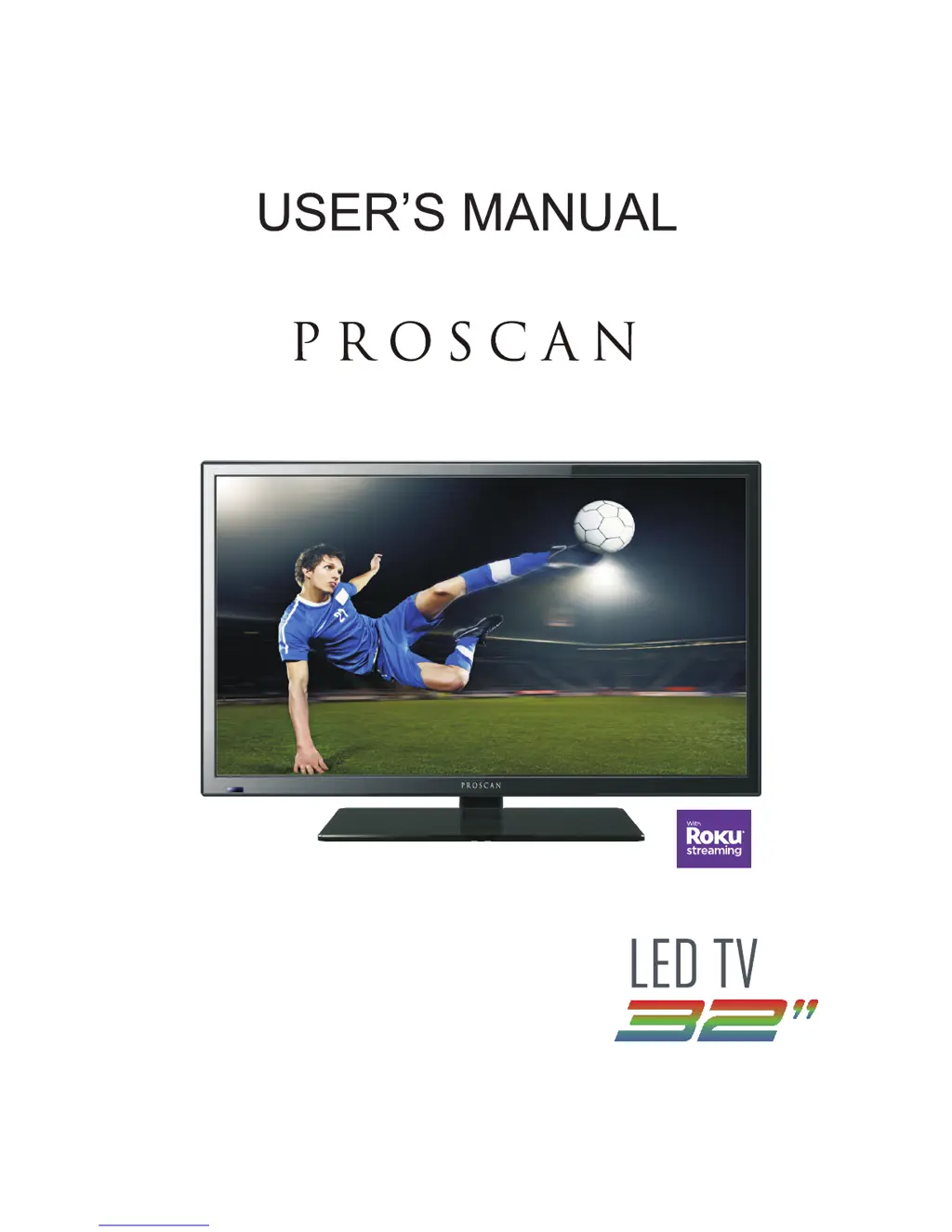
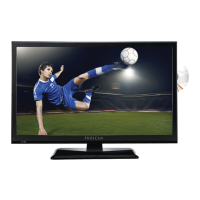
ProScan PLDED3231A-RK - User Manual

ProScan PLDED3231A-RK
52 pages
Print Icon
To Next Page IconTo Next Page
Loading...
PLDED3231A-RK
Proscan Support: For service assistance or inquires with the Proscan TV,
please visit: www.curtcoint.com
Roku Support: For service assistance or inquires with the Roku Streaming
Stick,
please visit: www.roku.com/support
Note: The warranty for the Proscan TV and the Roku Streaminig Stick are
managed
exclusively by their respective companies. Please complete each warranty
independantly and submit to their respective parties.

Questions and Answers

  • J
    Jennifer ParkerSep 8, 2025
    Why is there no audio with HDCP video on my ProScan PLDED3231A-RK LCD TV?
    • S
      Sara RuizSep 8, 2025
      If you have video but no audio from an HDCP source on your ProScan LCD TV, first ensure a 3.5 mm mini-jack cable is connected from your HDCP video device’s sound output to the TV’s VGA STEREO INPUT. If your HDCP video device uses RCA AUDIO jacks, you’ll need to obtain an RCA audio converter into a 3.5 mm mini-jack cable.
  • W
    William MooreSep 7, 2025
    What does no HDCP support mean on ProScan LCD TV?
    • D
      David HernandezSep 7, 2025
      If your ProScan LCD TV displays 'NO HDCP SUPPORT' for an HDCP video source, reboot your HDCP video device by turning it off and unplugging it. Wait up to 8 minutes before plugging it back in to see if it resolves the issue.
  • T
    Troy SmithAug 22, 2025
    Why is my ProScan PLDED3231A-RK remote control not working?
    • T
      Tammy CastroAug 22, 2025
      If your ProScan LCD TV remote control isn't working, try these steps: turn off the TV, unplug it, and remove the batteries from the remote for 30 minutes. Press the remote buttons and the power button randomly for a couple of seconds, then reinstall the batteries and test the remote. Also, make sure there's a clear line of sight between the remote's front sensor and the TV's remote sensor, which is located near the power indicator light.
  • S
    Steven JonesSep 4, 2025
    Why does my ProScan PLDED3231A-RK turns on or off slowly?
    • H
      Hunter BerrySep 4, 2025
      Your ProScan LCD TV is a High Definition liquid crystal display panel TV. It requires a few more seconds than normal TVs to power up and display the picture.
  • B
    Brian Shaw MDSep 3, 2025
    How to unblock TV channels on ProScan LCD TV?
    • S
      Sarah AdamsSep 3, 2025
      To unblock TV channels on your ProScan LCD TV, check your auto lock function’s settings inside the OSD. You may have locked some channels and forgotten about it.
  • M
    Michelle HolmesSep 1, 2025
    What does weak signal or no program symbol on screen mean for ProScan PLDED3231A-RK?
    • R
      Ryan TrevinoSep 1, 2025
      If you see a weak signal or a 'no program' symbol on your ProScan LCD TV screen, it could be due to a weak tuner signal. Try adjusting the direction of your antenna and rescanning for channels. If you have cable, contact your cable provider to inquire about the signal strength of your local cable service.
  • R
    Ryan CraneAug 31, 2025
    Why is there no color on my ProScan PLDED3231A-RK LCD TV?
    • E
      Emily PattersonAug 31, 2025
      If there is no color on your ProScan LCD TV, adjust your picture setup and make sure the saturation and the RGB are not turned all the way down. Also, check your signal.
  • M
    morrisondarrenAug 30, 2025
    What to do if my ProScan PLDED3231A-RK LCD TV has abnormal colors?
    • L
      Laura HallAug 30, 2025
      To correct abnormal colors on your ProScan LCD TV, ensure that the colors on the cables match the ports on the back of the TV. For example, connect the red cable to the red colored port.
  • T
    tiffany56Aug 28, 2025
    Why is the picture too dark on my ProScan PLDED3231A-RK LCD TV?
    • Y
      Yolanda BradleyAug 29, 2025
      If the picture on your ProScan LCD TV is too dark, adjust the contrast, brightness, and lamp settings from the OSD Menu.
  • C
    Christine AndrewsAug 27, 2025
    Why I cannot receive sufficient channels through the ATSC/NTSC tuner on ProScan PLDED3231A-RK?
    • M
      Mary MontoyaAug 27, 2025
      If you're unable to receive enough channels through the ATSC/NTSC tuner on your ProScan LCD TV, it may be due to a weak tuner signal. Try changing the direction of your antenna and then rescan for channels. If you have cable, contact your cable company to inquire about the signal strength of your local cable.

Summary

Introduction & Setup

Installation Guide

Instructions for optimal TV placement and ventilation.

Included Accessories

Lists all items provided with the TV set.

Safety Warnings

Electrical Shock Hazard

Caution about high voltages and not opening the casing.

Safety Symbols Explained

Interpretation of warning symbols for user safety.

Important Cautions

Liquid & Object Hazards

Do not expose to moisture or insert objects into slots.

Heat & Sunlight Exposure

Avoid direct sunlight and heat sources for ventilation.

Further Cautions

Physical Stress & Stability

Warnings against leaning or placing on unstable surfaces.

LED Panel Fragility

Caution regarding the breakable glass LED panel.

Important Information

Antenna & Lightning Protection

Guidance on grounding antenna systems and lightning safety.

Power Line Safety

Precautions regarding antenna placement near power lines.

Stand Installation

Attaching the TV Stand

Step-by-step instructions for attaching the base.

Stand Removal & Battery Installation

Removing the TV Stand

Steps to detach the TV stand from the unit.

Remote Control Battery Setup

Guide for inserting batteries into the remote control.

Panel Identification

Front Panel Features

Identification of indicators and sensors on the front.

Rear Mounting Pattern

Specifications for VESA wall mounting.

Connection Suggestions

Digital Cable Connection

How to connect digital cable without a box or antenna.

Connecting DVD Player

Connecting Wii Console

Connecting HDMI Devices

Connecting PC via VGA

Connecting Audio Receiver

Unit Description

Control Panel Functions

Explanation of the TV's main unit control buttons.

TV Terminal Connections

Identification of all input and output ports on the TV.

Remote Control Guide

OSD Picture Settings

OSD Sound Settings

OSD Time Settings

OSD Setup Menu

OSD Advanced Settings

Advanced Picture Customization

Modifying picture mode, font, and opacity settings.

Input Labeling & Other Settings

Customizing input names and other system options.

OSD Setup Wizard

Setup Wizard Navigation

Using the wizard for language and time zone setup.

OSD Setup Wizard

Setup Wizard - Antenna Scan

Performing an automatic scan for available channels.

Lock Settings

Password Management

Setting and changing passwords for parental controls.

Input and System Locking

Locking TV or AV inputs and system lock.

Lock Settings: Parental Controls

Parental Control Ratings

Adjusting US and Canadian rating systems.

RRT Setting

Configuring Rating Region Table preferences.

Channel Management

Air;Cable Scan Setup

Selecting antenna type and initiating auto scan.

Channel List Customization

Managing favorite channels, hiding/showing, and labeling.

PC Input Configuration

TV Cleaning and Maintenance

Bezel & Remote Cleaning

Instructions for cleaning the TV frame and remote control.

Screen Cleaning Procedures

Guidelines for safely cleaning the delicate TV screen.

Troubleshooting Guide

Troubleshooting Guide

Technical Specifications

Technical Specifications

Technical Specifications

FCC Compliance Statement

Roku Setup: Getting Started

What You Need

Lists required items for Roku setup.

Know Your Streaming Stick

Identifies the main components of the Roku Stick.

Plugging In The Stick

Instructions for connecting the Roku Stick to the TV.

Network Connection Guide

Steps to connect the Roku Stick to your wireless network.

Completing Guided Setup

Final on-screen steps for setup completion.

Creating Your Roku Account

Guide to creating a Roku account online.

Roku Troubleshooting

No Picture Issues

Steps to resolve problems with no video display.

Roku Troubleshooting

Wireless Network Connection

Steps to resolve issues connecting to Wi-Fi.

Roku Troubleshooting

No Sound Issues

Steps to resolve problems with no audio output.

Roku Troubleshooting

Proscan Product Warranty

Roku Streaming Stick Information

License Agreement Terms

Outlines the terms of the software license.

Roku Limited Hardware Warranty

Details the one-year warranty for the Streaming Stick.

Roku Streaming Stick Information

Warranty Service Process

Procedure for returning the device for service.

Warranty Scope and Limitations

Defines what the warranty covers and excludes.

Legal and Safety Notices

FCC Compliance and Notices

Regulatory compliance statements from FCC.

Industry Canada Compliance

Regulatory compliance statements from Industry Canada.

Streaming Stick Safety Precautions

Essential safety guidelines for using the device.

Use and Handling Guidelines

ProScan PLDED3231A-RK Specifications

General IconGeneral
Screen Size32 inches
Display TypeLCD
Display TechnologyLED
Resolution1366 x 768
HDMI Ports3
USB Ports1
Aspect Ratio16:9
Refresh Rate60 Hz
InputsHDMI, USB, RF

Related product manuals