15
DONE NEXT
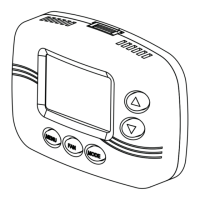
MENU FAN MODE
Figure 4
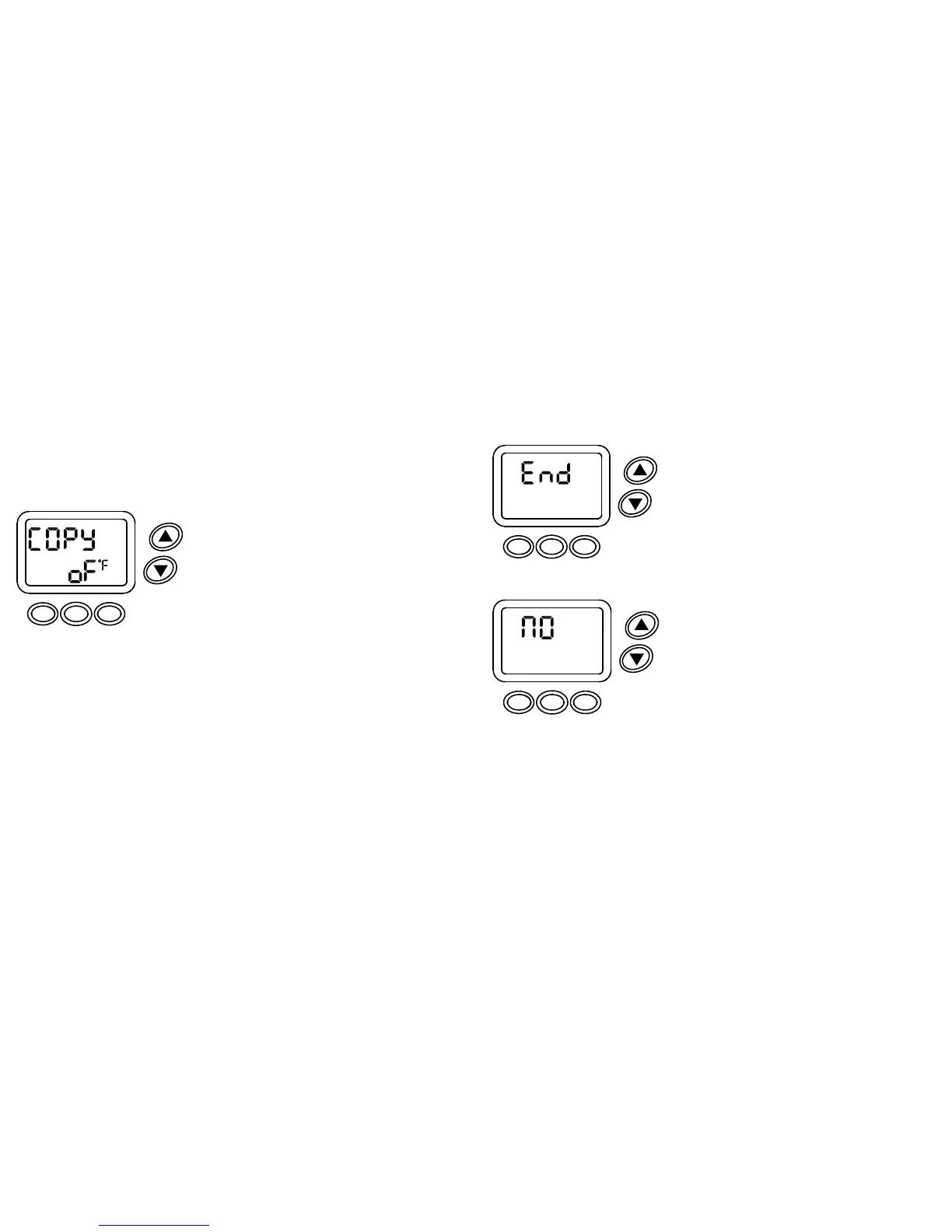
12. END will appear on the display when program-
ming is completed (Figure 4).
13. PRESS the MENU button to save and exit or
FAN to check entries.
AFTER STEP 10
14. To copy the Monday event schedule,
PRESS the MODE button. COPy on will appear
on the display.
15. PRESS the FAN button to continue.
TUE no will appear on the display (Figure 5).
16. To copy Monday’s schedule to Tuesday,
PRESS the up arrow button.
yES will appear on the display.
17. PRESS the FAN button to enter the schedule
and to continue to Wednesday.
TUE
SCHED
DONE NEXT
MENU FAN MODE
Figure 5
14
8. PRESS the FAN button to continue.
LEAVE will appear on the display.
9. REPEAT steps 3 to 8 to set the LEAVE,
RETURN and SLEEP event schedule.
The MENU button can be pressed at any time
to backtrack.
10. When the SLEEP event schedule has been
completed COPy oFF will appear on the display
(Figure 3).
TO COPY THE MONDAY EVENT SCHEDULE
SEE INSTRUCTION 14 ON THE NEXT PAGE
OR
11. To individually set the event schedule for each
day Tuesday thru Sunday,
PRESS the FAN button and
REPEAT steps 3 to 9 for each day.
The MENU button can be pressed at any time
to backtrack.
SCHED
NEXT
MENU FAN MODE
Figure 3


 To Next Page