17
DONE NEXT
MENU FAN MODE
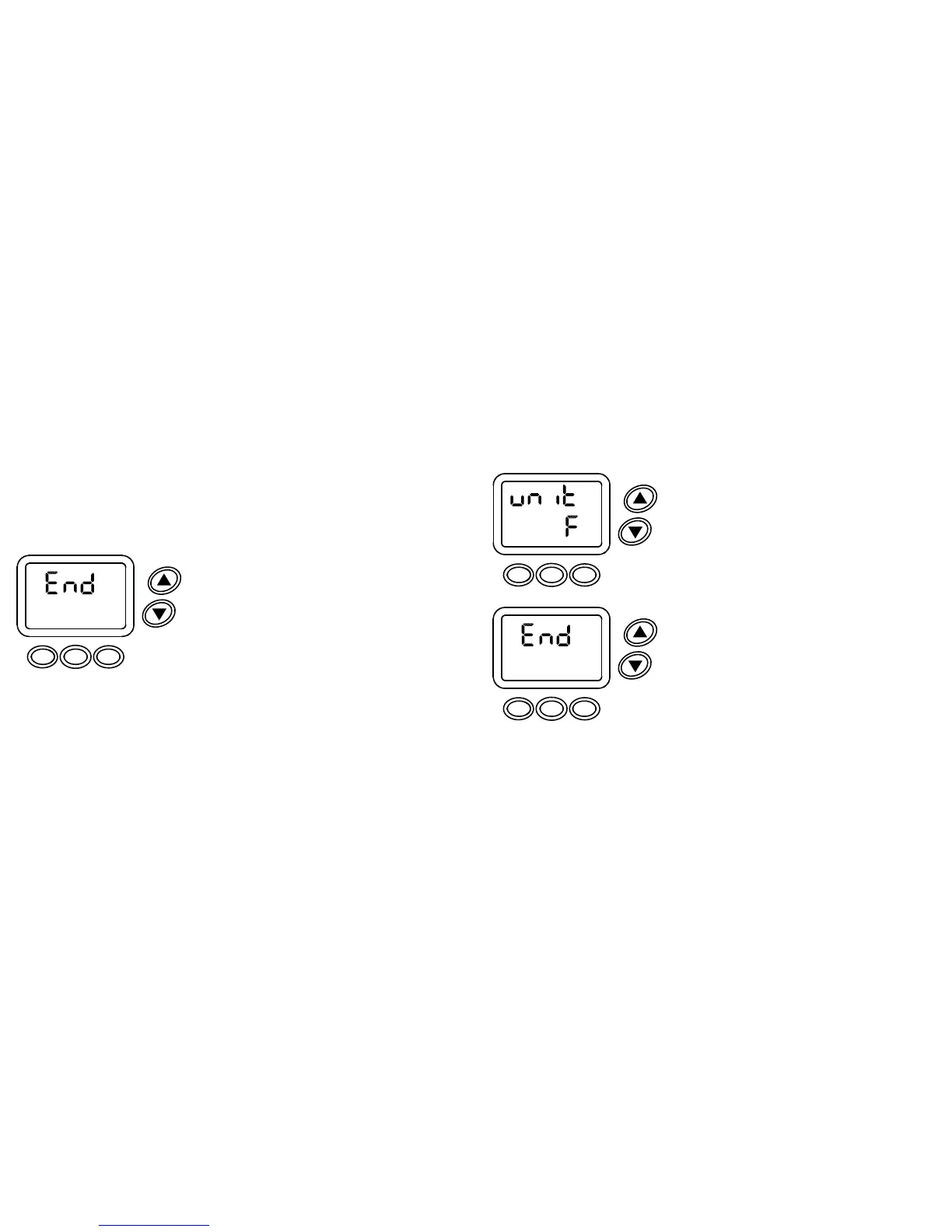
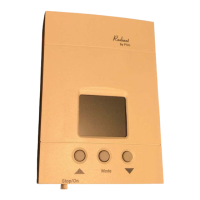
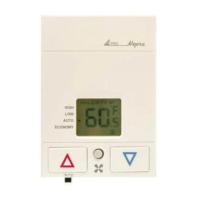
Figure 6
Resetting the Scheduling Format
1. PRESS and hold the MENU and FAN buttons
until PSEt appears on the display.
2. PRESS the FAN button to continue.
The display will appear as shown (Figure 1).
3. CONTINUE to PRESS the FAN button until 7d,
511d or 52d and PF appear on the display.
4. PRESS the up or down arrow button to set the
desired scheduling format.
5. PRESS the FAN button to continue to End
(Figure 2).
6. PRESS the MENU button to save and exit.
MENU FAN MODE
Figure 1
16
18. Continue by selecting either no (no copy) or
yES (to copy) and PRESSING the FAN button
for the remainder of the week.
19. After selecting no (no copy) or yES (to copy)
on Sunday, PRESS the MENU button.
20. The first non-copied day will appear.
REPEAT steps 3 to 9 to set the desired
schedules for the non-copied days.
21. END will appear on the display when program-
ming is completed (Figure 6).
22. PRESS the MENU button to save and exit or
FAN to check entries.
DONE NEXT
MENU FAN MODE
Figure 6
TO CANCEL AN EVENT: An event can be canceled only if the word cancel
appears on the display when the time is to be programmed. Simply press the
MODE button. Monday thru Friday only LEAVE and RETURN can be canceled.
Any event can be canceled on Saturday and Sunday.


 To Next Page