14
534 Trestle Place Downingtown, PA, 19335 USA · Tel: +1(484)593-2247 · Email: support@ptzoptics.com
Rev 2.0 2023-10-23
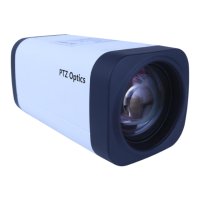
To control multiple IR PTZOptics cameras, this camera uses the same IR remote
included with our Pan Tilt Zoom models. However, being a xed camera lens, this
camera cannot pan or tilt.
1. Standby Button
Press this button to enter standby mode. Press it again to enter normal mode.
Note: Power consumption in standby mode is approxinately half of the normal mode.
2. Number Keys
Press to set or call preset camera position or input a number.
3. * Button
Used predominantly when calling shortcuts.
4. Set / Clear Presets
To Set a Preset: save a camera position, press [PRESET] + any number zero through nine.
To Clear a Preset: erase a camera position, press [RESET] + any number zero through
nine. To erase all presets, press [*] + [#] + [RESET]
5. Pan / Tilt Control Buttons
Press the [LEFT or RIGHT] arrow to pan. Press the [UP or DOWN] arrow to tilt. Press the
[HOME] button to return the camera to the front facing home position.
6. Return Button
Press the [RETURN] button to go back to a previous menu within the on screen display
(OSD)
7. Zoom Buttons
Press [+} to zoom in (Slow and fast speed)
Press [-] to zoom out (Slow and fast speed)
8. L / R Set Buttons
Set the Left & Right directional buttons for the remote.
Press the following buttons si-
multaneously.
Press {L/R SET] + [1]: Buttons function normally
Press [L/R SET] + [2]: Buttons function inverted
9. Focus Buttons
Adjust camera focus.
[AUTO]: focuses the image on the center object.
{Manual]: Manually control focus. Press [FAR] to focus on a far object. Press [NEAR] to
focus on a near object.
10. Camera Select Buttons
Press a number to select the corresponding camera you want to operate.


 To Next Page