50
534 Trestle Place Downingtown, PA, 19335 USA · Tel: +1(484)593-2247 · Email: support@ptzoptics.com
Rev 2.0 2023-10-23
System Settings
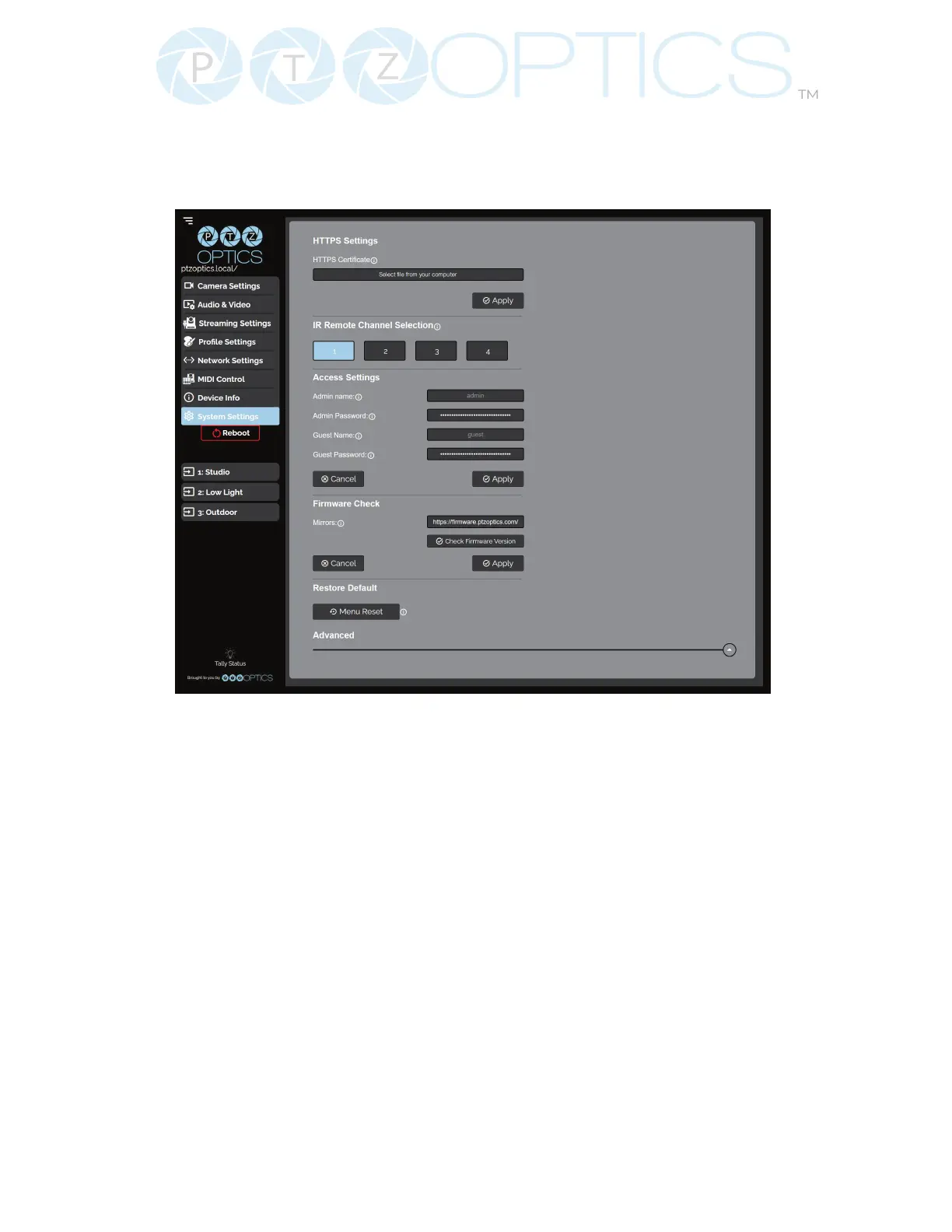
The System Settings page gives access to the HTTPS Settings, IR Remote Channel Selection,
Access Settings, Firmware Check, Restore Default (Basic), Firmware Upload & Restore Default
(Advanced) sections.
▪ HTTPS Settings
Ŝ HTTPS Certicate: Upload a HTTPS Certicate from your computer.
Ŝ HTTP Port: The HTTP Port is how you reach the web interface of your camera
(http://[Camera IP]:[port]/)
▪ IR Remote Channel Selection
Ŝ 1 – 4 Button: Dene the communication channel the camera utilizes with the remote
control. This allows you to easily use multiple cameras with a single IR
remote.
▪ Access Settings
Ŝ Admin Name: Administrator username login. This username can not be changed.
Ŝ Admin Password: Administrator password. If you desire to change the password, all
letters, numbers, and specically “!@#$^()” can be used, up
to 15 characters. Please note the circles in the eld are encrypted
and do not reect the password saved on the camera.
Ŝ Guest Name: Guest username login. This username can not be changed.
Ŝ Guest Password: Guest password. If you desire to change the password, all letters,
numbers, and specically “!@#$^()” can be used, up to 15
characters. Please note the circles in the eld are encrypted and do not
reect the password saved on the camera.


 To Next Page