8
EN
Functional overview
Before you start
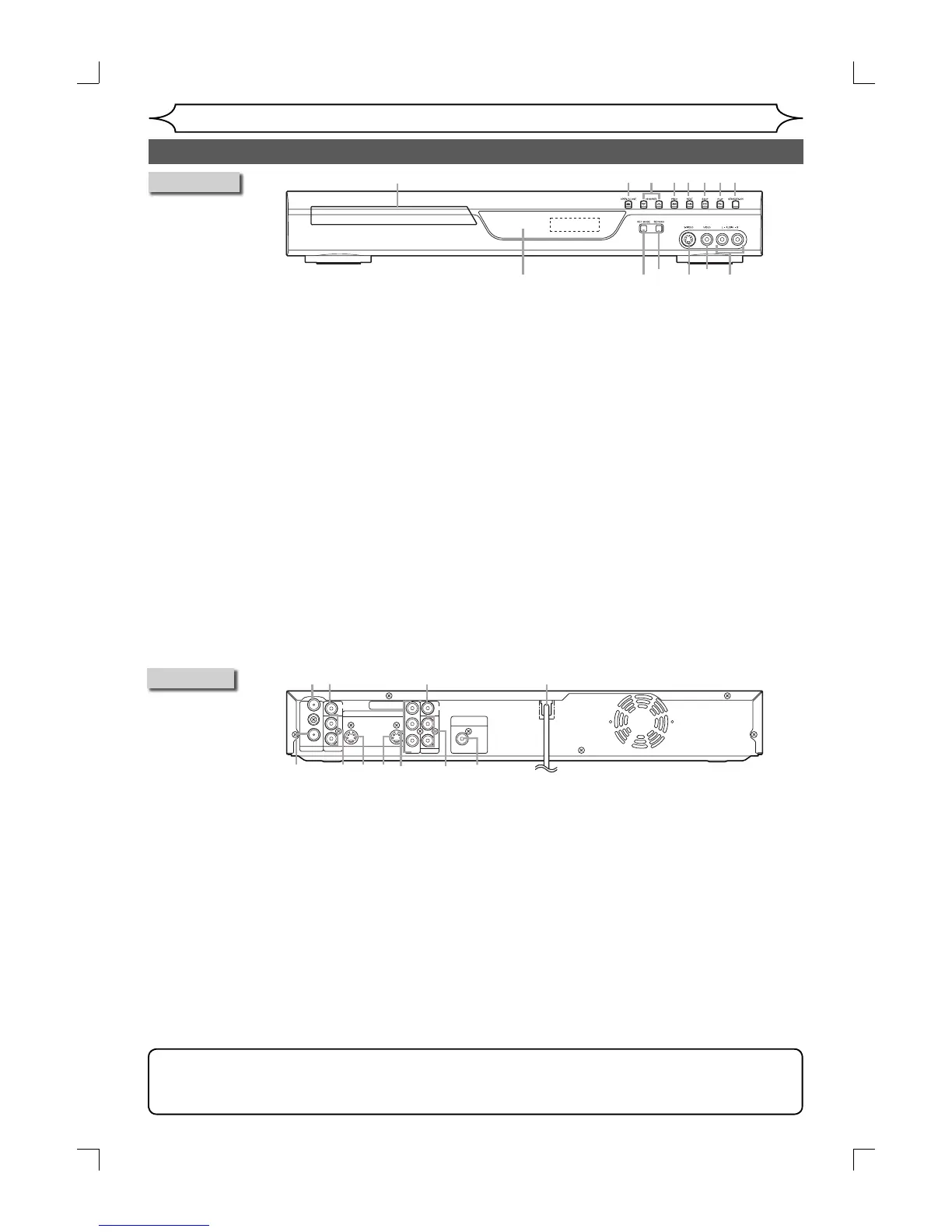
Front Panel
1. Disc tray
Place a disc when opening the disc tray.
2. OPEN/CLOSE A button*
Press to open or close the disc tray.
3. CHANNEL L / K buttons
Press to change the channel up and down.
4. PREV H button
During playback, press to return to the beginning
of the current chapter or track.
During playback, press and hold for 1.5 seconds
to fast reverse.
Or when playback is paused, press to play
reverse step by step.
When playback is paused, press and hold for 1.5
seconds to play slow reverse.
5. NEXT G button
During playback, press to skip to the next chapter
or track.
During playback,
press and hold for 1.5 seconds to
fast forward.
Or when playback is paused, press to play for-
ward step by step.
When playback is paused, press and hold for 1.5
seconds to play slow forward.
6. STOP C button
Press to stop playback or recording.
7. PLAY B button*
Press to start or resume play.
8. STANDBY-ON
button
Press to turn the unit on and off.
If timer programmings have been set, press to
set the unit in timer-standby mode.
9. AUDIO input jacks (EXT2)
Use to connect external equipment with a stand-
ard audio cable.
10. VIDEO input jack (EXT2)
Use to connect external equipment with a stand-
ard video cable.
11. S-VIDEO input jack (EXT2)
Use to connect the S-Video output of external
equipment with an S-Video cable.
12. RECORD button
Press once to start a recording. Press repeatedly
to start the One-touch Timer Recording.
13. REC MODE button
Press to switch the recording speed.
14. Remote control sensor
Receive signals from your remote control so that
you can control the unit from a distance.
56
11
10
9
7* 8
14
12
13
1
2* 3 4
Rear Panel
ANTENNA
AUDIO IN
VIDEO IN
L
R
AUDIO OUT
VIDEO OUT
(E1)
IN
IN
OUT
OUT
S-VIDEO
COMPONENT
VIDEO OUTPUT
L
Y
P
B
/C
B
P
R
/C
R
R
DIGITAL AUDIO OUTPUT
PCM / BITSTREAM
COAXIAL
1
23 4
5678910
11
1. ANTENNA IN jack
Use to connect an antenna.
2. VIDEO IN jack (EXT1)
Use to connect external equipment with a stand-
ard video cable.
3. VIDEO OUT jack
Use to connect a TV monitor, AV receiver or
other equipment with a standard video cable.
4. AC Power Cord
Connect to a standard AC outlet to supply power
to this unit.
5. COAXIAL DIGITAL AUDIO OUTPUT jack
Use to connect an AV receiver, Dolby Digital
decoder or other equipment with a coaxial digital
input jack with a digital coaxial cable.
6. AUDIO OUT jacks
Use to connect a TV monitor, AV receiver or
other equipment with a standard audio cable.
7.
COMPONENT VIDEO OUTPUT jacks
Use to connect a TV monitor with component
video inputs with a component video cable.
8. S-VIDEO OUT jack
Use to connect the S-Video input of a TV moni-
tor, AV receiver or other equipment with an S-
Video cable.
9. S-VIDEO IN jack (EXT1)
Use to connect the S-Video output of external
equipment with an S-Video cable.
10. AUDIO IN jacks (EXT1)
Use to connect external equipment with a stand-
ard audio cable.
11. ANTENNA OUT jack
Use to connect an antenna cable to pass the sig-
nal from the TV ANTENNA IN to your TV monitor.
Note
• Do not touch the inner pins of the jacks on the rear panel. Electrostatic discharge may cause permanent
damage to the unit.
• This unit does not have the RF modulator.
*
The unit can also
be turned on
by pressing this
button.
E7A02UD_PY90DG_p1-37.indd.indd 8E7A02UD_PY90DG_p1-37.indd.indd 8 2006/04/24 18:43:452006/04/24 18:43:45


 To Next Page