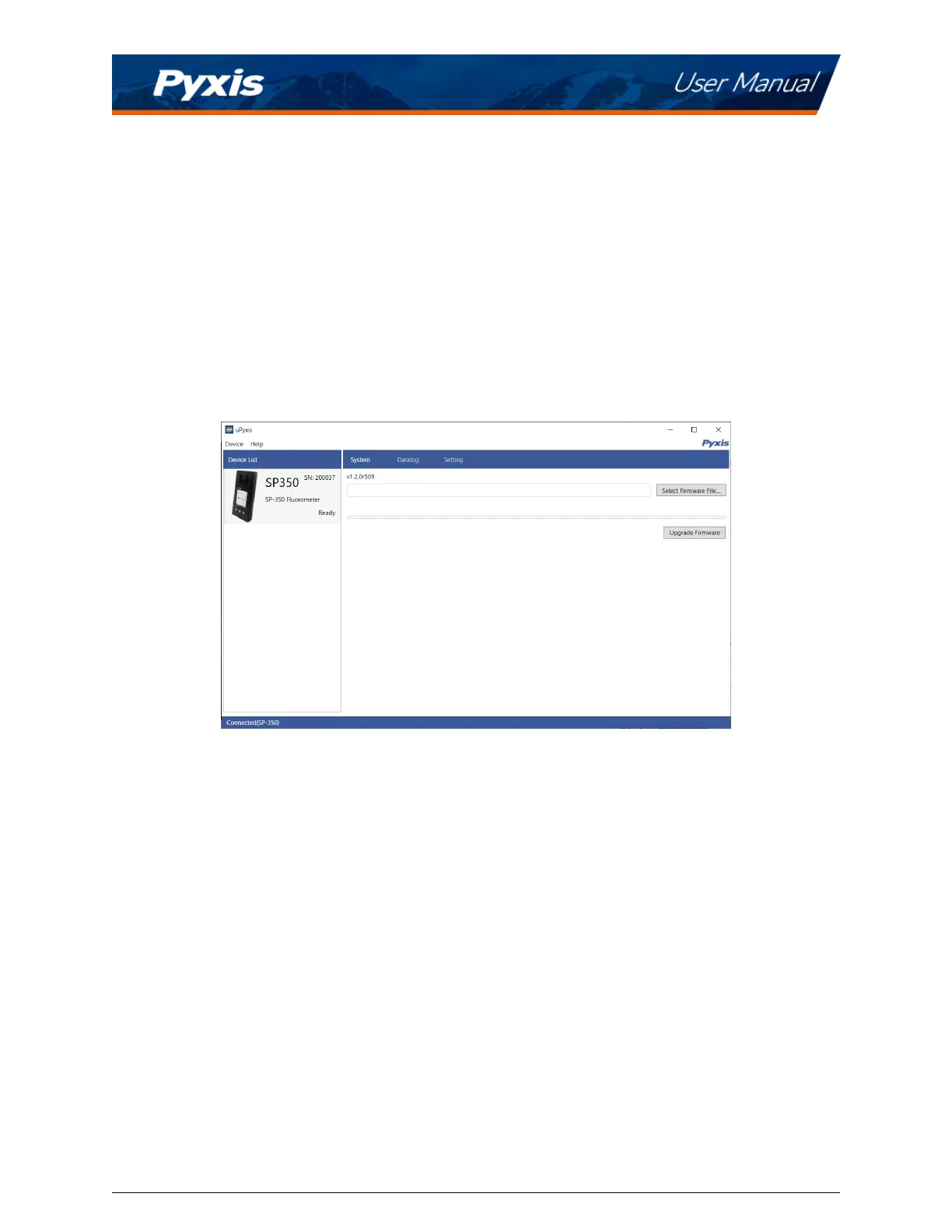
10.3 System Screen
Once connected to the device, a picture of the device will appear on the top-le corner of the window and
the uPyxis® Desktop App will default to the System screen. From the System screen, users can upgrade
the rmware by selecng an appropriate rmware le (contact service@pyxis-lab.com for these rmware
les) and clicking Upgrade Firmware.
*
NOTE
*
The rmware update process takes some me and will require the SP-350 to stay
within range (approximately 10 without obstrucons) for the enre duraon of the up-
date.
Once the update is complete, the SP-350 will reboot which will disconnect the SP-350 from the uPyxis®
Mobile App.
Figure 25.
SP-350 User Manual service@pyxis-lab.com | +1 (866) 203-8397 19



 To Next Page