EasyManua.ls Logo

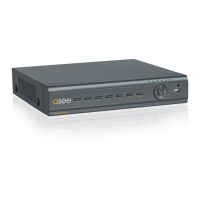
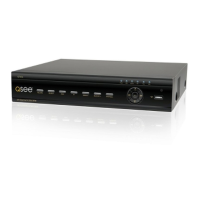
Q-See QT454 - User Manual

Q-See QT454
58 pages
Print Icon
To Next Page IconTo Next Page
Loading...
1
User Manual
MODEL QT454
MODEL QT428
MODEL QT426
QT4 Series
H.264 NETWORK DVR

Table of Contents

Other manuals for Q-See QT454

Questions and Answers

  • L
    lauriebaileySep 3, 2025
    Why are no images displayed on Q-See Network video recorder channels?
    • K
      kbeanSep 3, 2025
      If there are no images displayed on some or all channels of your Q-See Network video recorder, check the cables and ports of the camera and DVR to ensure they are properly connected. You can also check the cameras by attaching them directly to a TV or a working port on the DVR. If the issue persists, try changing the DVR video format.
  • M
    miguel07Sep 18, 2025
    Why isn’t the mouse plugged into the front USB port working on my Q-See QT454?
    • R
      Robert SharpSep 18, 2025
      The front USB port on your Q-See DVR is only for backup to a USB flash drive and does not support a USB mouse. Please use the USB port on the rear panel if using a mouse.
  • T
    todd61Sep 16, 2025
    Why can't I use the mouse on my Q-See QT454 DVR?
    • P
      Philip ArnoldSep 16, 2025
      If you cannot use the mouse with your Q-See DVR, wait 5 minutes after connecting the mouse and then try again. The mouse might also not be securely connected; try plugging and unplugging it several times. Finally, the mouse might be incompatible with the system; please try another mouse.
  • L
    Laura PerrySep 14, 2025
    What to do if my Q-See QT454 indicator lights are on but no output?
    • K
      Kimberly MorenoSep 14, 2025
      If the indicator lights of your Q-See DVR are on, but there is no output, the power adapter may be damaged or not providing enough power; please change the adapter. Also, the video format of the DVR might be different from that of the monitor. Finally, there could be a connection problem; check the cable and the ports of the monitor and DVR.
  • S
    Sheila WagnerSep 12, 2025
    What to do if my Q-See DVR displays 'please wait' all the time?
    • A
      Ann WattsSep 13, 2025
      If your Q-See DVR starts and displays 'please wait……' all the time, the hard drive power cable and/or data cable might not be securely connected. Check the cable connections to ensure they are secure; if it's still not working, unplug them and then plug them in again. Alternatively, the system might be having problems reading the hard drive; try reformatting the current drive or replacing it.
  • S
    Sean BarnesSep 12, 2025
    Why my Q-See QT454 cannot find the hard disk drive?
    • J
      John PetersSep 12, 2025
      If your Q-See DVR cannot find the hard disk drive, it may be due to the power adapter not providing enough power, or the adapter not getting enough power from the outlet. Another cause could be a connection problem; check the power and data cables on the HDD. The HDD might also be damaged and need replacement.
  • C
    callahancarlosSep 9, 2025
    Why are no images displayed on my Q-See DVR channels?
    • J
      Jerry SmithSep 9, 2025
      If no images are displayed on some or all channels of your Q-See DVR, it could be due to a connection problem. Check the cables and ports of the camera and DVR. Another cause might be a camera problem; test the cameras by connecting them directly to a TV or a working port on the DVR. Finally, the video format (NTSC/PAL) of the DVR might be different from that of the cameras; if so, change the DVR video format.
  • R
    robert00Sep 7, 2025
    What to do if Q-See Network video recorder mouse is not working?
    • A
      Aaron HopkinsSep 7, 2025
      If you cannot use the mouse with your Q-See Network video recorder, wait 5 minutes after connecting the mouse and then try again. If it still doesn't work, try unplugging and plugging it back in several times. As a last resort, try using a different mouse.
  • J
    Joseph SteeleSep 5, 2025
    Why isn’t the mouse working on the front USB port of my Q-See Network video recorder?
    • G
      Grace BrownSep 6, 2025
      If the mouse plugged into the front USB port of your Q-See Network video recorder isn’t working, use the USB port on the rear panel instead.
  • C
    Cassandra PetersAug 20, 2025
    Why my Q-See Network video recorder cannot record?
    • A
      andrewhenryAug 20, 2025
      If your Q-See Network video recorder isn't recording, it could be due to several reasons. First, the HDD might not be formatted; if so, format it manually. Another reason might be that the HDD is full, and the recycle function isn't enabled. Finally, the HDD could be damaged and may need replacement.

Q-See QT454 Specifications

General IconGeneral
BrandQ-See
ModelQT454
CategoryDVR
LanguageEnglish

Related product manuals