This document describes the QPIX Digital Photo Frame, model PF1005, a device designed for displaying digital photos and playing multimedia content.
Function Description:
The QPIX Digital Photo Frame (DPF) serves as a dedicated device for showcasing digital images and playing various media files. It allows users to display their favorite pictures in a slideshow format, play background music with photos, and enjoy video and audio playback. Additionally, it offers convenient daily life features such as an alarm clock and calendar display. The device is designed for indoor use and provides multiple input sources for media files.
Important Technical Specifications:
- Panel: 10.1" TFT LED panel
- Resolution: 1024 x 600 pixels
- Aspect Ratio: 16:9
- Photo Formats Supported: JPG, JPEG, BMP, PNG, and more.
- Movie Formats Supported: MPEG-1, MPEG-2, MPEG-4 (AVI/Xvid), M-JPEG, and more.
- Audio Formats Supported: MP3, WMA, WAV, and more.
- Media Slots:
- SD/MMC/SDHC memory card slot (up to 32 GB)
- USB memory stick slot (up to 32 GB)
- Built-in Memory: 8 GB
- Audio Output: Stereo speaker, 3.5mm earphone jack
- Power Input: AC100~240V
- Power Output: DC5V 1.5A
- Additional Features: Clock/Calendar functionality.
Usage Features:
The DPF offers a user-friendly interface for navigating and enjoying multimedia content.
Getting Started:
- Setup: Insert the back stand, remove the protective film, and place the DPF on a flat surface.
- Power Connection: Plug the AC power adapter into the DC power jack and an electrical wall outlet.
- Power On: Press the power button on the remote control or the back of the frame.
- Initial Setup: Upon first power-on, users can change the system language and set the local date and time via the SETUP menu.
The DPF supports media from SD/MMC/SDHC memory cards and USB memory sticks. Users can insert their preferred storage device and select the input source via the EXIT button and navigation controls.
Main Menu Navigation:
The main menu allows access to various functions such as Photo, Music, Video, Calendar, Browser, and Settings. Navigation is done using the directional buttons on the remote control or the back of the frame.
Photo/Slideshow Viewing:
- In photo mode, users can select individual photos using the directional buttons and ENTER button.
- A slideshow will automatically start after selecting a photo.
- Customization: Slideshow interval and transition effects can be adjusted in System Setup > Photo Setup > Transition Interval/Transition Effect.
- Thumbnail Mode: Supports viewing pictures in thumbnail mode.
- Background Music: Photos can be displayed with background music.
Music Playback:
- Press the MUSIC button to open the music player.
- Controls: Use the Play/Pause button, Previous/Next track buttons, and Volume Up/Down buttons (on remote or frame) to control playback.
- Customization: Music display mode and repeat mode can be configured in System Setup > Music Setup > Display Mode/Repeat Mode.
Movie Playback:
- Press the MOVIE button to open the video player.
- Controls: Use the Play/Pause button, Previous/Next track buttons, and Volume Up/Down buttons (on remote or frame) to control playback.
- Selection: Movies can also be selected from the Main Menu > Video via the SETUP button, directional buttons, and ENTER button.
- Customization: Video display mode and repeat mode can be configured in System Setup > Video Setup > Display Mode/Repeat Mode.
Calendar and Clock/Alarm:
- Calendar Display: Press the CALENDAR button to view a full-screen month-by-month calendar and clock. If media is present in the current input source, pictures will be displayed automatically.
- Clock/Alarm Setup:
- Access the Date & Time menu via the SETUP button.
- Select Alarm Setup and change it to 'On'.
- Set the Alarm Time and Alarm Frequency (Mon. to Friday, Once, Everyday, Weekend).
- An alarm window will appear when the set time is reached. Press EXIT to close it.
Browser Functionality:
The Browser lists all files on the USB memory stick or SD (SDHC/MMC) memory card. Users can navigate files, view details, and see pictures/videos in thumbnail format. Pressing ENTER plays the highlighted file.
Copying Files to Built-in Memory:
- Enable Auto Copy: Set "Auto Copy" to 'On' in System Setup > System Setup > Auto Copy.
- Insert USB: Insert a USB memory stick. A prompt will appear asking to confirm copying.
- Confirmation: Press 'Yes' to copy files from the USB stick to the 8 GB built-in memory.
- Important: Ensure old files in built-in memory are backed up as they will be deleted. If the USB stick's content exceeds 8 GB, not all files will be copied.
- Disable Auto Copy: Set "Auto Copy" to "Off" when done.
Remote Control:
The DPF comes with a remote control for convenient operation. It includes buttons for Power On/Off, Mute, Photo and Music Play Mode, Calendar, Photo Play Mode, Music Play Mode, Video Play Mode, navigation (Up, Down, Left, Right), Enter, Volume Up/Down, Fast Forward/Backward, Play Previous/Next File, Play or Pause, and Setting. The remote control sensor is located in the bottom middle of the frame.
Remote Control Battery Replacement:
- Pull out the battery holder from the back of the remote.
- Insert a new battery with the positive charge facing upwards.
- Slide the battery holder back into the remote.
Maintenance Features:
Cleaning the DPF:
- Screen: Treat the screen gently. Use a soft, non-abrasive cloth (e.g., camera lens cloth) for fingerprints or dust. If using a commercial LCD cleaning kit, apply the fluid to the cloth, not directly to the screen.
- Outer Surface: Clean with a soft cloth dampened with water.
Safety Instructions:
- Moisture: Do not expose the product to rain or moisture to reduce fire or shock hazards.
- Servicing: Do not remove the cover; refer servicing to qualified personnel.
- Remote Control Batteries: Keep button batteries out of reach of children due to choking and chemical burn hazards.
- Indoor Use: The DPF is for indoor use only.
- Ventilation: Do not block ventilation holes on the back of the DPF.
- Heat/Sunlight: Keep away from direct sunlight and heat sources.
- Power Cable: Route the power cable carefully to prevent it from being walked on or pinched.
- AC Adapter: Use only the included AC adapter to avoid voiding the warranty.
- Unplugging: Unplug the power cord when the unit is not in use or before maintenance.
Connectivity:
The DPF can be connected directly to a computer via a mini USB cable (not supplied, may need to be purchased separately from QPIX).
Troubleshooting (FAQ highlights):
- No Photo in Calendar: Ensure a photo file is present in the current input source (USB, SD, or built-in memory) and selected via the Browser.
- Input Source Priority: When both USB and SD cards are inserted, SD card files are played first. To play USB files, select USB as the input source.
- Media Format Compatibility: The DPF supports most picture formats but may not read all images. Digital cameras may save images in non-standard formats; refer to the camera manual or transfer files to supported formats.
- Slow Photo Loading: Higher resolution photos load slower. Using lower resolution images can speed up loading time.
- Upside Down Photos/Videos: Rotate the frame if content appears upside down.
- Memory Card Not Reading: Ensure the memory card is supported, inserted correctly, and the input source is selected.
Warranty:
The QPIX product comes with a 1-year limited warranty against defects in materials or workmanship under normal use, starting from the purchase date. Proof of purchase is required for warranty service. Defective products will be repaired or replaced. The warranty does not cover cosmetic damage, loss or damage in transit, or damage from accidents, misuse, abuse, non-QPIX supplied elements, or unauthorized modifications/service.

 Need help?
 General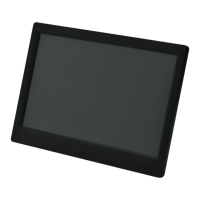

 To Next Page
