EasyManua.ls Logo

Radio Shack TRS-80 - User Manual

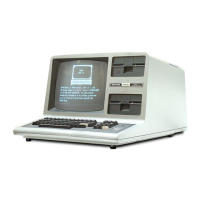
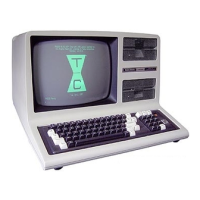
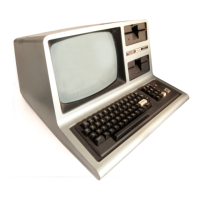
Radio Shack TRS-80
236 pages
Print Icon
To Next Page IconTo Next Page
Loading...
CAT. NUMBER
26-2101
USER'S
MANUAL
Rsdie/haek
CUSTOM
MANUFACTURED IN
U.S.A. BY RADIO
SHACK
M
A
DIVISION OF
TANDY
CORPORATION

Other manuals for Radio Shack TRS-80

Questions and Answers

  • R
    rebecca25Jul 27, 2025
    What to do if the picture is distorted on Radio Shack TRS-80?
    • A
      Andrea ContrerasJul 27, 2025
      If your Radio Shack Desktop picture is distorted even after fine-tuning adjustments, and you lack a Spectrum Analyzer, consider replacing the modulator unit.
  • I
    igreenAug 1, 2025
    Why clock does not appear at TP2 on Radio Shack TRS-80 Desktop?
    • B
      Breanna SanfordAug 1, 2025
      If the clock does not appear at TP2 on your Radio Shack Desktop, it might be a modulator issue. Check the +5 volts at pin 11 and the 3.579 MHz clock at pin 1 of MC1372.
  • G
    Gregory JohnsonAug 8, 2025
    What to do if Radio Shack Computer Hardware display is garbled?
    • M
      Mary BentonAug 8, 2025
      If your Radio Shack Computer Hardware display is garbled, ensure the telephone handset is firmly seated in the rubber cushions and that the baud rate is correct (both local and remote computer systems must send data at the same rate, 300 baud or less). Also, check if the received signal is too weak or noisy. If the remote modem is in answer mode, pick up the handset and listen for a clean tone. If you hear additional tones, dialing pulses, static noise, or voice sounds, the data may be garbled; try re-placing the call.
  • D
    Daniel McguireAug 14, 2025
    How to fix READY LED if it is off on Radio Shack Computer Hardware?
    • M
      Michelle RileyAug 14, 2025
      If the READY LED is off on your Radio Shack Computer Hardware, first ensure the power is on and the handset is properly positioned in the rubber cushions with the cord toward the RS-232-C cable end. Verify that the mode switches are set correctly. When communicating with a time-share computer, the modem must be in Originate mode. When communicating with another TRS-80, the mode selection must be agreed upon before data transmission, with one modem in Answer mode and the other in Originate mode. For data communication, the duplex switch must be in either Full or Half position (not TEST). Finally, check if the modem at the other end is compatible with the TELEPHONE INTERFACE II according to its specifications.
  • J
    johnphillipsAug 19, 2025
    Why does my Radio Shack Computer Hardware display double characters?
    • D
      Diana PetersonAug 20, 2025
      A double character display on your Radio Shack Computer Hardware might occur if the system is in half-duplex mode. If the remote computer echoes all characters, the TRS-80 system must be in full-duplex mode. If the communication system is half-duplex (no echo), either RS-232-C or TELEPHONE INTERFACE II (but not both) must be in half-duplex.

Summary

LIMITED WARRANTY

A Personal Note from the Author

This Users Manual and You

Chapter 1: Computer Etiquette

Getting READY

Steps to prepare the TRS-80 for use, including connecting peripherals and powering on.

Just What Is a Computer Program?

Explains what a computer program is and introduces BASIC for the TRS-80.

Chapter 2: Expanding Programs

And the Program Grows

Demonstrates adding lines to a program and the importance of line numbering for modifications.

Another Error Message

Explains common error messages like WHAT? and SORRY and how to interpret them.

Chapter 3: Basic Math Operations

Putting the Beast to Work

Introduces math operators and solving simple problems using equations like distance = rate * time.

Chapter 4: Exponential Notation

Exponential Notation

Introduces exponential notation for scientific calculations and its representation in BASIC.

Chapter 5: Order of Operations

Parentheses and Order of Operations

Details how parentheses affect calculation order and introduces the standard order of operations in BASIC.

Chapter 6: IF-THEN and GOTO Statements

Relational Operators

Introduces relational operators (=, >, <, etc.) used for comparisons in IF-THEN statements.

IF-THEN Statement

Explains the IF-THEN statement for making decisions and controlling program flow.

Chapter 7: Inputting Data

The INPUT Statement

Describes how to use the INPUT statement to get user input from the keyboard.

Chapter 8: Calculator Mode

The Calculator Mode

Explains how to use the computer as a calculator by omitting line numbers for commands.

Chapter 9: Cassette Tape Operations

Recording Programs

Details the process of saving programs onto cassette tape using the CSAVE command.

Loading Programs

Explains how to load programs from cassette tape using the CLOAD command.

Chapter 10: FOR-NEXT Loops

The FOR-NEXT Loop

Introduces the FOR-NEXT loop structure for repetitive tasks and controlling program execution.

The STEP Function

Explains how to use the STEP function to control the increment or decrement value in FOR-NEXT loops.

Chapter 11: Timing Loops

The Timing Loop

Demonstrates creating time delays in programs using FOR-NEXT loops.

Chapter 12: The TAB Function

The TAB Function

Explains how to use the TAB function for precise formatting of output columns.

Chapter 13: Nested FOR-NEXT Loops

Nested FOR-NEXT Loops

Introduces the concept of nesting loops within each other for complex repetitive tasks.

Chapter 14: The INTEGER function

INT(X) Function

Explains the INT function for rounding numbers to the nearest whole integer.

Chapter 15: Subroutines and Branching

IF-THEN and GOTO Statements

Details how IF-THEN and GOTO statements control program flow based on conditions.

ON-GOTO Statement

Introduces the ON-GOTO statement for multiple branching based on a variable's value.

Chapter 16: Reading Data

DATA and READ Statements

Explains how to store and retrieve data within a program using DATA and READ statements.

Chapter 17: Absolute Value

ABS(X) Function

Explains the ABS function for calculating the absolute value of a number.

Chapter 18: Shorthand Notation

Shorthand Notation

Introduces shorthand commands and statements to simplify typing and program entry.

Chapter 19: Random Number Generation

RND Function

Explains the RND function for generating random numbers and its variations.

Chapter 20: Graphics Commands

SET and RESET Commands

Details the SET and RESET commands for controlling individual graphics points on the screen.

PRINT AT Statement

Introduces the PRINT AT statement for positioning text output at specific screen coordinates.

Chapter 21: Numeric Arrays

Numeric Arrays

Explains the concept of arrays for storing and managing collections of data.

Chapter 22: Advanced Graphics Features

POINT(X,Y) Statement

Describes the POINT statement for checking the status of a specific graphics location on the screen.

Chapter 23: Flowcharting Basics

Flowchart Symbols

Introduces basic flowchart symbols used for planning program logic visually.

Chapter 24: Logical Operators

Logical Operators

Explains the use of logical operators * (AND) and + (OR) for complex conditional statements.

Chapter 25: Advanced Subroutines

Subroutines

Details the concept of subroutines and how to call them using GOSUB and RETURN.

Trigonometry Subroutines

Introduces trigonometric subroutines like TAN, COS, SIN, and their applications.

Chapter 26: DEBUGGING PROGRAMS

Isolating Problems

Outlines a systematic approach to identify issues as hardware, operator, or software problems.

Common Error Sources

Lists common programming mistakes that lead to computer-detected errors.

Part B: Answers to Exercises

SAMPLE ANSWER FOR EXERCISE 3-1

Provides the solution for Exercise 3-1, focusing on the PRINT statement for output.

Part C: Some Users Programs

Test Grader Program

A program to grade student tests based on entered answers and correct responses.

Appendix A: Subroutines

Square Root Subroutine

Details the subroutine for calculating square roots, including input and output requirements.

Appendix B: Cassette Data Files

Cassette Data Files

Explains how to save and load data using cassette files with PRINT # and INPUT #.

Appendix C: Combined Function and ROM Test

Program Test Stages

Outlines the three stages of the test program: function, RAM, and display checkout.

Interface Specifications

Cassette Interface

Details the specifications for connecting a cassette recorder to the computer.

Video Signal Interface

Provides specifications for connecting a video display to the computer.

Summary of LEVEL 1 BASIC

Commands

Lists BASIC commands, their purpose, and where they are described in the manual.

Statements

Lists BASIC statements, their purpose, and corresponding examples.

Radio Shack TRS-80 Specifications

General IconGeneral
Release Year1977
CPUZilog Z80
CPU Speed1.77 MHz
RAM4 KB (expandable to 48 KB)
ModelTRS-80
DisplayMonochrome CRT
Display Resolution64 x 16 characters
StorageCassette tape (optional disk drive)
Operating SystemTRS-80 Level I BASIC (Level II BASIC with ROM upgrade)
PortsCassette

Related product manuals