5
1. Make sure you have downloaded and installed the latest version of your DJ
software and driver from rane.com/downloads.
Note: Driver installation is required to connect FOUR with macOS or Windows
computers.
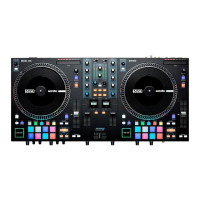
2. Place FOUR on a flat, stable surface.
3. While the power is switched off, plug the included power cable into FOUR first,
then plug the cable into a power outlet.
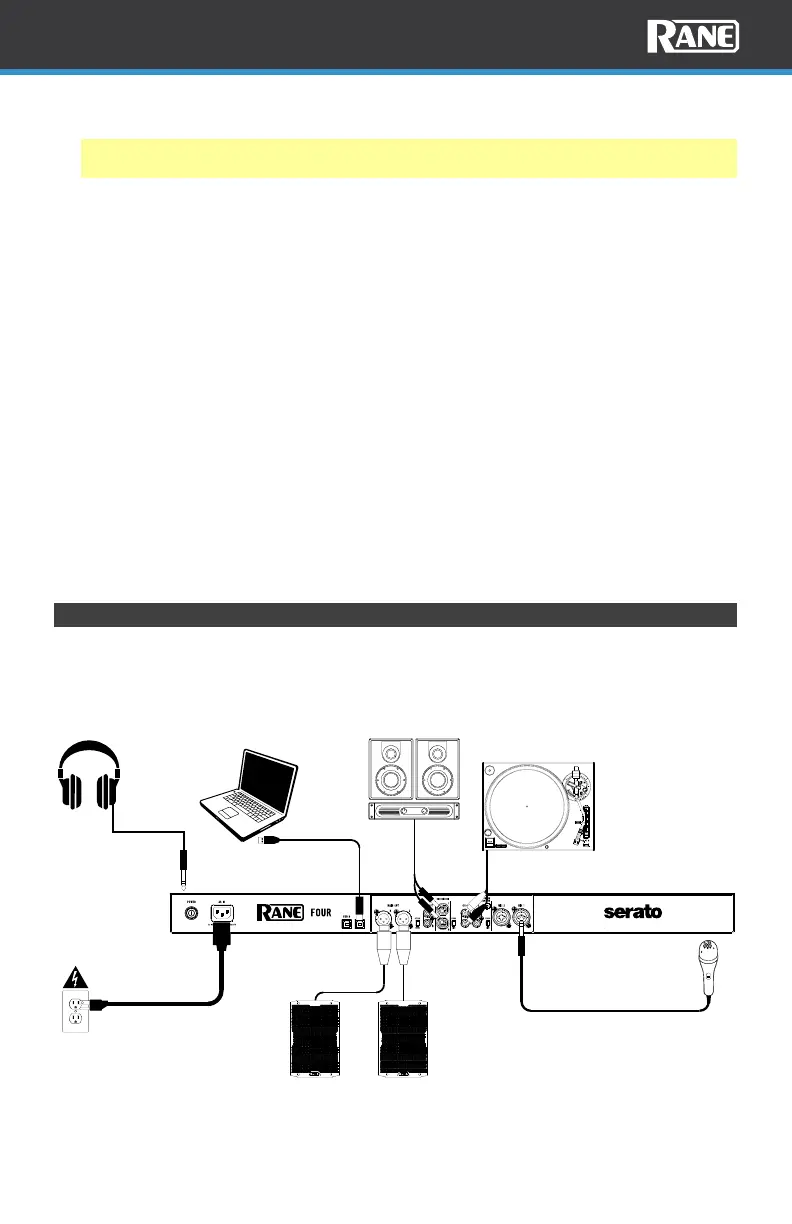
Connect audio input sources (microphones, turntables, etc.) to FOUR.
Connect audio output devices (headphones, power amplifiers, loudspeakers, etc.)
to FOUR.
4. Connect all devices to power outlets, and power on the devices in proper order:
• When starting a session, turn on (1) input sources, (2) FOUR, (3) output
devices.
• When ending a session, turn off (1) output devices, (2) FOUR, (3) input
sources.
5. Use a standard USB cable (included) to connect one of the USB Ports to an
available USB port on your computer or a powered hub connected to the
computer.
6. Open Serato DJ Pro and go!
For more information on how to use Serato DJ Pro with the FOUR, please visit
support.serato.com.
Connection Diagram
Items not listed under Introduction > Box Contents are sold separately.
Headphones
Main Monitors
Microphone
Turntable
Computer
Power
Booth
Monitors
SETUP


 To Next Page