BLADE
GAMING USB
KEYBOARD
10
EN
INSTALL DRIVER
1. Connect the keyboard to computer then double click
“setup.exe” in the installation package, click “Next”
2. Select the folder where to store the driver,click “Next”
3. There will be a installation screen, software will automat-
ically loading
4. Finally a screen will appear to indicate the setup process is
complete, click „Finish”
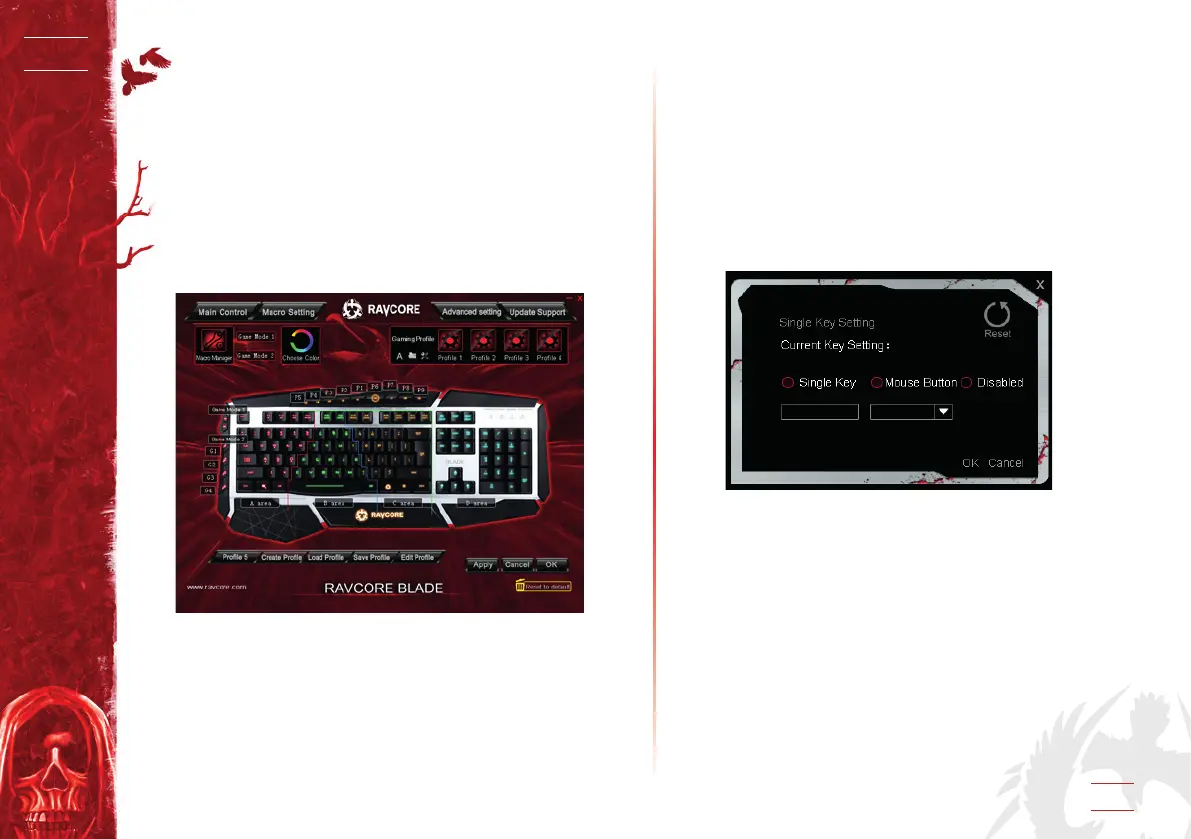
DRIVER INTERFACE
HOW TO CONFIGURE THE KEYBOARD
1. MAIN CONTROL
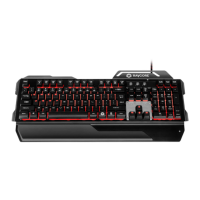
1.1 Change the keys
Click the non special button on driver main control area will
pop up a dialog input the button you want to change In the
dialog ,click“OK”, then click“Apply”, eg. In the image below
the “Y” key will perform the function of “H”.
F1~F12, W, A, S, D, prt scr, scrl lock, pause break, Win, Fn
and Arrow keys can not be set to other keys.


 To Next Page