BLADE
GAMING USB
KEYBOARD
11
EN
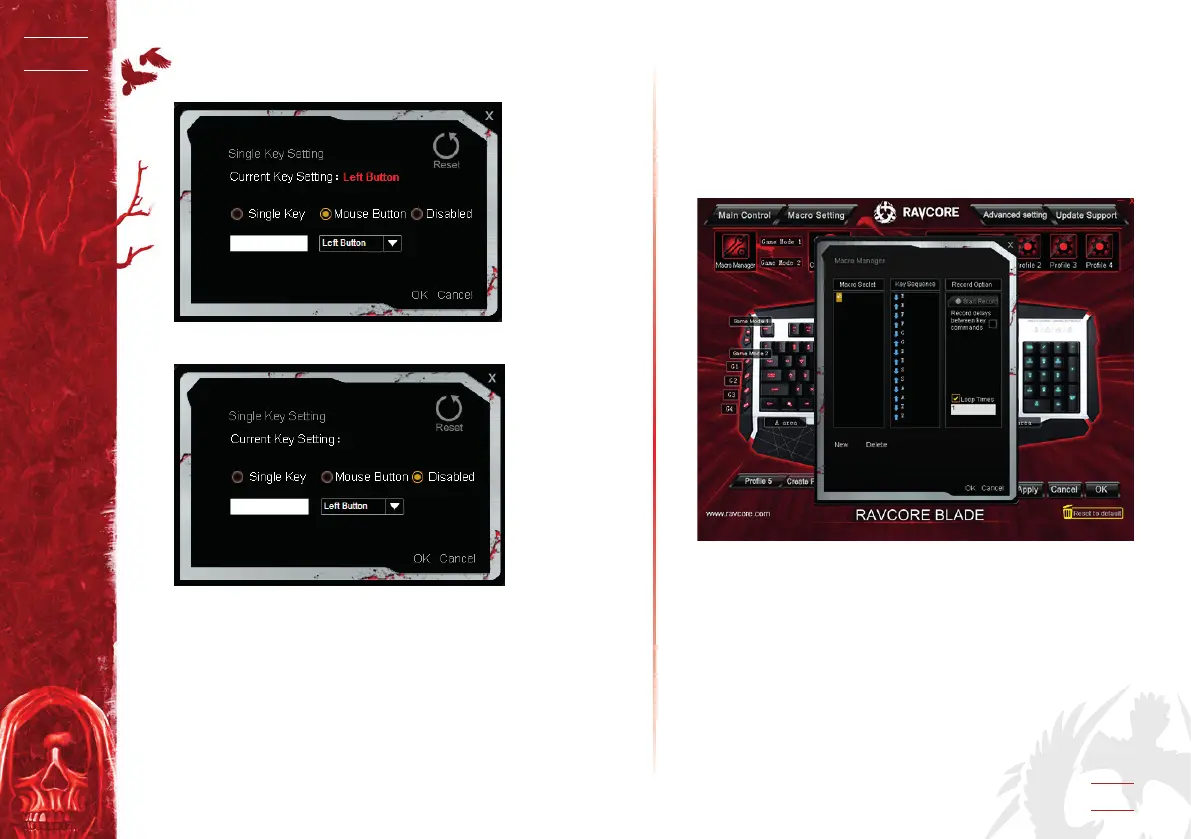
1.2 Set the key to a mouse function
The following image set R key into left button function.
1.3 Disable the key function
2. MACRO DEFINITION
Macro is what you can specify a series of keys to keyboard.
Accurately speaking, is a series of keys press and release events,
record every key press, release and delay.The delay can be
automatically recorded, the time used between key press and
release or button release and press can be automatically output.
G1,G2,G3,G4,L1,L2,L3,L4,L5,L6,L7,L8,L9 are Macro keys.
2.1 Create a macro method 1
1. Click Macro Manager on the upper left,there will be a dialog.
2. Click “New” to create a macro,name it and press enter. select-
ed loop times and automatic delay if need in the macro editor
on the right side, click “Start record”, input keys you need to
dene, then click “Stop Record”, click “OK”.
3. Click Macro Setting, click dialog of the Macro key you want to
set,there will be a pop-up menu, select the macro you dened
as below.


 To Next Page