14
SiriusXM SR200 InfoLINK Receiver Installation Guide
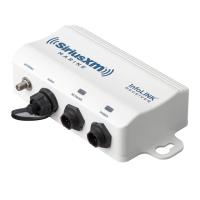
Connect the Network Cable
The Network Cable should be connected to your
Raymarine system. This cable has two different
connectors - one end connects to the Raymarine
system and the other to the InfoLINK Receiver. The
cable is marked near each end to distinguish the
connectors.
If your Raymarine system does not utilize a Network
Switch, connect the Raymarine end of the cable to
the Raymarine MFD’s RayNet (Ethernet) port.
If your Raymarine system utilizes a an HS-5 or
equivalent Network Switch, connect the Raymarine
end of the cable to the Network Switch. If there are
no available connections on the existing Network
Switch, you will need to purchase another Network
Switch to accommodate the InfoLINK Receiver.
Connect the SiriusXM end of the cable to the
NETWORK connection of the receiver.
Connect the Audio Cable (optional)
The audio connection is optional and is used if you
subscribe to a SiriusXM music and entertainment
package in addition to the SiriusXM Marine
subscription package.
If you are not installing an audio connection, do not
remove the water resistant cap that is installed on
the InfoLINK Receiver’s AUDIO connector.
The Audio Cable provides an RCA-style Left and
Right audio connection. Connect these to the
auxiliary (AUX) input on your audio device.
If your audio system does not have RCA connectors
they will need an adapter cable, available from the
local dealer or an electronics retailer.
Remove the water resistant cap that is installed
on the InfoLINK Receiver’s AUDIO connector, and
connect the Audio Cable.
ANTENNAAUDIO
MARINE
NETWORK
RECEIVER
POWER
InfoLINK
AUDIO
ANTENNAAUDIO
MARINE
NETWORK
RECEIVER
POWER
InfoLINK


 To Next Page
 Loading...