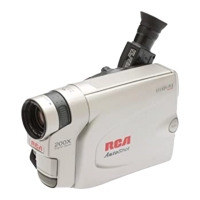
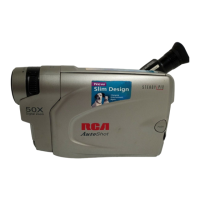
Connections & Setup
Chapter 1 15
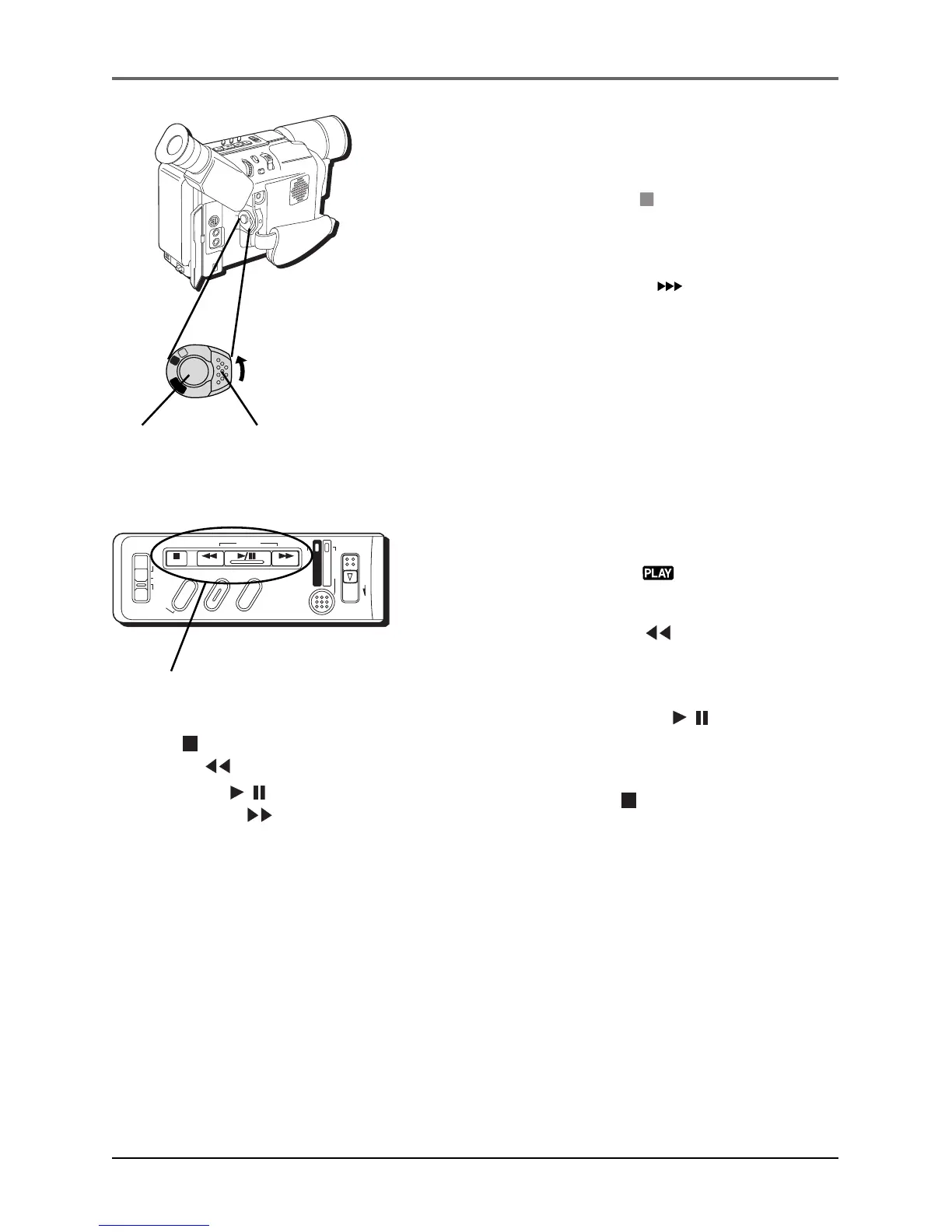
Start recording
1. Remove the lens cap.
2. Set the Power switch to
A
(automatic record).
(The VIDEO indicator comes on.)
3. Press and release the Recording Start/Stop
button to start recording. (
REC
appears in the
viewfinder or LCD monitor (but won’t show up
in the recording)).
4. When finished recording, press and release the
Recording Start/Stop button again to stop
recording. The camcorder is now in the record-
pause mode. (PAUSE appears in the viewfinder
or on the LCD monitor.)
Play your recording
1. Set the Power switch to . (The VIDEO
indicator comes on.)
2. Press the Rewind button to reverse the tape
to the beginning. When rewound completely,
the camcorder automatically stops.
3. Press the Play/Pause button
/
to start
playback. View the recording using the LCD
monitor or viewfinder.
4. Press the Stop button
when finished playing
the tape.
Notes:
• Sound will play back if the LCD monitor
is open or closed. To adjust the volume,
use the Zoom Lever (also labeled
VOL - +).
• More information about using the LCD
monitor and viewfinder can be found on
pages 28-29.
Recording
Start/Stop
button
Playback buttons on top of
the camcorder include:
Stop ( ),
Rewind ( )
Play/Pause (
/
)
Fast Forward ( ).
DSC
STOP R RETAKE F
LIGHT
OFF AUTO ON
C
O
U
N
T
E
R
R
/
M
F
A
D
E
/
W
I
P
E
P
.
A
E
D
I
G
I
F
E
C
T
CHARGE
VIDEO
REFRESH
EJECT
Power switch
M
E
N
U
/
B
R
I
G
H
T
/
T
R
A
C
K
I
N
G
S
N
A
P
S
H
O
T
V
O
L
S
T
E
A
D
Y
P
I
X
/
T
B
C
+
+
D
I
G
I
T
A
L
(
D
S
C
I
N
/
O
U
T
)
P
L
A
Y
O
F
F
A
M
S
T
O
P
R
R
E
T
A
K
E
F
L
I
G
H
T
O
F
F
A
U
T
O
O
N
C
O
U
N
T
E
R
R
/
M
F
A
D
E
/
W
I
P
E
P
.
A
E
D
I
G
I
F
E
C
T
A
M
P
L
A
Y
O
F
F


 To Next Page