Chapter 3 Menu System
20
Graphics are for representation only. Your unit may differ slightly.
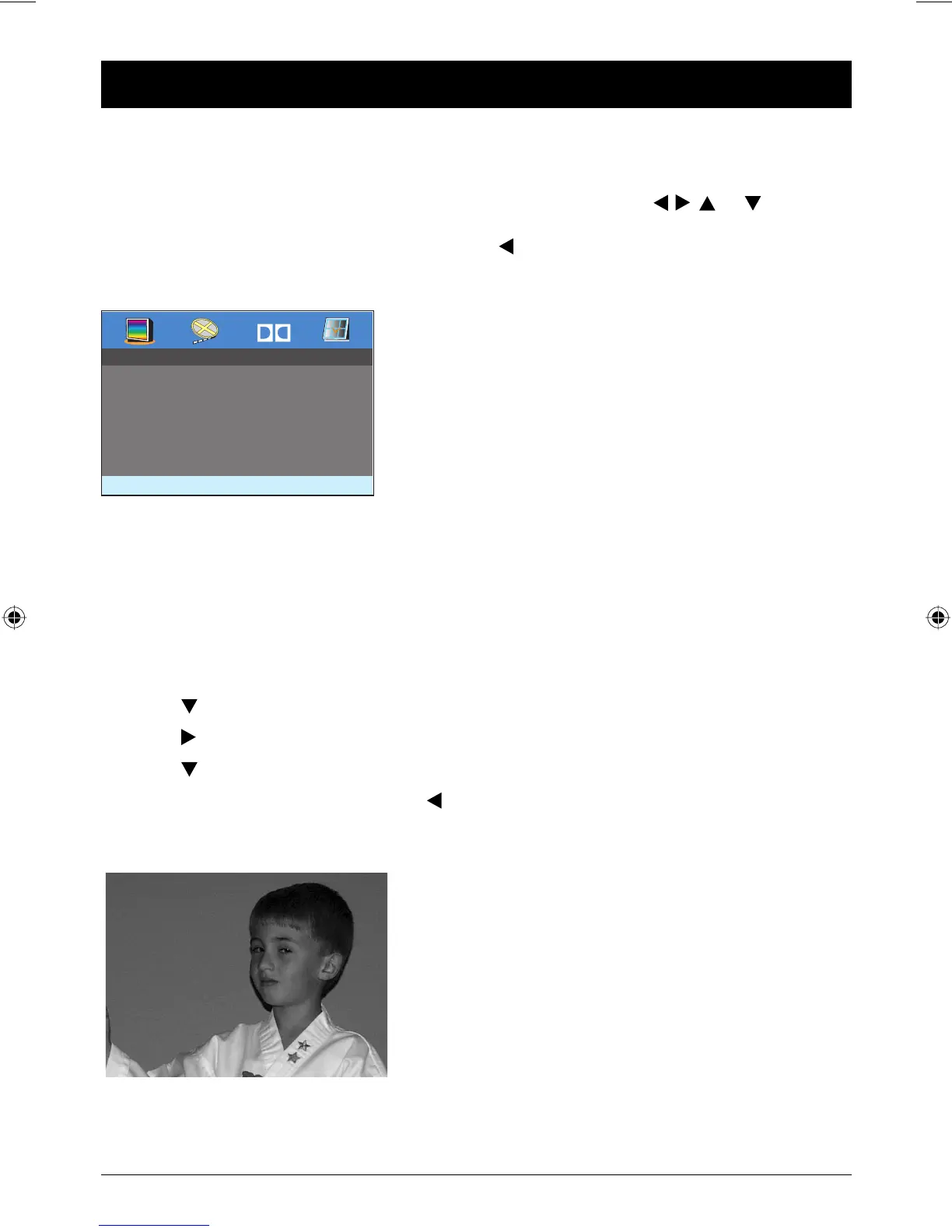
The General Setup Menu
The General Setup Page menu enables you to set
options for:
TV Display, TV Type, and Menu Language.
The DVD Player Menu System
The Setup menus let you customize the DVD player by allowing you to select various language
preferences, set up a parental control level, and more. Press the SETUP button on the remote control
to bring up the DVD player menu system. Use the navigation arrow buttons
, , , or on the
remote to move through different menu items. Use the ENTER button to select or change a menu that
is highlighted. To return to a previous menu, press the
(left arrow) button repeatedly to back out of
the menu.
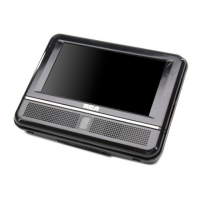
Normal/PS (Pan Scan-4:3): Choose this setting if your
DVD player is connected to a standard TV. This might mean
that parts of the picture (the left and right edges) won’t be
seen. Most discs that are produced in a widescreen format
can’t be cropped in this fashion.
TV Display
The TV DISPLAY option contains the display options that affect how a disc’s content
looks if the DVD player is connected to your TV. Depending on the type of television
you have, you may want to adjust the screen setting (also called the aspect ratio).
1. Turn on the DVD player (disc can be playing).
2. Press the SETUP button on the remote to bring up DVD player’s menu, the General
Setup menu is automatically highlighted.
3. Use the button to highlight TV Display in the menu.
4. Use the button to select the display options.
5. Use the button to highlight one of the options, and press ENTER to select.
6. To return to the previous menu, press the
button if necessary. To remove the
menu from the screen, press SETUP.
Dolby
General Setup Menu
TV Display PS
TV Type NTSC
Menu Language ENG
Book 1.indb 20Book 1.indb 20 4/29/05 10:04:35 AM4/29/05 10:04:35 AM



 To Next Page