13
To prevent unauthorized access to the controller or to limit changes to the system
settings:
Partial Lock: Only the temperature can be changed. (Only visible if ISU 165 is disabled.)
Full Lock: No access is allowed without a PIN code.
Screen Lock Settings
Applying a Screen Lock Setting
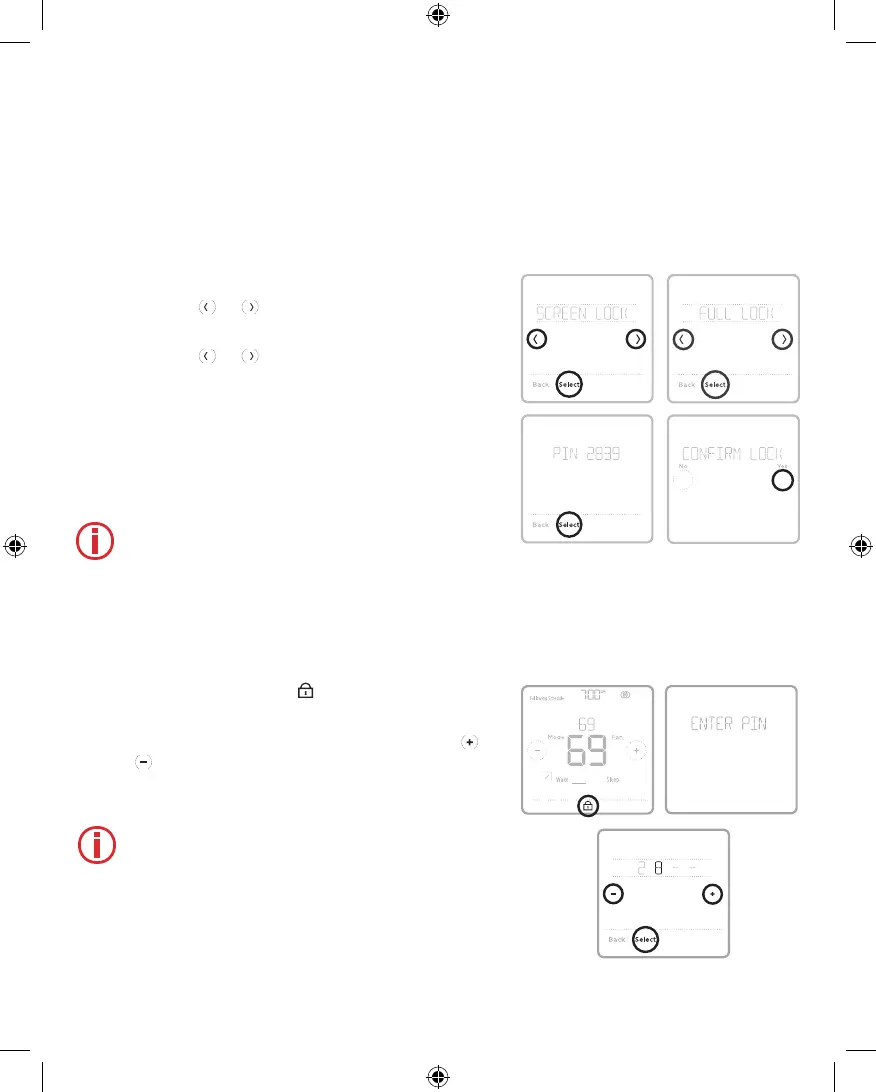
1 Touch Menu on the controller home screen.
2 Touch the
or arrows until you see
SCREEN LOCK, then touch Select.
3 Touch the
or arrows to select your
desired screen lock setting, then touch Select.
4 A PIN code will appear on screen. Write it
down
_ _ _ _ and keep it in a safe place for
later reference.
5 Touch Select, and confirm your screen lock
setting by touching Yes.
Note: A locked screen will be indicated by
a lock symbol at the bottom of the controller
screen. Full Lock, Partial Lock, and ISU
settings 161-167 can trigger the lock
symbol, but only Full and Partial Lock can
be unlocked with the PIN.
Unlocking the Screen
1 Touch the lock symbol on the controller
home screen.
2 When prompted to enter a PIN code, touch
or
to select the first number of the PIN code.
Touch Select to confirm, and repeat for the
remaining numbers.
Note: If touching the lock symbol does not
prompt for the PIN, you must disable the
lockout setting(s) in ISUs 161-167 to make
the needed change.
When you enter the correct PIN, you’ll return to
the controller home screen. To re-lock the screen
after you’re done making changes, follow the steps
above to apply a lock setting.
Heat
Auto
Leave
Return
33-00447EFS_B.indd 13 10/17/2019 3:22:56 PM


 To Next Page