14
Setting the Date and Time
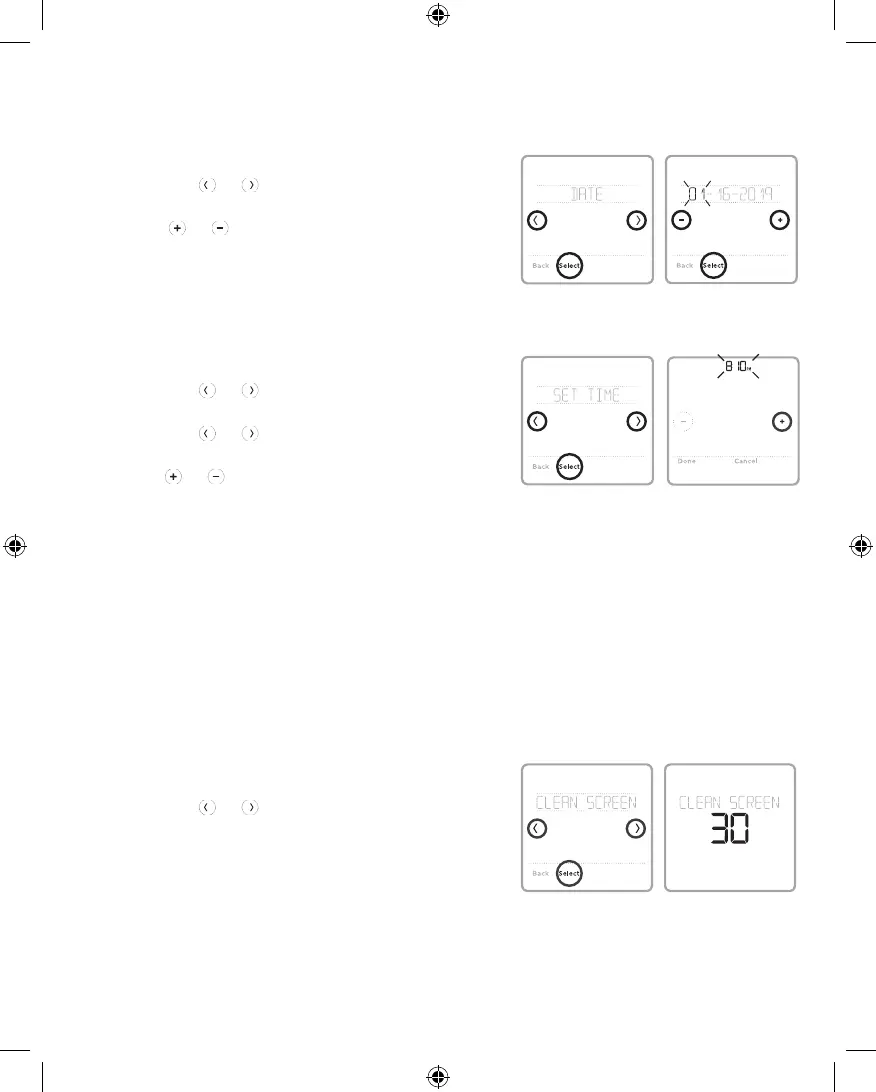
Setting the Date
1 Touch Menu on the controller home screen.
2 Touch the or arrows until you see
DATE, then touch Select.
3 Touch or to set the month, then touch
Select to confirm.
4 Continue to set the day and year in the same
way. Touch Select to save your changes.
Setting the Time
5 Touch Menu on the controller home screen.
6 Touch the or arrows until you see
CLOCK, then touch Select.
7 Touch the or arrows until you see SET
TIME, then touch Select.
8 Press or to set the time (or press and
hold the buttons to move more quickly). Touch
Done when finished.
9 Set clock format (12 hours or 24 hours) and
daylight saving time in the same CLOCK sub-
menu.
With the clean screen option, you can lock the
controller screen so you don’t accidentally change
your settings when you clean. Follow the steps
below to activate clean screen mode.
1 Touch Menu on the controller home screen.
2 Touch the or arrows until you see CLEAN
SCREEN, then touch Select.
The screen will deactivate for 30 seconds. A
countdown timer will display the amount of time
until screen reactivation.
Tip: To clean the controller screen, spray water or
household cleaner onto a cloth, then use the cloth
to clean the screen. Avoid abrasive cleaners and
do NOT spray liquid directly on the controller.
Cleaning the Controller Screen
33-00447EFS_B.indd 14 10/17/2019 3:22:57 PM


 To Next Page