
 Need help?
Do you have a question about the REDRAGON K539 ANUBIS and is the answer not in the manual?
Details repair guarantees for electrical issues, excludes damages from disassembly, water, or natural disasters, and consumables.
Connects keyboard via USB A to USB Type C cable; computer configures automatically.
Connects via nano USB receiver; may require pairing by holding FN+[4].
Connects via Bluetooth by sliding switch to BT and selecting device on computer/phone.
Lists FN key combinations for backlight control, device selection, and reset.
Lists FN+F1 to FN+F12 shortcuts for media playback, volume, and applications.
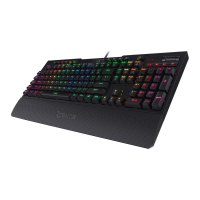
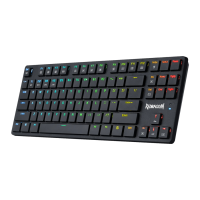
This document provides operating instructions for the Redragon Anubis Mechanical Gaming Keyboard, covering its connectivity options, function introductions, multimedia keys, charging procedures, and frequently asked questions.
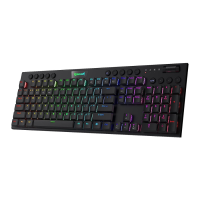
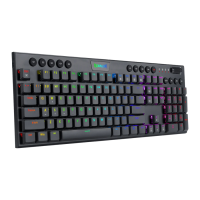
The Redragon Anubis Mechanical Gaming Keyboard is a versatile input device designed for gaming and general computer use. It offers multiple connectivity modes: wired, 2.4G wireless, and Bluetooth, allowing it to be used with a wide range of operating systems including Windows XP, Vista, 7, 8, and 10. The keyboard features a mechanical design, providing tactile feedback and durability. A key feature of this keyboard is its extensive backlight system, offering 20 different backlight effects and customizable colors, enhancing the user experience, especially in low-light environments. It also includes a set of multimedia keys for quick access to common functions like volume control, media playback, and launching applications.
The Redragon Anubis keyboard is designed for ease of use across its various connectivity modes.
To use the keyboard in wired mode, simply slide the 2.4G/OFF/BT switch on the bottom of the keyboard to "OFF." Then, connect the keyboard to your computer using the provided USB-A to USB Type-C cable. The computer will automatically recognize and configure the keyboard, making it ready for use. When connected via cable, the keyboard also charges; the LED marked "M" will light up red during charging and turn white when fully recharged.
For 2.4G wireless operation, slide the switch on the bottom of the keyboard to "2.4G." Insert the nano USB receiver into an available USB port on your computer. The computer will automatically detect and configure the keyboard. In some instances, pairing might be required. To pair, turn on the keyboard and press [FN] + [4] for approximately 3 seconds. The "M" LED will flash green. Within 20 seconds, plug the USB receiver into any available USB port on your computer, and the keyboard will pair automatically. Ensure the keyboard has sufficient power before attempting to pair. A flashing indicator signifies a low battery, prompting the user to recharge the keyboard to prevent automatic shutdown.
To connect via Bluetooth, move the switch on the bottom of the keyboard to "BT." Press [FN] + [1] (or [2]/[3] for other Bluetooth devices). The "M" LED will flash blue (or cyan/magenta for other devices). On your computer or smartphone, enable Bluetooth and scan for available devices. The keyboard will appear as "BT3.0KB" or "BT5.0 KB." Select it to establish an automatic connection.
The keyboard offers a rich set of functions accessible through combinations with the [FN] key:
[FN] + [Ins]: Cycles through 20 different backlight modes.[FN] + [Del]: Changes the backlight color.[FN] + [PrtSc]: Toggles the backlight on or off.[FN] + [←]: Decreases the running speed of the backlight effect.[FN] + [→]: Increases the running speed of the backlight effect.[FN] + [↑]: Increases the backlight brightness.[FN] + [↓]: Decreases the backlight brightness.[FN] + [TAB]: Sets the backlight to white.[FN] + [Win]: Disables or enables the [Win] key, preventing accidental presses during gaming.[FN] + [1]: Selects Bluetooth device one for connection.[FN] + [2]: Selects Bluetooth device two for connection.[FN] + [3]: Selects Bluetooth device three for connection.[FN] + [4]: Switches to 2.4G wireless connection. Holding [FN] + [4] for 3 seconds initiates pairing with the 2.4G receiver.[FN] + [ESC]: Resets the keyboard to its default settings.Dedicated multimedia functions are available through [FN] key combinations with the F-keys:
[FN] + [F1]: Opens "My Computer."[FN] + [F2]: Opens the default web browser's home page.[FN] + [F3]: Launches the calculator.[FN] + [F4]: Mutes the media player.[FN] + [F5]: Skips to the previous track.[FN] + [F6]: Skips to the next track.[FN] + [F7]: Plays or pauses media.[FN] + [F8]: Stops media playback.[FN] + [F9]: Mutes audio.[FN] + [F10]: Decreases volume.[FN] + [F11]: Increases volume.[FN] + [F12]: Opens the default email client.To charge the keyboard, locate the USB-A to USB Type-C cable included in the package. Plug the Type-C end into the keyboard and the USB-A end into a computer or a compatible USB charger. The LED indicator on the keyboard will turn red, signifying that it is charging. The LED will remain red when the keyboard's battery is low, indicating that it needs to be recharged.
The product comes with a warranty that covers failures due to electrical circuit problems within the guaranty period. However, the warranty does not cover damages resulting from disassembly, hard impacts, submersion in water, improper current or voltage, or natural disasters such as fire, flood, or earthquake. Consumable parts like foot pads and spare parts replacements are also not included in the warranty.
 General
| Model | K539 ANUBIS |
|---|---|
| Category | Keyboard |
| Backlight | RGB |
| Keycaps | Double-shot ABS Keycaps |
| Keyboard Layout | ANSI |
| Polling Rate | 1000 Hz |
| Switch Type | Red |
| Connection | Wired |
| Layout | 60% |
| Cable | USB-C Cable |
| Weight | 580g |
| Anti-ghosting | Full keys Anti-ghosting |

 To Next Page