
 Need help?
Do you have a question about the REDRAGON K585 DITI ELITE and is the answer not in the manual?
Lists compatible operating systems for the keyboard.
Step-by-step guide to connect the keyboard via USB cable.
Step-by-step guide to connect the keyboard using a USB receiver.
Explains 7 backlighting effects controlled by FN+Space.
Details on how to record, assign, play, and delete macros.
Steps to resolve connection loss with the USB receiver.
Common user queries and their solutions.
Standard FCC compliance information for the device.
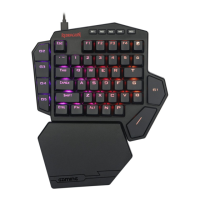
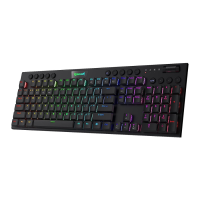
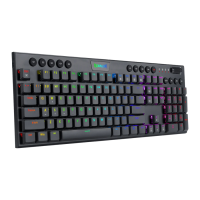
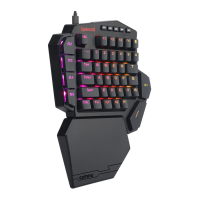
This document serves as the operating instructions for the Redragon Diti Elite Mechanical Gaming Keyboard, a 2.4G wireless gaming keypad. It provides essential information for users to connect, operate, and maintain their device, along with warranty details and troubleshooting tips.
The Redragon Diti Elite is a mechanical gaming keyboard designed for an enhanced gaming experience. It offers both wired and 2.4G wireless connectivity options, allowing for flexible usage depending on user preference and setup. The keyboard is compatible with various Windows operating systems, including XP, Vista, Win7, Win8, and Win10.
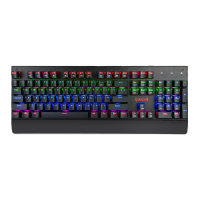
A key feature of this keyboard is its customizable backlighting. Users can choose from 7 different backlighting effects by pressing FN+Space, which include "Go with the stream," "The trial of Light," "Ripple Graff," "Flowers blooming," "Pass without Trace," "Stars," and "both ways." Additionally, there are 4 pre-set backlight modes accessible via M1 (default F9), M2 (default F10), M3 (default F11), and M4 (default F12), each corresponding to a specific lighting effect: "Go with the stream," "The trial of Lights," "The Ripple Graff," and "Pass without trace," respectively. This variety allows users to personalize their keyboard's aesthetic to match their mood or gaming environment.
The Diti Elite also incorporates macro functionality, featuring 7 macro keys (G1-G5, ~, T). These keys can be programmed to execute a sequence of commands with a single press, providing a significant advantage in games or for repetitive tasks. The macro recording process is straightforward: users press the REC key, select a light mode (M1-M4), choose a macro key (G1-G5, ~, T), input the desired keys to be recorded, and then press REC again to save. It's important to note that each macro recording needs to be coordinated with a specific light mode for both recording and playback. Macros can be played back by simply pressing the corresponding macro key after selecting the associated light mode. If a user wishes to reset the keyboard to its factory settings, they can press and hold FN+ESC for 3 seconds. To delete all macros, the user can press FN+ESC.
Connecting the keyboard to a computer is designed to be user-friendly, with both wired and wireless options. For wired connection, users simply connect the USB to USB C cable from the package to the keypad and their computer. The computer will automatically recognize and configure the keypad, and the LED lights on the keys will illuminate once configuration is complete, indicating readiness for use. The keyboard also recharges when connected via cable, regardless of whether the power switch is ON or OFF, with a full charge taking approximately four hours.
For wireless connection, users plug the USB receiver into any available USB port on their computer and slide the power switch on the bottom of the keypad to "Power On." Similar to the wired connection, the computer will automatically recognize and configure the keypad, and the LED lights will turn on when it's ready. The space bar's LED acts as an indicator for battery status, flashing red when recharging is needed and turning green upon full charge.
In instances where the keypad loses connection with the USB receiver, possibly due to strong magnets or violent vibration, a reconnection process is provided. Users can unplug and replug the receiver, then press FN+Q to pair. The space bar will light up blue, and then the keypad's LED will revert to its previous light effect, signifying a successful reconnection.
The manual emphasizes the importance of proper care and provides guidance for common issues. In case of liquid spills, users are instructed to immediately remove the USB cable from the computer, wipe up excess liquid, and place the keyboard in a warm area (e.g., under a lamp) to allow it to dry naturally before attempting to use it again. This proactive approach helps prevent damage from moisture.
The warranty rules outlined in the manual also touch upon maintenance aspects by defining what is covered. Within the guarantee period, repairs are covered for failures due to electrical circuit problems. However, damages resulting from user actions such as disassembly, hard impacts, submersion in water, plugging into improper current or voltage, or natural disasters like fire, flood, or earthquake are not covered. Consumable parts, such as foot pads, and spare parts replacements are also excluded from the warranty. This clarifies the scope of maintenance support provided by the manufacturer.
For troubleshooting, if the keyboard is unresponsive, the first step is to check if the USB cable is correctly inserted into the computer's USB port or to try a different USB port. This simple check can often resolve connectivity issues without needing further intervention. The detachable Type C to USB cable also offers flexibility, as standard cell phone cables can be used as alternatives, which can be useful for replacement or convenience.
 General
| Type | Mechanical |
|---|---|
| Key Backlighting | RGB |
| Key Rollover | N-Key Rollover |
| Polling Rate | 1000 Hz |
| Connectivity | Wired |
| Connectivity Technology | USB |
| Cable Length | 1.8 m |
| Compatibility | Windows |
| Wrist Rest | Yes |

 To Next Page