
 Need help?
Do you have a question about the REDRAGON K618 Horus and is the answer not in the manual?
Outlines repair guarantees, excluded damages, consumables, and warranty card validity.
Lists the operating systems compatible with the keyboard.
Step-by-step guide to connect the keyboard using a USB cable.
Instructions for pairing the keyboard via 2.4GHz wireless technology.
Guide to connecting the keyboard using Bluetooth technology.
Explains various functions triggered by FN key combinations.
Describes how to adjust volume and backlight brightness using the scroll button.
Details functions of multimedia keys (F9-F12) and media playback shortcuts.
Instructions for recording, playing, and deleting custom macros.
Guide on how to charge the keyboard using the provided cable.
Instructions for remapping WASD keys to arrow key functions.
Answers to common issues and user queries about the keyboard.
Information regarding the device's compliance with FCC regulations.
Warning about chemicals and reproductive toxicity exposure.
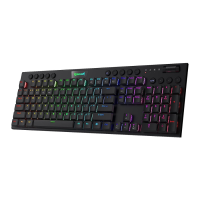
The Redragon Horus Wired / 2.4G / BT Mechanical Gaming Keyboard is a versatile input device designed for gamers and users seeking a high-performance, customizable keyboard experience. It offers multiple connectivity options, extensive backlight effects, macro recording capabilities, and multimedia functions, making it suitable for various computing environments and user preferences.
The Redragon Horus keyboard provides three primary connection modes: wired, 2.4G wireless, and Bluetooth (BT). This multi-mode functionality allows users to connect the keyboard to a wide range of devices, including desktop computers, laptops, and smart devices, without the need for additional software or driver installations. The wired connection ensures a stable and lag-free experience, ideal for competitive gaming where every millisecond counts. The 2.4G wireless connection offers freedom of movement with a dedicated USB receiver, providing a reliable wireless link. Bluetooth connectivity further expands its versatility, enabling seamless pairing with up to three different Bluetooth devices, such as tablets or smartphones, allowing for quick switching between them.
A key feature of the Horus keyboard is its extensive backlight system, offering 20 different backlight effects. Users can customize the lighting to match their mood, game, or aesthetic preferences. The backlight color can be changed, and the running speed of dynamic effects can be adjusted, providing a highly personalized visual experience. A dedicated function allows users to set the backlight to a pure white color, offering a clean and professional look when desired.
The keyboard also incorporates a scroll button located in the upper right corner, which serves a dual purpose: volume adjustment and backlight brightness control. This intuitive design allows for quick and easy modifications to audio levels and lighting intensity without interrupting workflow or gameplay. When adjusting backlight brightness, the scroll button's light turns white, indicating its current mode. When adjusting volume, the key light turns off.
For enhanced productivity and gaming efficiency, the Redragon Horus supports macro recording. Users can create up to 20 different macro groups, with 4 profile keys (M1-M4) and 5 macro keys (G1-G5) per profile. This allows for complex sequences of commands or frequently used key combinations to be executed with a single press, providing a significant advantage in games or streamlining repetitive tasks. The macro recording process is straightforward, involving selecting a profile, activating recording, pressing the desired keys, and then saving the macro. Macros can also be easily played back and deleted when no longer needed.
Multimedia functions are integrated into the F9-F12 keys, accessible via the FN key. These shortcuts provide quick access to essential applications such as the browser, research tool, calculator, and email client, enhancing overall user convenience. Additionally, dedicated shortcut keys for previous track, next track, and play/pause functions are available, offering convenient control over media playback.
The keyboard also includes a function to swap the [W][A][S][D] keys with the arrow keys. This feature is particularly useful for gamers who prefer to use the arrow keys for movement in certain games or applications, providing flexibility in control schemes. The [Win] key can also be disabled or enabled, preventing accidental presses during intense gaming sessions that might minimize the game.
To connect the keyboard in wired mode, users simply slide the ON/OFF switch to OFF, connect the USB A to USB Type C cable to the computer, and press FN+5(USB). A successful connection is indicated by the 'M' LED twinkling five times. The computer automatically recognizes and configures the keyboard. During wired connection, the keyboard charges, with the 'M' LED lighting red and turning white when fully charged.
For 2.4G wireless connection, the ON/OFF switch should be set to ON. Pressing [FN]+[4] for about 3 seconds causes the 'M' LED to flash quickly in green. Users then plug the USB receiver into an available USB port within 20 seconds. The computer will automatically recognize and configure the keyboard. In 2.4G mode, the 'M' LED flashes red when the battery is low, prompting the user to recharge. During charging, the 'M' LED is red and turns green when complete.
Bluetooth connection also requires the ON/OFF switch to be ON. Users press [FN]+[1] (or [2]/[3] for other Bluetooth devices), and the 'M' LED flashes in blue (or cyan/magenta for other devices). After turning on Bluetooth on the computer or smartphone, the device will find "BT3.0Keyboard or BT5.0 KB." Selecting it establishes an automatic connection. Similar to 2.4G, a red 'M' LED indicates low battery, and during charging, it is red, turning cyan/magenta when fully charged in Bluetooth mode.
The keyboard's backlight modes can be cycled through using [FN]+[Ins], and the backlight color can be changed with [FN]+[Del]. The speed of dynamic backlight effects can be adjusted using [FN] + [←] to slow down and [FN] + [→] to speed up. The backlight can be set to white using [FN]+[TAB]. The [Win] key can be disabled or enabled with [FN]+[Win]. The [W][A][S][D] keys can be swapped with the arrow keys using [FN]+[W], and pressing it again restores the original function. To reset the keyboard to its default settings, [FN]+[ESC] can be used.
The Redragon Horus keyboard is designed for durability, but proper care is essential for its longevity. In case the keyboard does not respond, the first step is to check if the USB cable is correctly inserted into the computer's USB port. If the issue persists, trying a different USB port is recommended.
For liquid spills, immediate action is crucial. Users should remove the USB cable from the computer without delay. After disconnecting, it is important to wipe up any excess liquid thoroughly. To ensure complete drying, the keyboard should be placed in a warm environment, such as under a lamp, allowing it to dry naturally before attempting to use it again. This prevents potential damage to the internal circuitry.
The warranty policy outlines specific conditions for repair and replacement. Within the warranty period, repairs are guaranteed for electrical circuit problems. However, man-made damages, such as disassembly, hard impacts, submersion in water, plugging into improper current or voltage, and damage from natural disasters (fire, flood, earthquake), are not covered. Consumable parts like foot sticks and spare parts replacements are also excluded from the warranty. To ensure warranty validity, users must fill out the warranty card, which requires the retailer's stamp. It is important to keep the warranty card in a safe place, as it will not be reissued if lost.
The keyboard's battery status is indicated by the 'M' LED. When the battery is low in 2.4G or Bluetooth mode, the LED flashes red, signaling that a recharge is needed. Users should recharge the keyboard promptly by plugging the Type C cable into a computer. Failure to do so will result in the keyboard automatically turning off. During charging, the 'M' LED will be red and will change to green (in 2.4G mode) or cyan/magenta (in Bluetooth mode) once charging is complete. This clear indication helps users manage battery life effectively and avoid unexpected power loss.
 General
| Type | Mechanical |
|---|---|
| Backlight | RGB |
| Battery Capacity | 1900 mAh |
| Key Rollover | N-Key Rollover |
| Connectivity | 2.4GHz Wireless / USB-C |
| Keycaps | ABS |
| Compatibility | Windows, macOS |
| Switch Type | Redragon Red/Brown/Blue Mechanical Switches |

 To Next Page