
 Need help?
Do you have a question about the REDRAGON K631 CASTOR and is the answer not in the manual?
Learn how FN key combinations map to F1 through F12 keys.
Details FN key combinations for Insert, Home, End, PRTSC, and volume controls.
Learn to switch effects, adjust brightness/speed, and turn off backlighting.
Details how to set specific key colors using FN+TAB.
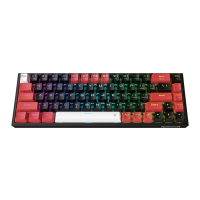
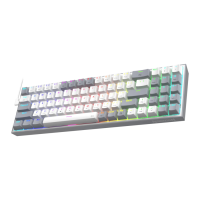
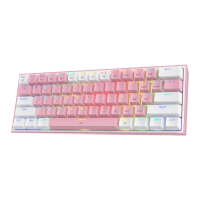
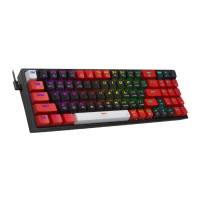
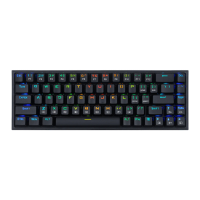
This document outlines the operating instructions for the Redragon Castor 68-key wired mechanical keyboard, a device designed for mechanical gaming. It provides essential information for users, covering warranty details, operating system compatibility, key functionalities, backlight settings, and troubleshooting tips.
The keyboard is a plug-and-play device, meaning it does not require a specific driver installation. Users simply connect the Type-C USB cable from the keyboard to a USB port on their PC, and it should function immediately. This ease of setup makes it accessible for a wide range of users without the need for complex software installations.
The manual details a comprehensive set of key functions, primarily utilizing the FN key in combination with other keys to access various commands. These combinations extend the functionality of the compact 68-key layout, allowing users to perform actions typically found on larger keyboards. For instance, FN + [1!] activates F1, FN + [2@] activates F2, and so on, up to F12. Beyond standard function keys, the FN key also enables media controls and system commands. FN + ["`] functions as Insert, FN + [[{] as Home, and FN + [}}]] as End. For media control, FN + [Z] decreases volume, FN + [X] increases volume, FN + [C] mutes audio, and FN + [V] stops playback. Further media controls include FN + [B] for the previous track, FN + [N] for play/pause, and FN + [M] for the next track. A useful reset function is also available: pressing and holding FN + [ESC] for 3 seconds restores the keyboard to its default settings.
A significant feature of the Redragon Castor keyboard is its customizable backlight system. The manual describes how to adjust various aspects of the backlighting to suit user preferences. Users can switch between 20 different backlighting effects by pressing FN + [PGDN]. The brightness of the lighting can be adjusted using FN + [↑] (increase) and FN + [↓] (decrease). For dynamic lighting effects, the speed can be controlled with FN + [,<] (decrease speed) and FN + [.>] (increase speed). If a user wishes to turn off the backlighting entirely, they can press FN + [Backspace].
One of the more advanced backlight features is the ability to customize individual key colors. To enter the color setting mode, users press FN + [TAB]. In this mode, the [TAB] key acts as a palette, allowing users to cycle through 8 different color options, including a light-off mode. During this process, three indicators (Num, Cap, Scroll) will twinkle, signaling that the keyboard is in color setting mode. Users can then press the desired key to apply a specific color. Once all desired keys have been colored, pressing FN + [TAB] again saves the settings. This level of customization allows users to personalize their keyboard's appearance, potentially highlighting gaming keys or creating aesthetic patterns.
The keyboard also includes a practical function to lock the Windows key and APP key by pressing FN + [WIN]. This feature is particularly useful for gamers, as it prevents accidental presses of these keys during gameplay, which could minimize the game window or interrupt the user's experience. Repeating the FN + [WIN] combination unlocks these keys.
Regarding maintenance and troubleshooting, the manual provides clear instructions. If the keyboard is unresponsive, the first step is to check if the USB cable is securely connected to the computer's USB port. Users are advised to try a different USB port if the issue persists. In the event of a liquid spill, immediate action is crucial to prevent damage. Users should unplug the keyboard's USB cable from the computer immediately, wipe off any excess liquid, and then place the keyboard in a warm and well-ventilated area to dry naturally before attempting to use it again. This proactive approach can help mitigate potential damage from liquid exposure.
The warranty information provided outlines the terms of service. Within 18 months of the purchase date, repairs are guaranteed for failures caused by electrical circuit problems. However, the warranty explicitly excludes damages resulting from user actions such as disassembly, hard impacts, submersion in water, connecting to improper current or voltage, or damage caused by natural disasters like fire, flood, or earthquakes. Additionally, consumable parts, such as foot pads, and spare parts replacements are not covered under the warranty. This clarifies the scope of support users can expect for their Redragon Castor keyboard.
Overall, the Redragon Castor 68-key wired mechanical keyboard is presented as a user-friendly and customizable device, particularly suited for gaming. Its plug-and-play nature, extensive FN key functions, detailed backlight customization options, and clear maintenance guidelines contribute to a comprehensive user experience. The warranty terms provide a framework for support, ensuring users understand the conditions under which their device is covered.
 General
| Brand | Redragon |
|---|---|
| Model | K631 Castor |
| Keyboard Type | Mechanical |
| Layout | 65% |
| Key Switches | Redragon Mechanical Switches |
| Connectivity | Wired |
| Backlight | RGB |
| Keycaps | Double-shot ABS |
| Anti-ghosting | Full N-Key Rollover |
| Cable Length | 1.8 meters |

 To Next Page