
 Need help?
Do you have a question about the REDRAGON K580 VATA and is the answer not in the manual?
Keyboard works with standard USB without driver installation.
Adjust volume or backlight brightness with the wheel.
Use [FN] + [↑]/[↓] for six-level brightness.
Introduces 18 preset effects and user-defined options.
Guide to setting custom backlight colors for keys.
Disable or enable the [WIN] key using [FN] + [Win].
Control backlight direction, colors, speed, and lighting modes.
Instructions for recording and clearing macro key assignments.
Restore keyboard to default settings using [FN] + [PrtScr].
Overview of FN key combinations for media control.
Troubleshooting steps for unresponsive keyboards.
Immediate actions and drying instructions after liquid spills.
Details on the presence of toxic or harmful substances in parts.
Confirmation of products being free of harmful substances and recyclable.
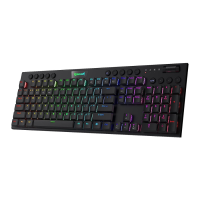
This document outlines the operating instructions for the Redragon VATA Wired Mechanical Gaming Keyboard, providing essential information for users to understand its functions, features, and basic maintenance. The keyboard is designed for gamers and general users, offering a range of customizable backlight effects and macro recording capabilities.
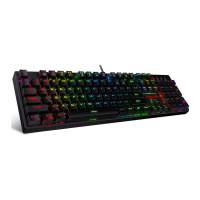
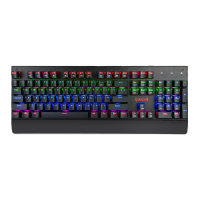
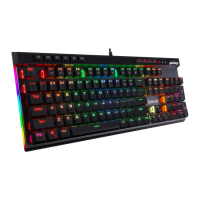
The Redragon VATA keyboard is a wired mechanical gaming keyboard compatible with Windows XP, Vista, 7, 8, and 10 operating systems. It features standard USB interfaces, allowing for plug-and-play functionality without the need for additional software or driver installations.
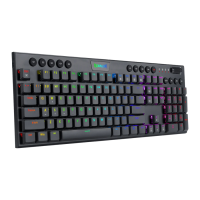
A key feature of this keyboard is its multi-functional wheel located in the upper right side. This wheel serves a dual purpose: it can adjust the system volume or control the backlight brightness. Users can switch between these two adjustment modes by pressing the dedicated Volume/Brightness button.
The keyboard offers six levels of backlight brightness, which can be increased or decreased by pressing and holding the [FN] key in combination with the [↑] or [↓] arrow keys, respectively.
The Redragon VATA comes with 18 preset backlight effects, providing a variety of visual options for users. These effects are categorized and activated by pressing the [FN] key along with specific function keys:
Beyond the preset effects, the keyboard also allows for a user-defined backlight setting. This custom definition mode is activated by pressing [FN] + [~] twice. During this mode, the four indicator lights (Num Lock, Caps Lock, Scroll Lock, and Win Lock) flash simultaneously. The backlight of the [~] key itself indicates the color currently being set. Users can cycle through available backlight colors by repeatedly pressing [FN] + [→]. Once the desired color is selected, specific keys can be pressed to apply that color to them. To save the custom setting, [FN] + [~] must be pressed once more. For example, to set the 'T' key to blue, the user would press [FN] + [~] twice, then repeatedly press [FN] + [→] until the [~] key lights up blue, then press the 'T' key, and finally press [FN] + [~] again to save.
The direction of some running backlight effects can be changed by pressing [FN] + [←]. The backlight colors can be changed to red, orange, yellow, green, cyan, blue, purple, pink, or multi-color by pressing [FN] + [→]. A palette of backlight colors can be displayed by pressing [FN] + [Spacebar], allowing users to directly select a color or set it to multi-color. The speed of some running backlights can be adjusted (slowed down or sped up) by pressing [FN] + [-] or [FN] + [=].
Additional lighting modes include switching between 5 lighting modes on two sides by pressing [FN] + [PAUSE], and adjusting the lighting speed on two sides by pressing [FN] + [SCRLK].
The keyboard also incorporates a macro recording function. The five G keys (G1-G5), which are typically mapped to ESC+G1-G5, are by default set to correspond to F1-F5. To record a macro, the user initiates recording by pressing the [Rec] key (all four LED indicators will flash). Then, one of the five G keys (G1-G5) is pressed, which will light up. The sequence of keys to be recorded is then entered. Finally, pressing the [Rec] key again saves the macro. For instance, to record "123" on G1, the sequence would be [Rec] → G1 → 123 → [Rec].
To clear a single recorded macro, the user presses [Rec], then the desired G key (G1-G5), and then [Rec] again. To clear all macro keys (G1-G5), the user must press and hold [FN] + [Rec] for approximately 5 seconds, at which point the lights on [Rec] and the G keys will turn off.
The [WIN] key can be disabled or enabled by pressing [FN] + [Win], which is useful during gaming to prevent accidental interruptions.
The Redragon VATA keyboard offers several shortcut keys and multimedia controls for enhanced user convenience:
Multimedia keys are accessed by combining the [FN] key with the F1-F12 function keys:
The keyboard can be reset to its default settings, clearing all macro and backlight configurations, by pressing [FN] + [PrtScr].
The manual provides basic troubleshooting and maintenance guidelines to ensure the longevity and proper functioning of the Redragon VATA keyboard.
The Redragon VATA keyboard comes with an 18-month warranty from the purchase date, covering failures due to electrical circuit problems. However, the warranty explicitly excludes man-made damages such as disassembly, hard impacts, submersion in water, plugging into improper current or voltage, and damage caused by natural disasters like fire, flood, or earthquake. Consumable parts, such as foot pads, and spare parts replacements are also not covered under the warranty.
The product is designed to be environmentally friendly, free from toxic or harmful substances, and is recyclable. This commitment is indicated by the "e" symbol, signifying that the product does not contain toxic or harmful substances and is suitable for recycling.
 General
| Model | K580 VATA |
|---|---|
| Type | Mechanical |
| Switch Type | Outemu Blue |
| Backlight | RGB |
| Polling Rate | 1000Hz |
| Anti-Ghosting | Yes |
| Media Controls | Yes |
| Connectivity | Wired |
| Interface | USB |
| Keycap Material | ABS |
| Keycaps | Double-shot |
| Cable Length | 1.8 m |
| Special Features | RGB Backlighting |
| Compatibility | Windows |
| Keyboard Layout | QWERTY |

 To Next Page