6.5 Scanning Slides to Files
Slides can be scanned whether a pre-scan has been performed or not.
• Select Scan Menu > Scan or click the Scan button on the Toolbar.
• Select one of the options:
• Scan Current Frame to File
• Scan Selected to File (only available if pre-scans selected in the Thumbnail Pane
checkboxes – section 6.3.3)
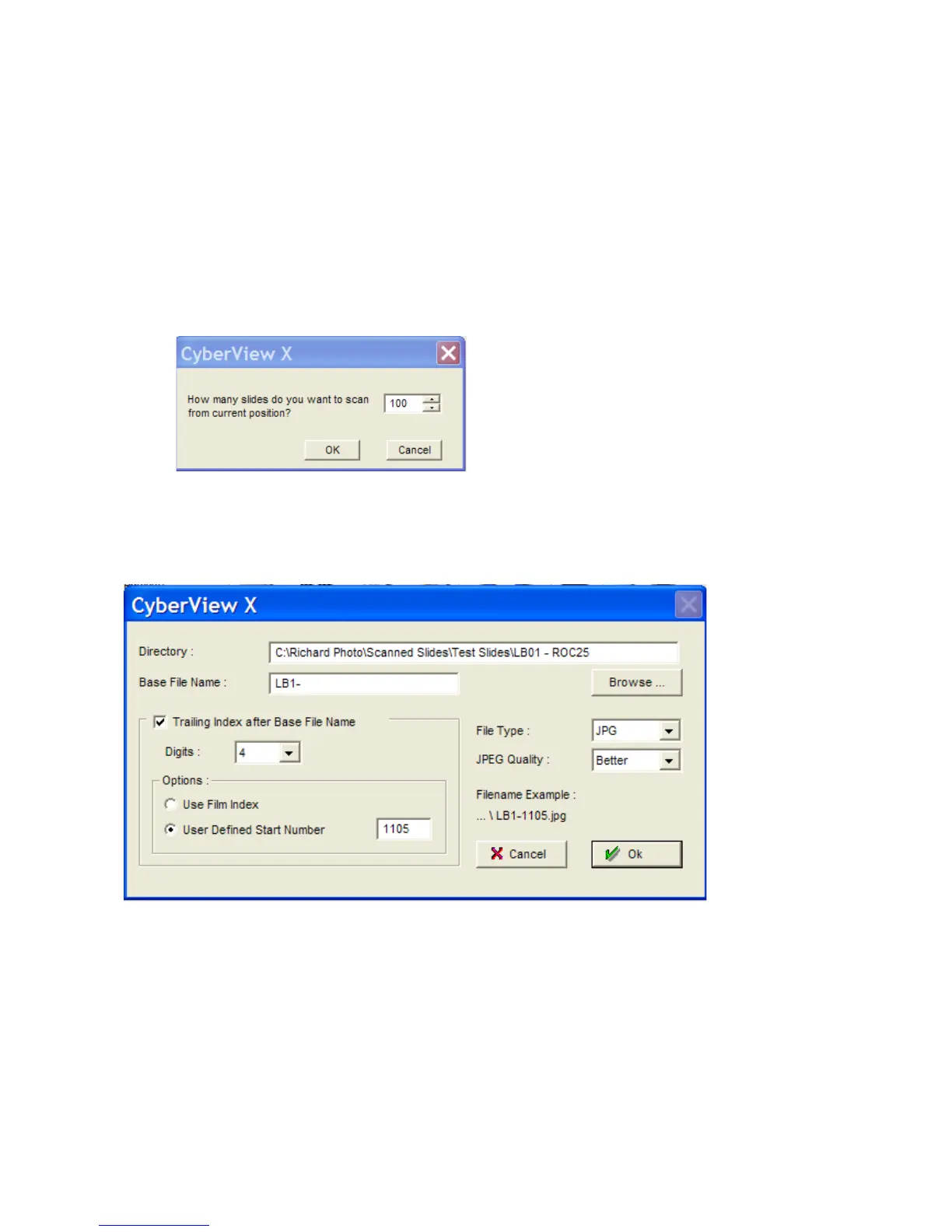
• Multi-Scan to File. The following pop-up window is displayed
• Enter the number of slides to be scanned from the current position and click OK.
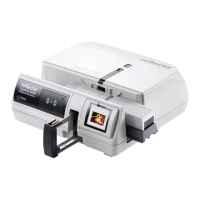
• All 3 options shown above cause the following window to be displayed
• Click Browse to open an Explorer window and navigate to the required folder where the
scanned pictures are to be stored
• Specify a prefix for the names of the files (if omitted, the files are named Image1, Image2 etc).
• If Trailing Index after Base File Name is unchecked, the files will be named after the Base File
Name, plus -01, -02 etc, e.g. LB1--01.jpg in the above example.
• If Trailing Index after Base File Name is checked, define the required length of the image
number. Leading zeroes are used for padding, e.g. 0001, 0002 etc, if a length of 4 is defined
• Select Use Film Index, i.e. slide position in the magazine as defined in section 6.2.2, or User
Defined Start Number
Cyberview Page 28 of 33 Dec 2008


 To Next Page