R01QS0053EJ0100
9
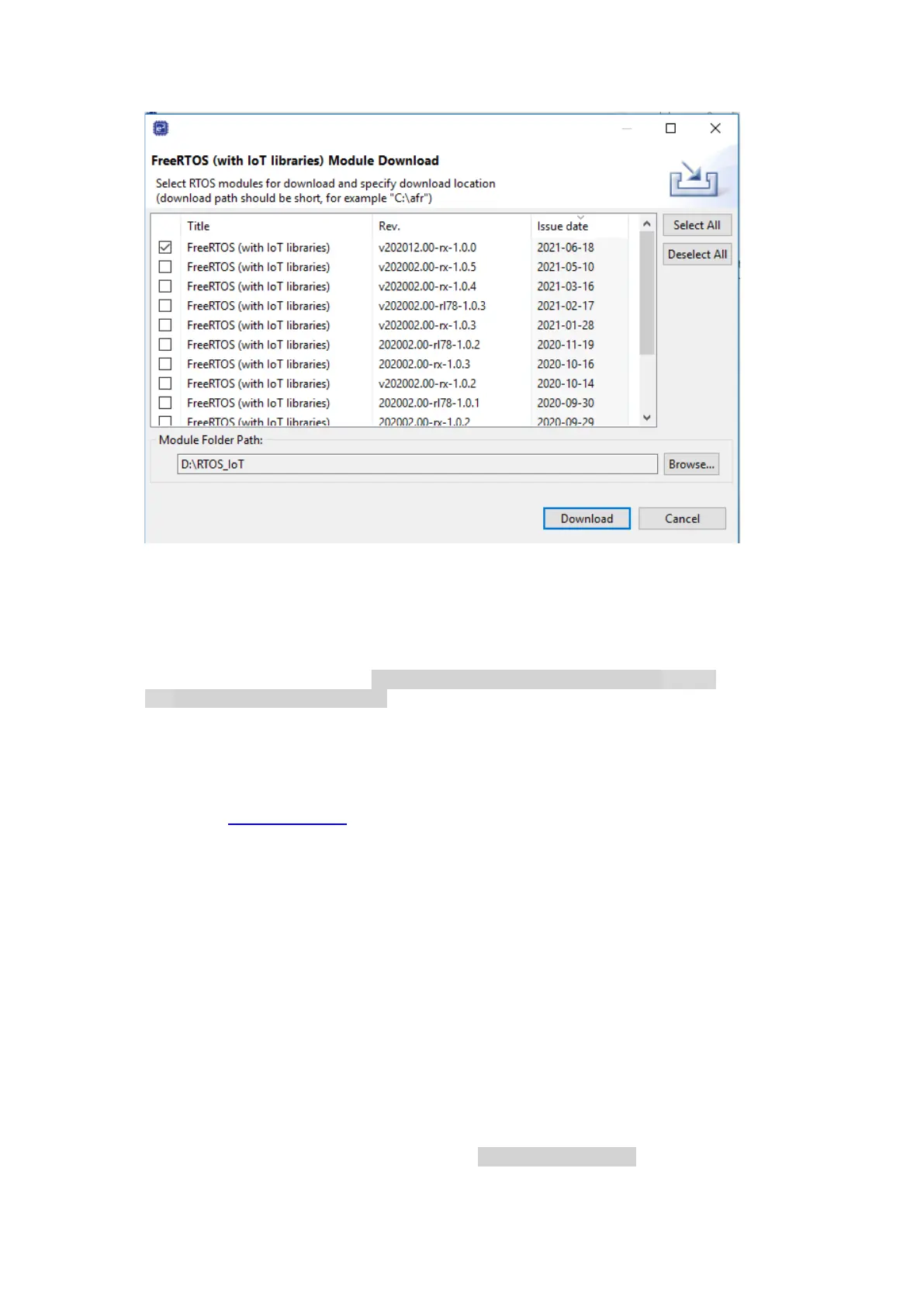
13. Once download is completed, choose Next in the Renesas GitHub FreeRTOS (with IoT
libraries) Project window.
14. If you are not using an empty folder, the Copy Resources warning message appears.
Choose Yes.
15. Choose the project aws_demos (${FOLDER_DIR}/projects/renesas/rx65n-
rsk/e2studio-gcc/aws_demos), then choose Finish.
16. From Project menu, choose Build All.
The build console issues a warning message that the License Manager is not installed. You can
ignore this message unless you have a license key for the CC-RX compiler. To install the License
Manger, see the License Manager download page.
G. Loading the application binary image to your board, and then running
the application
To run the project in e
2
studio
1. Confirm that you have connected your computer to the USB-to-serial port on Renesas Starter
Kit+ for RX65N-2MB.
2. From the top menu, choose Run, Debug Configurations….
3. Expand Renesas GDB Hardware Debugging and choose aws_demos HardwareDebug.
4. Choose the Debugger tab, and then choose the Connection Settings tab. Confirm that your
connection settings are correct.
5. Choose Debug to download the code to your board and begin debugging.
You might be prompted by a firewall warning for e2-server-gdb.exe. Check Private
networks, such as my home or work network, and then choose Allow access.




 To Next Page