- 11 -
Note: If the „Equipment List‟ does not appear after a network scan has been performed, no devices
or network connections were found or the connection is not configured correctly.
System - Set Box Name:
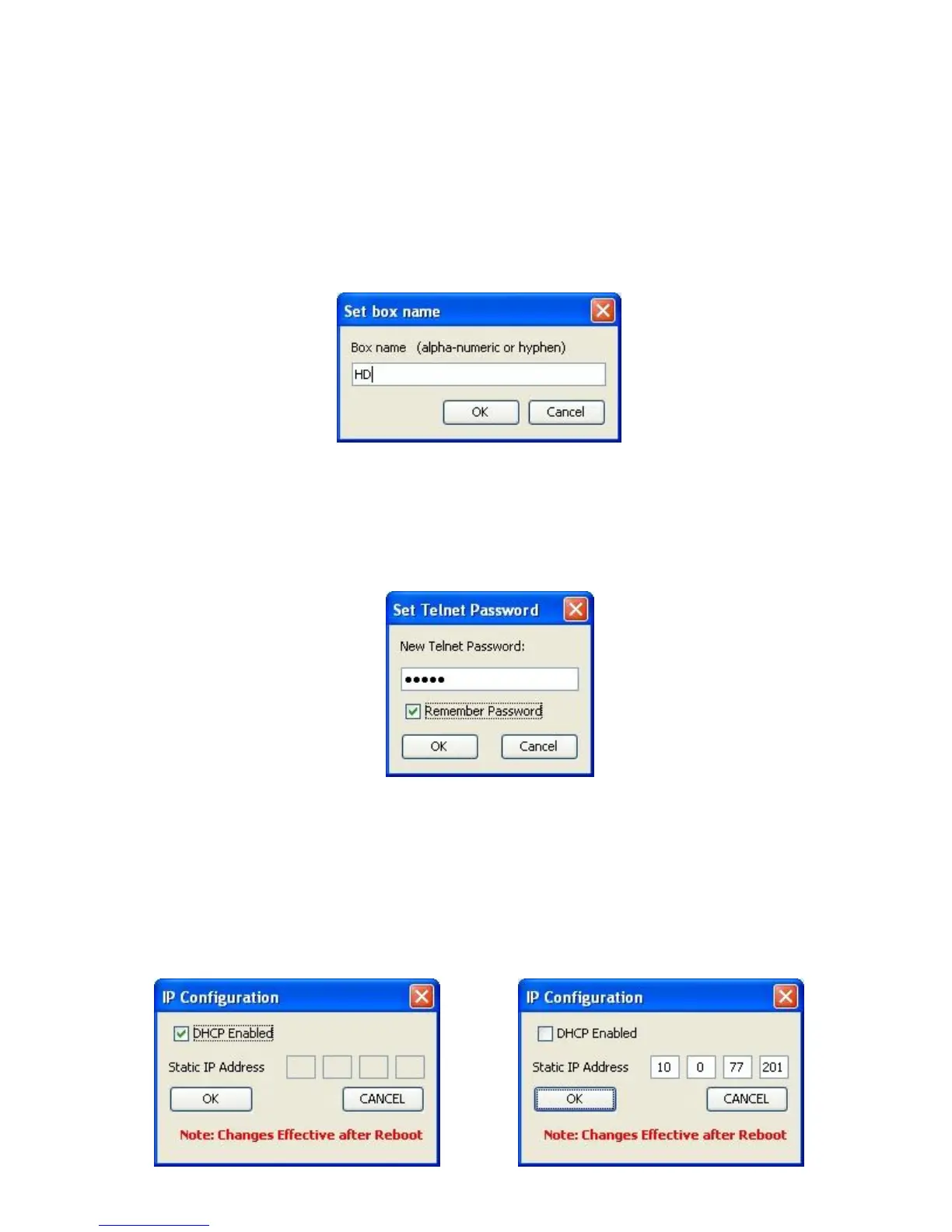
A Box Name may be assigned as a Network ID for each device. This name will be displayed both on
the front screen of the Base Station along with the IP address and on the device tab in the HD
Control Panel Software. The Box Name can be set by selecting ‗Set Name‘ from the ‗System‘ menu.
The corresponding pop-up will show the current box name which can be changed. The default box
name is the device IP address.
System - Set Telnet Password:
A Telnet Password may be assigned for logging into a Base Station. Once a Telnet Password is
assigned, it must be entered to communicate with the Base Station over Ethernet via the HD Control
Panel Software. The Telnet Password can be set by selecting ‗Set Password‘ from the ‗System‘
menu. The corresponding pop-up will show if a password has been set and will allow the password to
be changed. There is no default password set.
System - Set IP Configuration:
If the Executive HD Base Station is set to DHCP mode and no DHCP server is found, the Base
Station will auto-populate its own IP address and display it on the front panel display. This automatic
IP address will change every time the Base Station is rebooted for as long as DHCP is enabled.
If no DHCP server is available, or if a fixed IP is desired, the DHCP option can be switched off and a
fixed IP can be assigned to the Base Station. The IP Configuration can be set by selecting ‗Set IP
Config‘ from the ‗System‘ menu. The corresponding pop-up will show the current IP configuration and
allow the configuration to be changed.


 To Next Page