V1P 3rd Gen Manual
29
©2018 REXING All Rights Reserved
Wi-Fi Connect
Use your mobile device to download the “Rexing Connect” app from the App
Store or Google Play Store.
After you’ve done this, follow the instructions below:
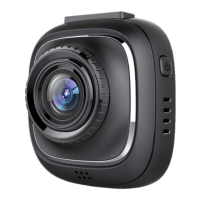
1. Dash cam: In Video Recording Mode, access the Wi-Fi function by holding
REC (this can also be done by enabling the Wi-Fi feature in the Setup
Menu).
2. Mobile device: Navigate to your device’s Wi-Fi settings and connect to the
Wi-Fi name that’s shown on the dash cam after “SSID:”. When prompted
for a password, enter the password shown on the dash cam after “PWA2:”.
3. Mobile device: Once connected to the dash cam Wi-Fi, open the Rexing
Connect app. From there, press the “Connect” button to connect to the
dash cam interface.
4. Dash cam: Once connected, the screen should switch to the camera view
and display a “WiFi Connected” message.
Using the Rexing Connect app, you can view a live preview of the dash cam
screen, start / stop recording, as well as view and save your captures with your
mobile device.
To exit Wi-Fi, hold the REC button to return to Video Recording Mode.
For further instruction regarding the Wi-Fi Connect feature, please visit
www.rexingusa.com/wifi-connect/.


 To Next Page