EasyManua.ls Logo

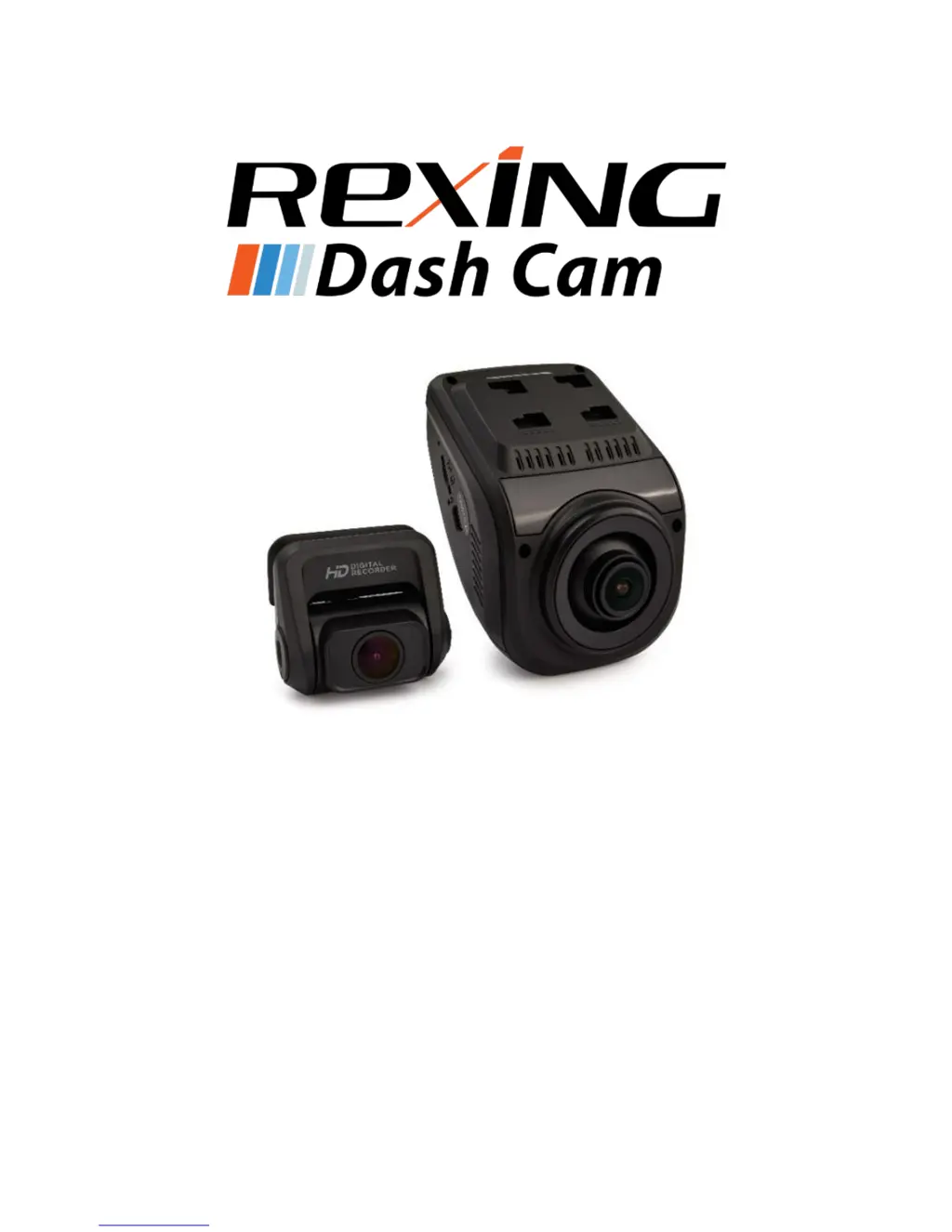
Rexing V1P 3rd Gen - User Manual

Rexing V1P 3rd Gen
50 pages
Print Icon
To Next Page IconTo Next Page
Loading...
1
©2018 REXING All Rights Reserved
V1P 3rd Gen
User Manual
The information in this manual is subject to change without notice.
www.rexingusa.com 12/2018Rev4

Questions and Answers

  • V
    Virginia HammondSep 10, 2025
    Why isn't my Rexing Digital Camera rear camera recording video?
    • K
      kimberlyvegaSep 10, 2025
      If your Rexing Digital Camera rear camera isn’t recording video, check the Resolution setting and ensure that you are recording in “FHD P30+FHD P30” or “HD P30+HD P30”. The cause may be that the rear camera is not maintaining a stable connection.
  • R
    Ricardo KlineAug 22, 2025
    What to do if Rexing V1P 3rd Gen Digital Camera screen is frozen?
    • D
      Danielle YangAug 23, 2025
      If the Rexing Digital Camera screen is frozen, format the memory card. If the issue persists, replace the memory card. This is because the memory card may be defective or corrupted.
  • M
    Mrs. Barbara BeckerAug 25, 2025
    How to fix Rexing Digital Camera when images are not being saved?
    • K
      Kelly SinghAug 25, 2025
      If your Rexing Digital Camera images are not being saved, format the memory card or replace it with a new one. The cause may be that the memory card is full or malfunctioning.
  • P
    pamelapierceAug 26, 2025
    Why does my Rexing V1P 3rd Gen stop recording randomly?
    • C
      Christopher LopezAug 27, 2025
      If your Rexing Digital Camera stops recording randomly, try these solutions: Restore default settings or turn Loop Recording on. The cause may be that the memory card isn’t compatible, or Loop Recording is off.
  • T
    Timothy FritzAug 27, 2025
    Why is my Rexing V1P 3rd Gen unable to record videos?
    • A
      Angela OlsonAug 27, 2025
      If your Rexing Digital Camera is unable to record videos, check the remaining space on the memory card and delete files if necessary. The cause may be that the memory card is full.
  • L
    lisawillisAug 29, 2025
    What causes 'File error' on Rexing V1P 3rd Gen when playing back media?
    • M
      Michael PerezAug 29, 2025
      If your Rexing Digital Camera encounters a “File error" when trying to play back pictures or video, format the memory card. If the issue persists, replace the memory card. This is because the memory card may be corrupted.
  • M
    Michelle RobinsonSep 18, 2025
    How to connect Wi-Fi on Rexing Digital Camera?
    • M
      mirandachristinaSep 18, 2025
      If your Rexing Digital Camera Wi-Fi isn’t connecting, check the Wi-Fi settings on your mobile device and ensure you are connected to the SSID shown on the camera. The cause may be that the mobile device isn’t connected to the camera.
  • L
    Larry EvansSep 12, 2025
    What to do if Rexing V1P 3rd Gen Digital Camera memory card won’t stay in?
    • I
      Ian RobertsSep 12, 2025
      If your Rexing Digital Camera memory card won’t stay in, use your nail or a coin to push the memory card in until it clicks, or use a new memory card. The cause may be that the memory card isn’t compatible or the memory card is too thin.
  • R
    Richard CombsSep 8, 2025
    How to fix Rexing V1P 3rd Gen Loop Recording?
    • R
      Ruth Ashley DVMSep 8, 2025
      If your Rexing Digital Camera Loop Recording isn’t functioning, make sure Gravity Sensing is on low sensitivity. The cause may be that the G-sensor sensitivity is too high.
  • K
    Kevin ManningSep 5, 2025
    Why does my Rexing V1P 3rd Gen keep turning off?
    • P
      Paul MooreSep 5, 2025
      If your Rexing Digital Camera keeps turning off, get a replacement power cord or restore to default settings. The cause may be that the memory card isn’t compatible or the camera isn’t getting continuous power.

Summary

Safety Information

Warning

General safety precautions and warnings to prevent injury or device damage.

Safety Caution

Caution

Advisories on device interference, exposure to elements, and operational safety.

Correct Disposal of This Product

Disclaimer

About This Manual

Product Specifications

Package Contents

Camera Overview

Device Layout

Diagram illustrating the physical layout and numbered components of the camera.

Buttons

Status Icons

Getting Started

Installation

Step-by-step guide for physically mounting the camera and initial setup.

Powering the Camera

Inserting the Memory Card

Removing the Memory Card

Formatting the Memory Card

Turning the Device On and Off

Basic Operation

Wi-Fi Connect

Video Settings

Resolution

Details recording resolution options and their impact on storage and dual-channel recording.

Loop Recording

WDR (Wide Dynamic Range)

Exposure

Record Audio

Date Stamp

Gravity Sensing

Plate Number

System Settings

Wi-Fi

Enables or disables the device's Wi-Fi functionality.

Date;Time

Procedure to set the device's current date and time.

Auto Power Off

Configures the device to shut down automatically when not recording.

Device Sound

Enables or disables audible sound effects for device operations.

Language

Frequency

Screen Saver

Daylight Saving

GPS

Update Time of GPS

Format

Default Setting

Version

Photo Settings

Capture Mode

Sets a countdown timer before capturing an image.

Resolution

Sets the pixel resolution for captured still images.

Quality

Adjusts the quality level of captured images, affecting file size.

Sharpness

Enhances image clarity for a more distinct picture.

White Balance

Color

ISO

Exposure

Anti-Shaking

Quick Review

Date Stamp

Playback

Camera Playback Mode

How to play back, fast forward, rewind, and delete recordings directly on the device.

Computer Playback

Locked files

GPS Playback

Troubleshooting

Updating Firmware

Step-by-step instructions for updating the device's firmware.

Common Solutions

Rexing V1P 3rd Gen Specifications

General IconGeneral
GPSYes
Wi-FiYes
Loop RecordingYes
G-SensorYes
Parking MonitorYes
Frame Rate30fps
BatterySupercapacitor
Field of View170 degrees
StorageMicroSD card, up to 256GB
Night VisionYes
Display2.4-inch LCD

Related product manuals