10 -
3. After installation finished, select and run MP3
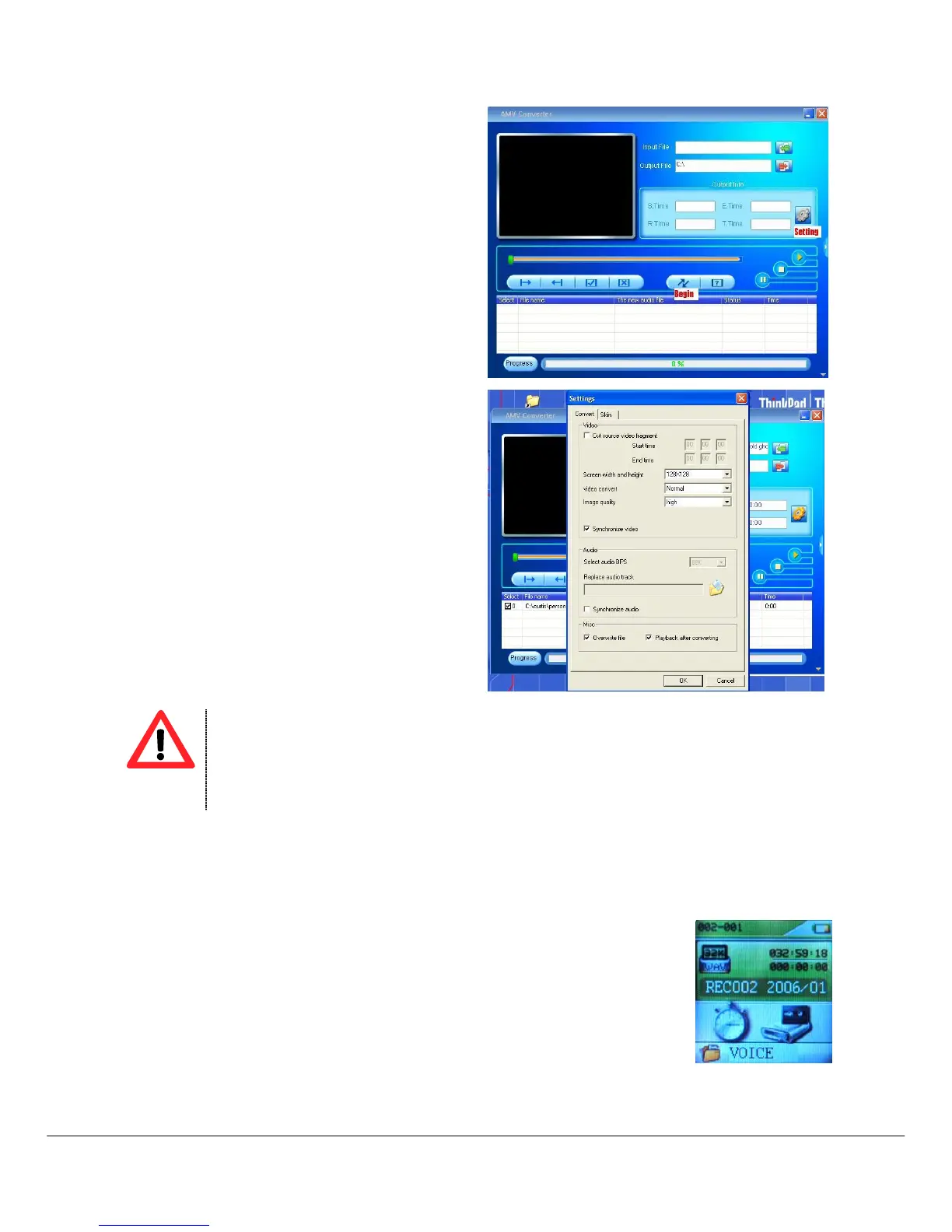
PLAYER UTILITIES -> AMV Converter
4. Choose the video file you want to be converted in
“INPUT FILE”.
5. Choose the output destination folder in the
“OUTPUT FILE”.
6. You can set the size, quality and rotation for the
conversion. The screen resolution of this player is
128x128 pixels, so please set the size accordingly.
The higher quality produces larger AMV file size,
better video quality and vice versa.
7. Choose BEGIN to start converting the file. And you
can see the conversion status in the PROGRESS
Bar.
8. After conversion complete, you will see the
converted file in your output destination folder.
When you are trying to convert rm, ram, rmvb, mov and vob, you need particular decoder.
You can check if your Windows Media Player is able to play these files. If no, a decoder is
needed
5.4 Record (Voice messages recorder)
This option allows to record voice messages by using the microphone inside. To
record voice message, please follow here below instruction:
1. Power ON the MP4 Player, the screen will display the main menu.
2. By using [] or [] buttons, select RECORD option then press PLAY []
button.
3. Press PLAY [] or RECORD [REC] button to start to recording.
4. You can listen to your wave file under the VOICE submenu. (Please refer to chapter 8.4 for more
details.



 To Next Page