EasyManua.ls Logo

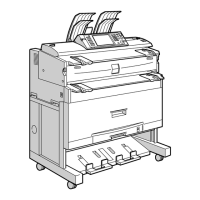
Ricoh Aficio G7500 - User Manual

Ricoh Aficio G7500
561 pages
Print Icon
To Next Page IconTo Next Page
Loading...
User Guide
Using and Removing User Guide
Printing
Printer Driver
Paper
Troubleshooting
Replacing a Print Cartridge
Sharing the Printer
Inquiries and Consumables
Additional Information
Copyright © 2005 All rights reserved.
Contents - - User Guide
file:///E|/shared/pdf-work/newfiles/pp2w/Op_Guide/int/index.htm2005/10/05 12:02:25
Contents All Titles Settings

Table of Contents

Other manuals for Ricoh Aficio G7500

Questions and Answers

  • H
    Heidi JohnsonAug 18, 2025
    What to do if the Ricoh Printer USB connection is not automatically detected?
    • D
      donna20Aug 18, 2025
      If the USB connection for your Ricoh Printer isn't automatically detected, run [Quick Install for USB]. Then, delete the printer driver and the device. Finally, run [Quick Install for USB] again.
  • M
    Michelle OlsonAug 20, 2025
    Why does the Ricoh Aficio G7500 driver installer not start or show an error during installation?
    • T
      Tammy VazquezAug 20, 2025
      If the [Drivers & Manual] screen doesn't appear when you double-click the [SETUP.EXE] icon, or if an installation error occurs, go to the CD-ROM drive via [My Computer] or [Explorer]. Then, double-click the [RDISETUP.EXE] icon and follow the on-screen instructions to install the printer driver.
  • M
    Matthew JohnsonAug 22, 2025
    What to do if the Ricoh Aficio G7500 software cannot be installed properly due to missing icons?
    • V
      Vincent PierceAug 22, 2025
      If the icons do not appear, it means the software wasn't installed correctly. You'll need to repeat the installation procedure.
  • S
    Steven ChavezAug 25, 2025
    What to do if the Ricoh Aficio G7500 power cord or USB cable is not properly connected (If Test Print Fails)?
    • S
      Stephanie McmahonAug 26, 2025
      Check that the power cord and USB cable are properly connected to your Ricoh Printer.
  • C
    christine28Aug 27, 2025
    What to do if the Ricoh Printer port connection is not properly set (If Test Print Fails)?
    • H
      Haley VincentAug 28, 2025
      To check the printer port settings: 1) Go to [Start] menu, then [Settings], and click [Printers]. 2) Click the icon of the printer, and then click [Properties] on the [File] menu. 3) Click the [Details] tab (or [Ports] tab in some Windows versions), and then check the printer port. If it's not set to USB or a network printer, select the correct option from the list.
  • R
    Richard HullAug 30, 2025
    Why does the Ricoh Printer ink feed is incomplete (If Test Print Fails)?
    • L
      Leslie BaileyAug 30, 2025
      When you first turn on the Ricoh Printer or replace a cartridge, ink automatically feeds into the print-heads. Wait for this process to complete. The [Power] key will stop blinking and remain lit when it's done.
  • C
    ckellySep 2, 2025
    What to do if the Ricoh Printer power cord or USB cable may not be properly connected?
    • K
      kflynnSep 2, 2025
      Ensure that the power cord and USB cable are correctly connected to the Ricoh Printer and that they are not damaged.
  • S
    Stephen KnightSep 4, 2025
    How to fix a Ricoh Aficio G7500 Printer CD-ROM that may not be inserted properly?
    • M
      Mary BassSep 4, 2025
      Verify that the 'Drivers & Manual' CD-ROM is correctly inserted into your computer. Also, check the CD-ROM for any damage and ensure that the CD-ROM drive is functioning correctly.
  • N
    nicole92Sep 6, 2025
    What to do if the Ricoh Aficio G7500 Printer operating system is incompatible?
    • J
      josephoconnorSep 6, 2025
      Check that your computer's operating system is fully compatible with this Ricoh printer.
  • M
    Melanie TaylorSep 9, 2025
    What to do if the Ricoh Aficio G7500 Printer is turned on before installation?
    • J
      Jason VegaSep 9, 2025
      If the Ricoh Printer was connected and turned on before the driver installation, Windows might have automatically set up a USB connection. Since this connection may not work correctly, delete it and then install the printer driver.

Ricoh Aficio G7500 Specifications

General IconGeneral
Memory (Standard)1 GB
Network ConnectivityEthernet
CategoryPrinter
Paper SizeA3, A4, A5, B4, B5, Legal, Letter, Executive, Folio, Oficio, Custom sizes
InterfaceUSB 2.0, Ethernet
Power SourceAC 220-240V, 50/60Hz
TypePrinter
Maximum Resolution1200 x 1200 dpi
Paper SizesA4

Related product manuals