EasyManua.ls Logo

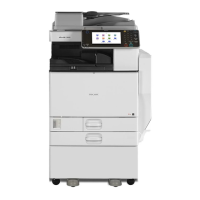
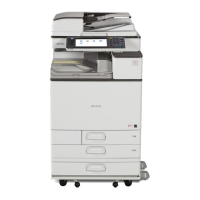
Ricoh MP C5503 - User Manual

Ricoh MP C5503
48 pages
Print Icon
To Next Page IconTo Next Page
Loading...
For safe and correct use, be sure to read the Safety Information in "Read This First" before using the machine.
Using this Machine in a Network Environment
Compliant with IEEE Std.2600.1
TM
-2009
Notes for Administrator:

Other manuals for Ricoh MP C5503

Questions and Answers

  • K
    kenneth55Aug 18, 2025
    What to do if error message remains after removing misfed paper from Ricoh MP C5503 All in One Printer?
    • J
      James SalazarAug 18, 2025
      If your Ricoh All in One Printer displays an error message even after removing the misfed paper, fully open the front cover and then close it. Paper may still be jammed in the tray.
  • V
    Victoria HawkinsAug 20, 2025
    What to do if error message remains displayed even if the indicated cover is closed on Ricoh MP C5503 All in One Printer?
    • C
      Carrie BrownAug 20, 2025
      If the Ricoh All in One Printer displays an error message even after closing the indicated cover, it means that one or more covers that are not indicated are still open. Close all the covers of the machine.
  • C
    Curtis JacksonAug 23, 2025
    How to prevent frequent misfeeds in Ricoh MP C5503 All in One Printer?
    • J
      jamesmaloneAug 23, 2025
      If misfeeds occur frequently with your Ricoh All in One Printer, it may be due to using curled paper. Take the stiffness out of the paper with your hands to straighten out the curl, and load the paper upside down so that the curled edges face downward. Also, the tray's side or end fences may not be set properly. Check that the side or end fences are set properly.
  • A
    anthonyhansonAug 25, 2025
    Why does my Ricoh MP C5503 All in One Printer misfeed frequently?
    • M
      Mrs. Maria FowlerAug 26, 2025
      If misfeeds occur frequently with your Ricoh All in One Printer, it may be because paper of undetectable size has been loaded. If you load a paper size that is not selected automatically, you need to specify the paper size with the control panel.
  • L
    Larry BakerAug 27, 2025
    What to do if an error has occurred on Ricoh MP C5503?
    • V
      Vanessa HarveyAug 27, 2025
      If you encounter an error on your Ricoh All in One Printer, and the [Check Status] screen shows a function with the status "Error Occurred", press [Check] in the function where the error occurred. Then check the displayed message and take appropriate action.
  • D
    Deanna PayneAug 30, 2025
    What to do if Ricoh All in One Printer does not enter sleep mode?
    • T
      thomasstantonAug 30, 2025
      If the Ricoh All in One Printer indicator lamp remains lit, and the machine does not enter Sleep mode even when the Energy Saver key is pressed, it could be because the ADF is open. Close the ADF. Also, check if the machine is communicating with external equipment. Wait a little longer.
  • J
    Jacqueline FarmerSep 1, 2025
    Why Ricoh All in One Printer cannot print in duplex mode?
    • P
      Pamela OdonnellSep 1, 2025
      If your Ricoh All in One Printer cannot print in duplex mode, it might be because you have selected a paper type that cannot be used for duplex printing. In the System Settings, select a paper type that can be used for duplex printing.
  • B
    Bryan VelazquezSep 3, 2025
    Why does my Ricoh All in One Printer power off automatically?
    • M
      Mr. Michael ZhangSep 3, 2025
      If the power on your Ricoh All in One Printer turns off automatically, the Weekly Timer setting may be set to [Main Power Off]. Change the Weekly Timer setting.
  • M
    morriskyleSep 6, 2025
    Why the Address Book cannot be changed from the display panel on Ricoh All in One Printer?
    • A
      Angela HowardSep 6, 2025
      If the Address Book on your Ricoh All in One Printer cannot be changed from the display panel, it may be because the Address Book is being backed up from Web Image Monitor or other tools running on the computer. Wait until the Address Book backup is complete, and then try to change the Address Book again.
  • J
    John CooperSep 8, 2025
    Why only copier icon appears on Ricoh All in One Printer?
    • M
      mendozaderrickSep 8, 2025
      If the only icon that appears on the home screen of your Ricoh All in One Printer when turned on is the [Copier] icon, it indicates that functions other than the copier function are not yet ready. Wait a little longer.

Ricoh MP C5503 Specifications

General IconGeneral
Print Resolution1200 x 1200 dpi
Copy Resolution600 x 600 dpi
Scan Resolution600 x 600 dpi
Paper CapacityStandard: 1, 200 sheets, Maximum: 4, 700 sheets
Monthly Duty Cycle300, 000 pages
FunctionsPrint, Copy, Scan, Fax
Print TechnologyLaser
Duplex PrintingYes
Automatic Document Feeder (ADF)Yes
ADF Capacity100 sheets
Mobile Printing SupportYes
Print Speed55 ppm
Fax Resolution200 x 200 dpi
ConnectivityUSB, Ethernet
Supported Paper SizesA3, A4, A5, B4, B5, Legal, Letter
Scan Speed80 ipm

Related product manuals