EasyManua.ls Logo

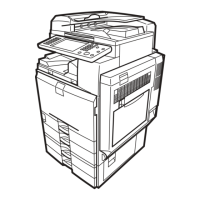
Ricoh Aficio MP C5502 - User Manual

Ricoh Aficio MP C5502
830 pages
Print Icon
To Next Page IconTo Next Page
Loading...
Cover Paper Thickness = 0.10 Body Paper Thickness = 0.08 Pages in Book = 0
Spine Width = 0
Printed in China
US
EN
D143-7008
D1437008
Read this manual carefully before you use this machine and keep it
handy for future reference. For safe and correct use, be sure to read the
Safety Information in this manual before using the machine.
For information not in the printed manual,
refer to the HTML/PDF les on the supplied
CD-ROM.
Appendix
Information for This Machine
Safety Information
Manuals Provided with This Machine
Read This First

Table of Contents

Other manuals for Ricoh Aficio MP C5502

Questions and Answers

  • L
    laurenfreemanSep 23, 2025
    How to fix Ricoh All in One Printer unable to connect to network?
    • K
      Kristin WhiteSep 23, 2025
      If your Ricoh All in One Printer is unable to connect to the network, a network error might have occurred. Press [Check] in the function where the error occurred, then check the displayed message and take the appropriate action. Ensure the machine is correctly connected to the network and properly set up. If the indicator remains lit after troubleshooting, contact your service representative.
  • C
    Chris FlemingAug 23, 2025
    What to do if misfeeds occur frequently on Ricoh All in One Printer?
    • J
      Jennifer WolfeAug 23, 2025
      Frequent misfeeds can occur if the tray's side or end fences are not set properly. Check that the side or end fences are correctly positioned and locked. Also, it can happen if paper of undetectable size has been loaded. If you load a paper size that is not selected automatically, you need to specify the paper size using the control panel.
  • T
    Tyler KellyAug 25, 2025
    Why can't I print in duplex mode on my Ricoh All in One Printer?
    • J
      James TurnerAug 25, 2025
      You might not be able to print in duplex mode if you've selected a paper tray that isn't set for duplex printing. To fix this, change the setting for "Apply Duplex" in System Settings to enable duplex printing for the paper tray. Also, this can happen if you have selected a paper type that cannot be used for duplex printing. In [Tray Paper Settings], select a paper type that is suitable for duplex printing.
  • F
    flowerstimothyAug 27, 2025
    What to do if an error message remains on Ricoh All in One Printer, even after misfed paper is removed?
    • D
      Damon LongAug 27, 2025
      If a misfeed message persists after removing the jammed paper, it could be because the cover needs to be opened and closed to reset the system. Open and close the cover. Alternatively, paper may still be jammed in the tray.
  • S
    Steven FlemingAug 27, 2025
    What to do if an error has occurred on Ricoh All in One Printer?
    • L
      Linda HernandezAug 27, 2025
      A function with the status "Error Occurred" in the [Check Status] screen is defective. Press [Check] in the function where the error occurred, then check the displayed message, and take appropriate action. You can use other functions normally.
  • A
    Adam BowmanSep 18, 2025
    What does 'No paper. Load paper of one of the following sizes.' mean on my Ricoh All in One Printer?
    • K
      Keith SanchezSep 18, 2025
      This message indicates that the specified paper tray is empty. Load paper of the sizes listed in the message.
  • C
    Cassandra GarciaSep 15, 2025
    Why are original images printed on the reverse side of the paper on my Ricoh All in One Printer?
    • K
      Krystal CoxSep 15, 2025
      This issue typically arises if the paper is loaded incorrectly. Ensure that you load paper into the paper tray or tray 3 (LCT) with the print side up, and into the Large capacity tray (LCT) or bypass tray with the print side down.
  • J
    jeffrey15Sep 16, 2025
    What does 'Connection with the remote machine has failed. Check the remote machine status.' mean on my Ricoh All in One Printer?
    • M
      Ms. Melissa CamposSep 16, 2025
      This message indicates a network error occurred while using the remote fax function. Verify that the remote machine supports the remote fax function and is working correctly. Also, ensure the correct IP address or host name is set for the remote machine in [System Settings], and that the LAN cable is properly connected to the machine.
  • D
    Danielle BergerSep 6, 2025
    What to do if my Ricoh All in One Printer display is off?
    • J
      Jessica SmithSep 6, 2025
      The display might be off because the machine is in Low Power mode. To resolve this, touch the display panel or press any key on the control panel to exit Low Power mode. Alternatively, the machine might be in Sleep mode. Press the [Energy Saver] key or the [Check Status] key to exit Sleep mode.
  • C
    Christopher HoltSep 3, 2025
    What to do if error message remains on Ricoh All in One Printer?
    • V
      Virginia GreeneSep 3, 2025
      To clear an error message on your Ricoh All in One Printer after removing misfed paper, open and close the cover as required. Also, check if paper is still jammed in the tray.

Ricoh Aficio MP C5502 Specifications

General IconGeneral
FunctionsPrint, Copy, Scan, Fax
Print TechnologyLaser
Max Print Resolution1200 x 1200 dpi
Copy Resolution600 x 600 dpi
Multiple CopyUp to 999 copies
Max Paper Capacity4, 400 sheets
Duplex PrintingYes
Hard Disk Drive250 GB
Power Consumption (Maximum)1.7 kW
TypeAll in One Printer
Print Speed55 pages per minute
Copy Speed55 copies per minute
Zoom25% to 400%
Scan Resolution600 dpi
Fax Resolution200 x 200 dpi
Original Capacity100 sheets
Standard Paper Capacity1, 200 sheets
Memory1.5 GB RAM
InterfaceUSB 2.0, Ethernet
Network ProtocolsTCP/IP
Operating Systems SupportedWindows, Mac, Linux
Power SourceAC 120V, 60Hz
Paper Weight52 – 256 g/m²

Related product manuals