CIP Training MP CW2201SP
Input
Printing from the Paper Input Location Using the Printer Function
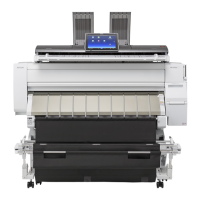
With the printer function, you can print on a custom size paper roll. This section explains how to specify
the paper size from the control panel of the machine.
If you load regular size paper roll, the machine detects the paper size automatically.
• Settings remain valid until they are changed.
• For details about setting printer drivers, see "Printing Documents", Print.
Specifying a custom size roll of paper using the control panel
This section explains how to specify the size for a custom size roll of paper from the control panel when
nlbg`LJ'AF),hkLNC@@ZlZikbgm^keZg`nZ`^(
@hk]^mZbelZ[hnmahpmh\aZg`^ma^ikbgm^keZg`nZ`^&l^^Mi^\b_rbg`ZJkbgm^kFZg`nZ`^&LJ'AF),
and RTIFF.
JZi^klbs^lmaZm\Zg[^li^\b_b^]Zk^,13Ƨ3+.ff"++(*Ƨ-0(*bg\a^l#ahkbshgmZeerZg],+*Ƨ+/***
ff"2(-Ƨ/3*(/bg\a^l#o^kmb\Zeer(
When using RTIFF as a printer language, the machine can detect the size of a custom size roll of paper
by default.
1. Press [Home] (
) at the bottom of the screen in the center.
2. Flick the screen to the left, and then press the [User Tools] icon (
).
3. Press [Machine Features].
4. Press [Printer Features].
5. Press [System(EM)].
6. Select [Custom Size: Paper Input Location 1] or [Custom Size: Paper Input Location 2].
7. Enter the horizontal size of the paper using the number keys, and then press [
].
8. Enter the vertical size of the paper using the number keys, and then press [ ].


 To Next Page