EasyManua.ls Logo

Ricoh PJ X3340 - User Manual

Ricoh PJ X3340
104 pages
Print Icon
To Next Page IconTo Next Page
Loading...
For safe and correct use, be sure to read the Safety Information in
"Read This First" before using the machine.
Appendix
Maintenance
Troubleshooting
Changing the Projector Settings
Projecting an Image
Preparations for Using the Projector
Operating Instructions

Table of Contents

Other manuals for Ricoh PJ X3340

Questions and Answers

  • V
    victoria52Sep 15, 2025
    How to troubleshoot no image on Ricoh PJ X3340 Projector?
    • L
      landersonSep 15, 2025
      If your Ricoh Projector has no image, make sure the input signal is switched correctly if [Auto Input Search] in [Default Settings 1] is set to [Off]. Also, check that the mute function is not turned on and verify the [Brightness] settings in [Image Adjustment]. Ensure the computer or AV equipment is correctly connected to the projector and is working properly. Finally, confirm that the computer's image output is switched correctly.
  • P
    parrishjasonAug 25, 2025
    How to change display language on Ricoh PJ X3340 Projector?
    • T
      tiffanycooperAug 25, 2025
      To change the display language on your Ricoh Projector, press the [Menu] button, and then select the display language in [Language / XXX] (XXX indicates the current display language) on the [ ] tab.
  • F
    Felicia RiosAug 25, 2025
    What to do if my Ricoh Projector shows no sound?
    • A
      Angela WardAug 26, 2025
      If there is no sound from your Ricoh Projector, try the following: Press the [Input] button. Make sure the mute function is not turned on. Check the speaker's volume adjustment. Ensure that the computer or AV equipment is correctly connected to the projector and working properly.
  • C
    Chad NorrisAug 26, 2025
    Why Ricoh PJ X3340 turns off during use?
    • B
      Brian GriffinAug 27, 2025
      If your Ricoh Projector turns off during use, ensure that the environment in which the projector is being used is within the acceptable temperature range and the vents are not blocked.
  • A
    April RobinsonSep 16, 2025
    Why is there no sound coming from my Ricoh Projector?
    • E
      Elizabeth DeleonSep 16, 2025
      If your Ricoh Projector has no sound, press the [Input] button. Ensure the mute function is not turned on and check the speaker's volume adjustment. Make sure the computer or AV equipment is correctly connected to the projector and is working properly.
  • J
    Jamie CampbellSep 23, 2025
    How do I change the language on my Ricoh PJ X3340?
    • T
      Todd DickersonSep 23, 2025
      If the display language on your Ricoh Projector is unknown, press the [Menu] button, and then select the display language in [Language / XXX] (XXX indicates the current display language) on the [ ] tab.
  • M
    mitchellleviSep 8, 2025
    What to do if Ricoh PJ X3340 shows temperature error?
    • S
      Sonya DennisSep 8, 2025
      If your Ricoh Projector turned off during operation and displays a "Temperature Error", it may be due to overheating or use in a high-temperature environment. Ensure that the intake and exhaust vents are not blocked to allow for proper ventilation. Disconnect the power cord, wait a while, and then turn the projector on again.
  • D
    Dominique McphersonSep 8, 2025
    Why does the lamp on my Ricoh Projector turn off?
    • R
      Richard MartinezSep 9, 2025
      If your Ricoh Projector's lamp turned off during operation, or does not turn on, it could be due to overheating, the lamp's service life expiring, or a malfunction. Try disconnecting the power cord, waiting a while, and then turning the projector back on. If the lamp burns out, replace it with a new one.
  • W
    westandrewSep 2, 2025
    What to do if Ricoh Projector image is not projected normally?
    • N
      Nicholas KellySep 2, 2025
      If the image from your Ricoh Projector is not projected normally, ensure the input signal is compatible with the projector. Check the status of the video tape or other video source. Execute [Auto Set Signals] in [Image Adjustment]. Check the settings of the computer's graphics driver.
  • J
    Julia BakerAug 31, 2025
    Why 'Hardware Error' on Ricoh PJ X3340?
    • W
      William WoodAug 31, 2025
      If your Ricoh Projector displays 'Hardware Error' and turns off, it has likely malfunctioned. Disconnect the power cord, wait a while, and then turn the projector on again. If the problem persists, contact your service representative.

Summary

Preparations for Using the Projector

Projector Parts and Their Functions

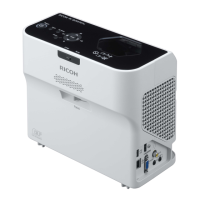
Identifies and describes the exterior parts of the projector, including the lens, control panel, and ports.

Control Panel

Explains the function of each button on the projector's control panel, including Menu, Input, Power, and Eco buttons.

Connecting Equipment to the Projector

Explains how to connect various external devices like computers, AV equipment, and external displays to the projector.

Projecting an Image

Precautions for Using the Projector

Provides critical safety warnings regarding power sources, cables, ventilation, and handling the projector to prevent hazards.

Basic Operations

Details the fundamental steps for projecting an image, including powering on, connecting equipment, and selecting input signals.

Turning Off the Projector

Provides instructions on how to properly turn off the projector, including unplugging the power cord.

Changing the Projector Settings

Troubleshooting

Maintenance

Ricoh PJ X3340 Specifications

General IconGeneral
ResolutionXGA (1024 x 768)
Max ResolutionUXGA (1600 x 1200)
Display TechnologyDLP
Video CompatibilityNTSC, PAL, SECAM
Projection Size30 - 300 inches
Lamp TypeUHP
ConnectivityHDMI, VGA, USB
Zoom Ratio1.1x
Keystone CorrectionVertical ±30 degrees
Aspect Ratio4:3, 16:9
Output PortsAudio Out
Noise Level29 dB (Eco mode)
Lamp Life5000 hours (Normal) / 6000 hours (Eco)

Related product manuals