EasyManua.ls Logo

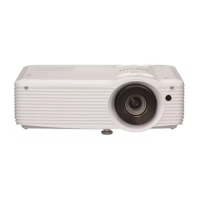
Ricoh PJ XL4540 - User Manual

Ricoh PJ XL4540
67 pages
Print Icon
To Next Page IconTo Next Page
Loading...
RICOH PJ LX3000ST/LW3000ST Series
RICOH PJ XL4540/WXL4540

Other manuals for Ricoh PJ XL4540

Questions and Answers

  • P
    Paige KimAug 17, 2025
    Why is my Notebook or PowerBook computer screen not displaying a presentation on the Ricoh Projector?
    • M
      Mr. Daniel BellAug 17, 2025
      Some Notebook PCs may deactivate their own screens when a second display device is in use. Each has a different way to be reactivated. Refer to your computer’s documentation for detailed information.
  • J
    Jacob MorganAug 20, 2025
    What does a flashing red light on my Ricoh PJ XL4540 mean when powering up?
    • A
      amyingramAug 20, 2025
      When the Ricoh Projector is powering up (warming up), the indicator light will flash red every 1.0 second.
  • D
    Deborah VaughnAug 22, 2025
    Why does my Ricoh PJ XL4540 Projector have no image on the screen?
    • D
      davidtannerAug 22, 2025
      If no image appears on the screen, ensure all the cables and power connections are correctly and securely connected. Also, check that the pins of terminals are not crooked or broken. Make sure you have removed the lens cap and the projector is switched on. Finally, ensure that the 'AV Mute' feature is not turned on.
  • M
    Megan PenaAug 26, 2025
    What to do if the Ricoh PJ XL4540 Projector image is too small or too large?
    • C
      Carol EllisAug 26, 2025
      If the image appears too small or too large, try moving the projector closer to or further from the screen. Alternatively, press the 'Aspect' button on the remote control or press the 'Menu' button on the projector panel, go to 'Screen --> Aspect Ratio' and try the different settings.
  • H
    Heather BarrAug 28, 2025
    Why is my Ricoh PJ XL4540 image unstable or flickering?
    • D
      dstoneAug 28, 2025
      If the image is unstable or flickering, try adjusting the 'Phase' or 'Clock'. You can also change the monitor setting from your computer. Finally, check and reconfigure the display mode of your graphic card to make it compatible with the product.
  • M
    michelleschmidtAug 31, 2025
    What to do if the Ricoh PJ XL4540 image is out of focus?
    • S
      Scott CamachoAug 31, 2025
      If the image is out of focus, adjust the Focus Ring on the projector lens. Also, make sure the projection screen is between the required distance.
  • W
    William WeberSep 3, 2025
    What to do if the Ricoh PJ XL4540 is over temperature?
    • J
      Jessica KerrSep 3, 2025
      If the projector is overheating, make sure air inlets and outlets are not blocked. Also, ensure the environment temperature is under 40 degrees C.
  • C
    Christina PhillipsSep 5, 2025
    Why is the image stretched on my Ricoh Projector when displaying 16:9 DVD?
    • H
      Harry MorenoSep 5, 2025
      If the image is stretched when displaying a 16:9 DVD, change 'Aspect' by pressing the key on remote control or OSD menu to show image with proper aspect ratio.
  • R
    Richard HurleySep 8, 2025
    Why is the Ricoh PJ XL4540 Projector image reversed?
    • J
      Jake CastroSep 8, 2025
      If the image is reversed, select 'Screen --> Ceiling Mount' from the OSD and adjust the projection direction.
  • M
    Monica DavisSep 12, 2025
    What to do if the Ricoh PJ XL4540 Projector displays a partial, scrolling, or incorrectly displayed image?
    • K
      Katherine WellsSep 12, 2025
      If the image is partial, scrolling, or incorrectly displayed, press 'Auto Set' on the remote control. You can also adjust the resolution of the computer. Another option is to press the toggle output settings, for example: [Fn]+[F3].

Summary

Usage Notice

Precautions

Detailed safety instructions and warnings for product operation, installation, and handling.

Basic Operations

Connecting the Projector

Guides on connecting the projector to computers and video sources.

Powering the Projector On and Off

Step-by-step instructions for turning the projector on, off, and standby modes.

Projected Image Adjustments

Covers adjusting image height, focus, and size for optimal projection.

User Settings

Picture Settings

Details how to adjust picture settings like color mode, brightness, contrast, and hue.

Troubleshooting

Common Image Display Issues

Addresses issues like no image, distorted, out-of-focus, or incorrectly sized projected images.

Indicator Lights and Error Messages

Explains indicator light patterns and message reminders for troubleshooting.

Maintaining the filter

Installing and Cleaning the Optional Dust Filter

Instructions for installing, cleaning, or replacing the projector's dust filter.

Ricoh PJ XL4540 Specifications

General IconGeneral
Native ResolutionXGA (1024 x 768)
Projection SystemDLP
Resolution1024 x 768
Lamp Life4, 000 hours
Lamp Life (Eco Mode)5000 hours
Projection Size30 to 300 inches
InputsHDMI, VGA

Related product manuals