EasyManua.ls Logo

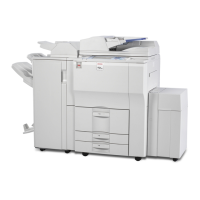
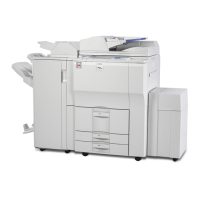
Ricoh Pro 8110 - User Manual

Ricoh Pro 8110
44 pages
Print Icon
To Next Page IconTo Next Page
Loading...
Read this manual carefully before you use this machine and keep
it handy for future reference. For safe and correct use, be sure to
read the Safety Information in this manual before using the
machine.
For information not in this manual, refer to
the HTML/PDF files on the supplied
CD-ROM.
Appendix
Other Information for This Machine
Safety Information for This Machine
Manuals Provided with This Machine
Read This First

Other manuals for Ricoh Pro 8110

Questions and Answers

  • N
    nnewmanSep 4, 2025
    How to turn on the display on Ricoh Pro 8110?
    • J
      Jimmy Butler DVMSep 4, 2025
      If the display is off on your Ricoh All in One Printer, the machine could be in Sleep mode. Press the [Energy Saver] key or the [Check Status] key to exit Sleep mode.
  • M
    mcgrathsusanSep 18, 2025
    Why is the fold position incorrect on Ricoh Pro 8110 All in One Printer?
    • F
      Frank BrownSep 18, 2025
      If the fold position is incorrect when Letter Fold-in is applied to a B5 JIS sheet on your Ricoh All in One Printer, Multi-sheet Fold may have been specified when only one sheet is being printed. In [Output/Customize Function/Finisher] on the initial copier screen, under [Folding Unit], select [Letter Fold-in]. Press [Change], and then set "Multi-sheet Fold" to [Off]. When using the printer function, change the printer driver Letter Fold-in settings so that Multi-sheet Fold is not specified.
  • M
    michaelfosterSep 16, 2025
    Why the function does not run on Ricoh Pro 8110?
    • N
      Nicole NortonSep 16, 2025
      If a function on your Ricoh All in One Printer does not run, it could be because the function cannot be performed while the Address Book is being backed up from Web Image Monitor or other tools running on the computer. Wait a while until the Address Book backup is complete, then the function will be performed.
  • L
    Lisa HarrisSep 14, 2025
    Why does Ricoh Pro 8110 power off automatically?
    • B
      Brandon ChangSep 15, 2025
      If your Ricoh All in One Printer turns off automatically, the Weekly Timer setting may be set to [Main Power Off]. Change the Weekly Timer setting.
  • J
    Jason GainesSep 12, 2025
    What to do if a function does not run on Ricoh Pro 8110?
    • M
      Mary SantosSep 12, 2025
      If a function on your Ricoh All in One Printer does not run or cannot be used, it may be that the machine is currently being used by another function. Wait until the current job is completed before trying again.
  • Z
    Zoe SmithSep 12, 2025
    Why I cannot print in duplex mode on Ricoh Pro 8110?
    • C
      Crystal VasquezSep 12, 2025
      If you cannot print in duplex mode on your Ricoh All in One Printer, it could be because you have selected a paper type that cannot be used for duplex printing. In [Tray Paper Settings], select a paper type that can be used for duplex printing.
  • C
    christopherrossSep 9, 2025
    How to enable duplex printing on Ricoh Pro 8110 All in One Printer?
    • A
      Anthony LewisSep 9, 2025
      If you cannot print in duplex mode on your Ricoh All in One Printer, it might be because you have selected a paper tray that is not set for duplex printing. Change the setting for "Apply Duplex" in [Tray Paper Settings] to enable duplex printing for the paper tray.
  • L
    lfordSep 7, 2025
    Why are original images printed on the reverse side of the paper with Ricoh All in One Printer?
    • D
      Denise WhiteSep 8, 2025
      If original images are being printed on the reverse side of the paper by your Ricoh All in One Printer, the paper may have been loaded incorrectly. Load the paper correctly.
  • C
    Cynthia DavisSep 5, 2025
    What to do if nothing happens when pressing [Check Status] or [Energy Saver] key on Ricoh Pro 8110?
    • S
      sarah53Sep 5, 2025
      If nothing happens when you press the [Check Status] key or the [Energy Saver] key on your Ricoh All in One Printer, the power might be turned off. Ensure the main power indicator is off, and then turn on the power.
  • A
    Audrey RuizAug 21, 2025
    Why are documents not printing from my Ricoh Pro 8110?
    • M
      Michael ClarkAug 21, 2025
      If documents and reports are not printing from your Ricoh All in One Printer, it might be because the paper output tray is full. Remove the prints from the tray. Alternatively, the printer may be out of paper. In this case, load paper into the printer.

Ricoh Pro 8110 Specifications

General IconGeneral
Duplex PrintingYes
Print TechnologyLaser
Paper Capacity8200 sheets
ConnectivityEthernet
Operating System CompatibilityWindows
Maximum Paper Size13" x 19.2"
Supported Media TypesCoated
Warm-up TimeLess than 300 seconds

Related product manuals