EasyManua.ls Logo

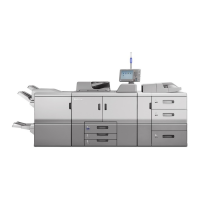
Ricoh Pro 8100S - User Manual

Ricoh Pro 8100S
238 pages
Print Icon
To Next Page IconTo Next Page
Loading...
For safe and correct use, be sure to read the Safety Information in
Read This First before using the machine.
For information not in this manual, refer to
the HTML/PDF files on the supplied
CD-ROM.
Troubleshooting
Adding Paper and Toner
Web Image Monitor
Document Server
Scan
Print
Copy
Getting Started
Easy Search
User Guide

Table of Contents

Other manuals for Ricoh Pro 8100S

Questions and Answers

  • B
    Brian HernandezSep 13, 2025
    What to do if Ricoh Pro 8100S is unable to connect to the network?
    • J
      james56Sep 13, 2025
      If your Ricoh All in One Printer can't connect to the network, it might be due to a network error. Ensure the printer is correctly connected and properly configured. If issues persist, contact your administrator. If the indicator lamp remains lit after troubleshooting, contact your service representative.
  • T
    Teresa GillAug 25, 2025
    What to do if Ricoh Printer misfeeds frequently?
    • R
      russellstephenAug 25, 2025
      Frequent misfeeds in your Ricoh Printer can occur due to several reasons. Using curled paper can cause misfeeds, so straighten the paper or load it upside down. Ensure the tray's side or end fences are properly set and locked. Misfeeds may also happen if paper of undetectable size has been loaded or if there's a foreign object on the finisher tray. Lastly, check if the staple cartridge is correctly set.
  • L
    Lauren BrownAug 25, 2025
    Why are documents not printing from my Ricoh All in One Printer?
    • C
      cindy55Aug 26, 2025
      If documents and reports are not printing from your Ricoh All in One Printer, it might be because the paper output tray is full. Remove the prints from the tray. Alternatively, the printer may be out of paper. In this case, load paper into the printer.
  • J
    James YangSep 23, 2025
    Why is the fold position incorrect on Ricoh Pro 8100S?
    • B
      Benjamin PrestonSep 23, 2025
      If the fold position is incorrect when Letter Fold-in is applied to a B5 JIS sheet on your Ricoh All in One Printer, Multi-sheet Fold may have been specified when only one sheet is being printed. In [Output/Customize Function/Finisher] on the initial copier screen, under [Folding Unit], select [Letter Fold-in]. Press [Change], and then set "Multi-sheet Fold" to [Off]. When using the printer function, change the printer driver Letter Fold-in settings so that Multi-sheet Fold is not specified.
  • D
    David AndersonSep 14, 2025
    Why is the display turned off on my Ricoh All in One Printer?
    • R
      Rodney SmithSep 14, 2025
      If the display on your Ricoh All in One Printer is turned off, the machine may be in Low Power mode. Touch the display panel or press a key on the control panel to exit Low Power mode.
  • T
    Tara TranSep 23, 2025
    Why does Ricoh Pro 8100S power off automatically?
    • R
      robert27Sep 23, 2025
      If your Ricoh All in One Printer turns off automatically, the Weekly Timer setting may be set to [Main Power Off]. Change the Weekly Timer setting.
  • A
    Amy FigueroaSep 6, 2025
    Why is a function not running or cannot be used on my Ricoh Printer?
    • H
      Hannah JensenSep 6, 2025
      If a function on your Ricoh Printer does not run or cannot be used, the machine may be in use by another function. Wait until the current job is completed before trying again. Also, the function cannot be performed while the Address Book is being backed up. Wait a while, and when the Address Book backup is complete, the function will be performed.
  • T
    Terry StewartSep 7, 2025
    Why is paper bent when it comes out of my Ricoh Printer?
    • L
      leachnicholasSep 7, 2025
      If paper is bent when ejected from the finisher upper tray of your Ricoh Printer, change the output tray to the finisher shift tray.
  • M
    Melissa WernerSep 23, 2025
    Why the function does not run on Ricoh All in One Printer?
    • S
      Susan JimenezSep 23, 2025
      If a function on your Ricoh All in One Printer does not run, it could be because the function cannot be performed while the Address Book is being backed up from Web Image Monitor or other tools running on the computer. Wait a while until the Address Book backup is complete, then the function will be performed.
  • K
    Kylie TorresAug 31, 2025
    What to do if Ricoh Printer shows an error?
    • J
      Jennifer SmithAug 31, 2025
      If an error has occurred on your Ricoh Printer, and the status "Error Occurred" is displayed in the [Check Status] screen, press [Check] in the function where the error occurred. Check the displayed message and take appropriate action. You can still use other functions normally.

Summary

1. Easy Search

Preventing Information Leakage (Security Functions)

Implement security measures to protect data and prevent unauthorized access.

2. Getting Started

Guide to Names and Functions of Components

Understand the physical parts and their roles in the machine's operation.

3. Copy

Basic Procedure

Step-by-step guide to making standard copies of documents.

4. Print

Quick Install

Install printer drivers easily from the provided CD-ROM.

5. Scan

Basic Procedure When Using Scan to Folder

Scan documents and send them directly to a network folder.

Basic Procedure for Sending Scan Files by E mail

Scan documents and send them as email attachments to specified recipients.

6. Document Server

Storing Data

Save scanned documents on the machine's hard disk for later retrieval and printing.

Printing Stored Documents

Print documents that have been previously saved in the Document Server.

8. Adding Paper and Toner

Loading Paper

Learn the correct procedures for loading various types of paper into the machine's trays.

Adding Toner

Follow safety precautions and procedures for installing new toner cartridges.

9. Troubleshooting

When a Status Icon Is Displayed

Understand status icons indicating machine issues and required actions.

Ricoh Pro 8100S Specifications

General IconGeneral
Print Resolution1200 x 1200 dpi
Hard Drive320 GB
ConnectivityEthernet, USB
Supported Media SizesA4, A5, B5, Letter, Legal
Duplex PrintingYes
Paper Weight52-300 gsm
Memory2 GB
Operating System CompatibilityWindows, macOS, Linux
Weight90 kg

Related product manuals